Translating Theme Strings
Theme language files let you translate built-in text, such as button labels and messages, without editing the original strings in the theme’s code. You can also use them to change English wording on an English-language site.
Use Loco Translate to work inside WordPress, or Poedit to edit language files on your computer. This process translates theme strings; text you enter in pages, posts, menus, or theme settings needs to be edited separately.
Before you start
Section titled “Before you start”Check Settings → General → Site Language in WordPress. Your translation must match that language, including its regional or formal variant. See the WordPress General Settings guide for the site language setting.
Themes include a translation template or source file in their languages folder. Depending on the theme and version, it may be named rt_theme.po, rt_theme.pot, or rt_theme_XX.po / rt_theme_XX.pot, where XX is the theme number.
.potfiles contain the source strings used to create a translation..pofiles contain the editable source strings and their translations..mofiles are compiled translations that WordPress loads to display the translated text.
Keep a backup of your translation files. Files stored inside the parent theme’s folder can be replaced when you update the theme.
Translate with Loco Translate
Section titled “Translate with Loco Translate”- Install and activate Loco Translate.
- Go to Loco Translate → Themes and select your theme, for example RT-Theme 20.
- Click New language. Use the bundled translation template if it is available. If an older theme prompts you to create a template first, the original support instructions use Skip template. You can also copy the bundled
rt_theme.pofile into a new language, choosing Just copy English source strings when translating into a different language. - Select the WordPress language that matches your site’s Site Language.
- Choose the Custom location under
wp-content/languages/loco/themes/. This location protects your files from automatic theme and WordPress translation updates. Keep Loco Translate active so it can load translations from its custom folder. See Loco’s language and file-location guide. - Click Start translating.
- Select a source string, enter its translation, and repeat for the strings you want to change. Leave the original source text unchanged.
- Click Save, then check the corresponding text on your website.
The following screenshot from the original support guide shows copying the source file and selecting a language. Its interface may differ from your installed version.
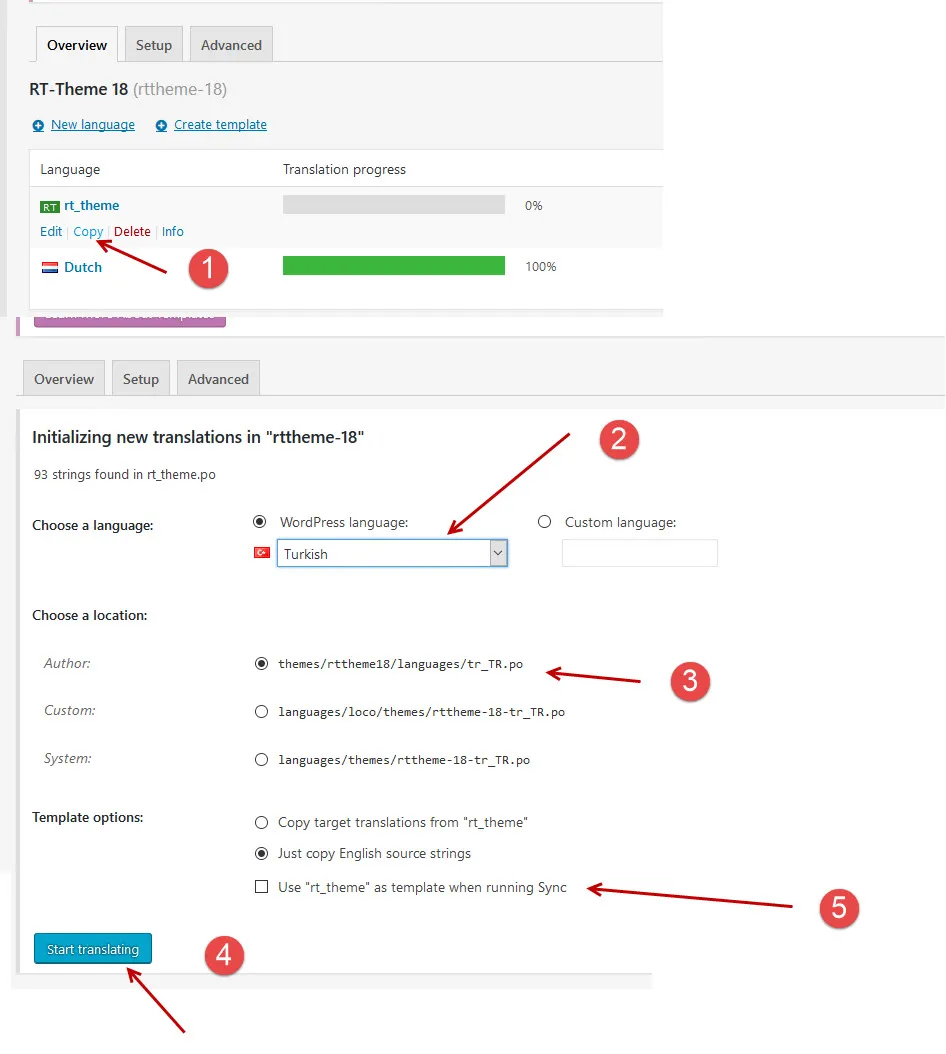
Choose Custom when following this example. The older screenshot has the Author location selected, which stores files inside the theme and can lose your translations during an update.
If Loco does not recognize the theme’s text domain
Section titled “If Loco does not recognize the theme’s text domain”The text domain identifies which theme a string belongs to. Check the Text Domain: entry in the parent theme’s style.css header. The original RT-Theme 18 example uses:
Text Domain: rttheme-18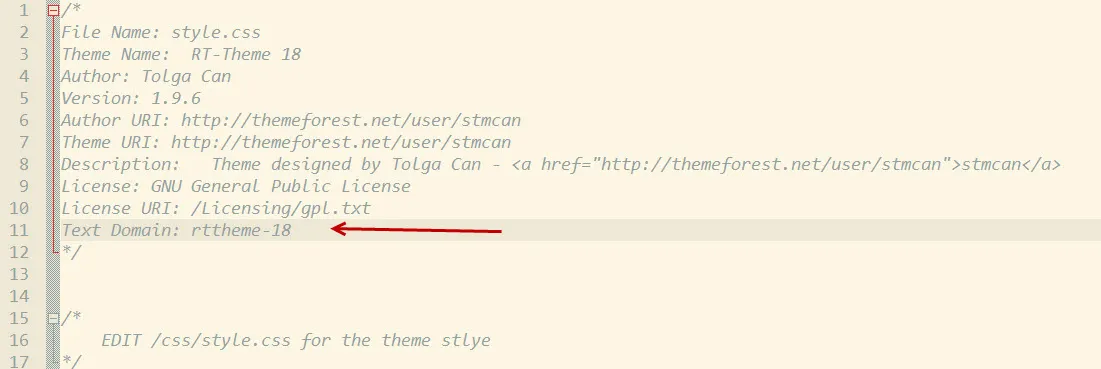
This value is an example for that theme version. Use the text domain actually used by your installed theme; it can differ between themes or versions. If an older theme is missing the entry, add the correct Text Domain: line inside the opening header comment, before its closing */. Back up the file first, and remember that a parent-theme update may replace this edit.
Translate with Poedit
Section titled “Translate with Poedit”- Download and install Poedit.
- Find the source
.poor.potfile in your theme’slanguagesfolder. - If you have a
.potfile, use Poedit’s option to create a new translation from it and select your language. If you have a source.pofile, duplicate it and name the copy with your site’s locale, such asde_DE.pofor German. - Open the new
.pofile in Poedit. Select each string and enter your text in the Translation field. Do not delete or change the original string. - Save the file. Check that Poedit also creates the matching
.mofile, such asde_DE.mo. If it does not, enable automatic.mocompilation in Poedit’s preferences or settings and save again. - Upload both files to the theme’s language folder, for example
/wp-content/themes/rttheme18/languages/.
For the bundled theme language-folder method, use filenames like these:
| Site language | Editable file | Compiled file |
|---|---|---|
| German | de_DE.po | de_DE.mo |
| German, formal (Deutsch Sie) | de_DE_formal.po | de_DE_formal.mo |
| Spanish (Spain) | es_ES.po | es_ES.mo |
| Turkish | tr_TR.po | tr_TR.mo |
| French (France) | fr_FR.po | fr_FR.mo |
| English (United States) | en_US.po | en_US.mo |
WordPress loads the matching translation automatically when the theme is active and Site Language matches the files. There is no separate translation activation step for this method.
Protect your work before updating. Uploading directly to the parent theme’s languages folder follows the original Poedit instructions, but an update can replace those files. Keep copies outside the theme, or use Loco’s Custom location. Loco’s custom and WordPress’s global language locations use text-domain-prefixed filenames; do not assume the locale-only names above apply to every location.
Change English wording
Section titled “Change English wording”You can use either method even when your site is in English. For a site using English (United States), create an en_US translation and enter your preferred wording as the translation of each original English string. With the Poedit theme-folder method, save it as en_US.po and en_US.mo.
For a few individual replacements, the original support thread also mentions Say What? as an alternative. The support team had not tested it in that thread; Loco Translate and Poedit are the documented methods here.
Troubleshooting
Section titled “Troubleshooting”Translations are saved but do not appear
Section titled “Translations are saved but do not appear”- Confirm that the translation language matches Settings → General → Site Language exactly.
- Check that the
.mofile exists and was regenerated after your latest edits. A saved.pofile alone is not enough for the Poedit method. - Check the filename, file location, and theme text domain. For Loco’s Custom location, confirm that Loco Translate is still active.
- If the string belongs to a plugin rather than the theme, open that plugin under Loco Translate → Plugins and translate it there.
- If you use a child theme, check how it loads language files. Simply moving the parent theme’s translations into a child theme folder does not guarantee they will load.
Formal German requires a separate locale
Section titled “Formal German requires a separate locale”When WordPress uses Deutsch (Sie), use de_DE_formal.po and de_DE_formal.mo in the theme’s language folder. Files named de_DE.po and de_DE.mo correspond to standard German.
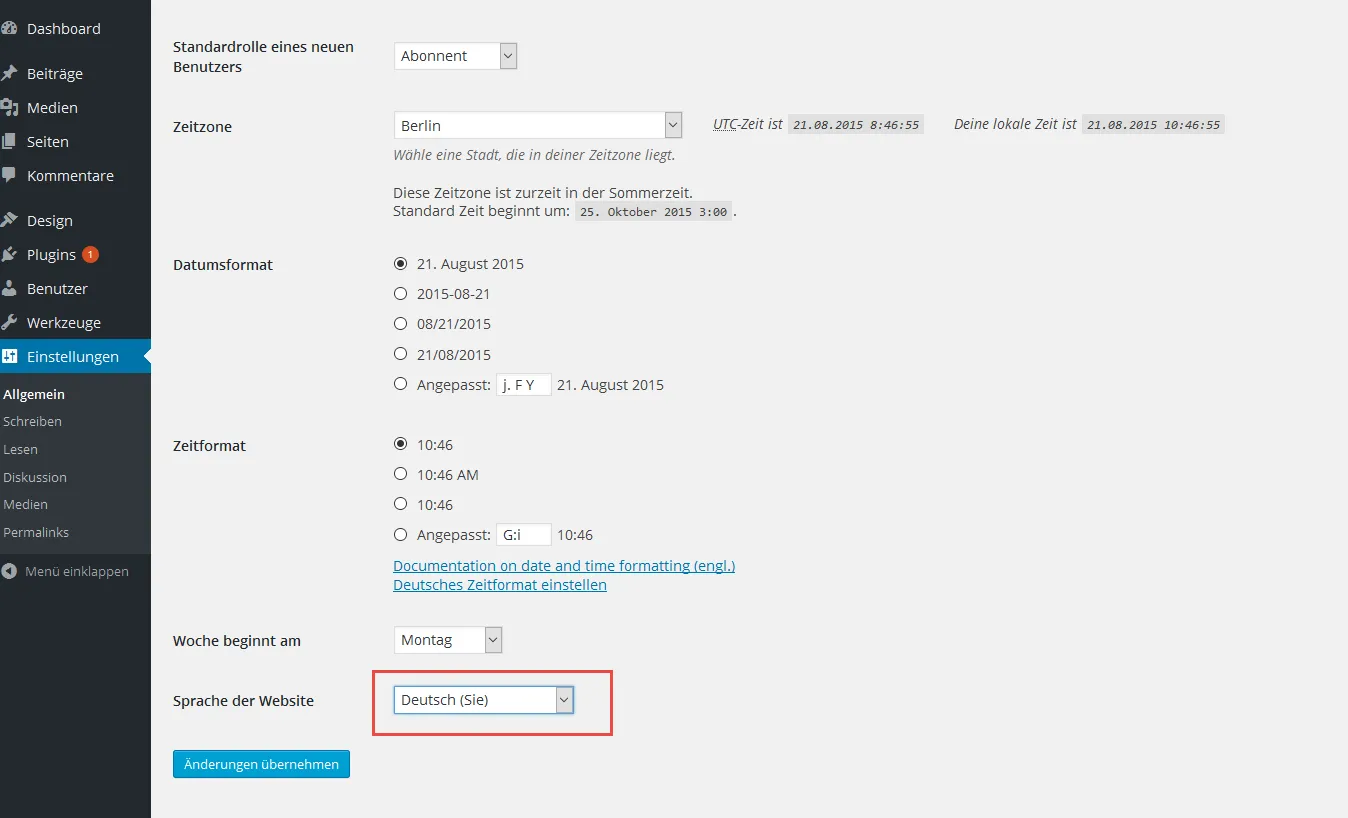
The original support thread mentions Language Fallback for remaining fallback issues. First check that your translation uses the exact locale selected in WordPress.