Navigations
Menu locations
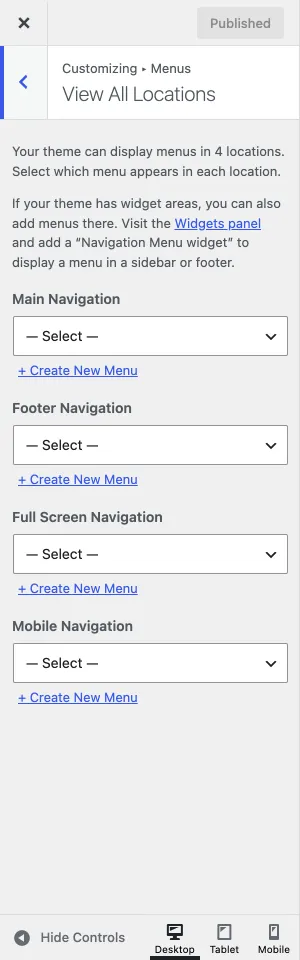
Section titled “Menu locations”Nixe has four menu locations:
| Location | Where it shows |
|---|---|
| Main Navigation | The menu in the header |
| Footer Navigation | The menu in the footer |
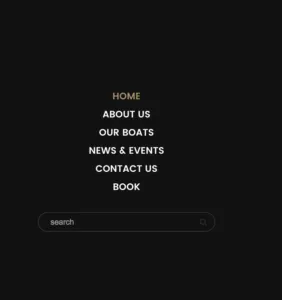
| Full Screen Navigation | The full-screen menu that opens from the menu button in the header |
| Mobile Navigation | The menu on small screens |
Activating the theme creates the locations automatically. If you already have a menu, assign it to a location on the Manage Locations tab of Appearance › Menus, or in Customize › Menus › View All Locations.
Managing navigation menus
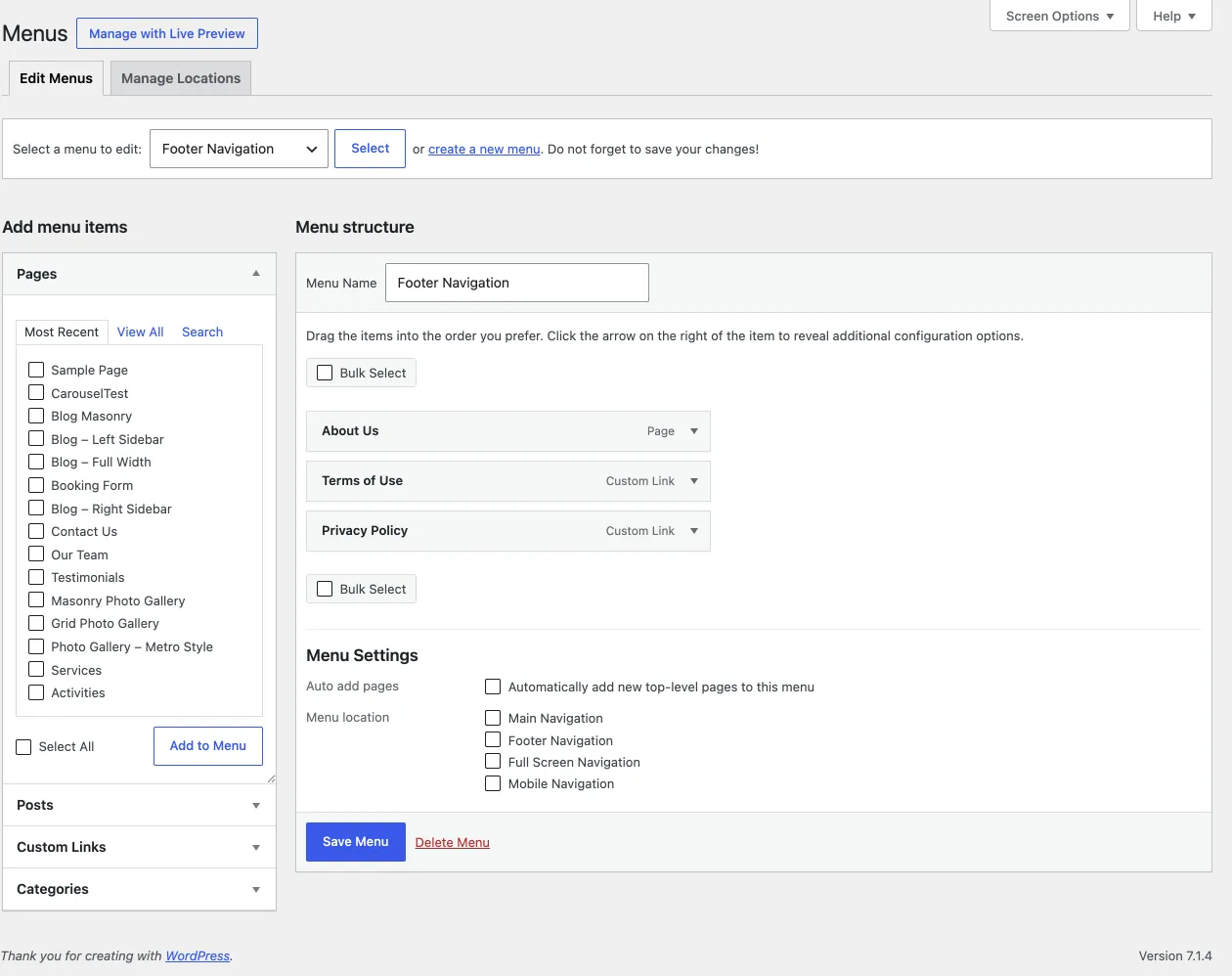
Section titled “Managing navigation menus”You build menus in Appearance › Menus: select the menu you want to edit and add items from the panel on the left. How to create a menu, add items and custom links, and use Screen Options is in Creating menus.
Nixe’s post types, Portfolio, Rooms, Team and Testimonials, are hidden from the list of available items by default. To add them to a menu, turn them on in Screen Options at the top right of the screen.
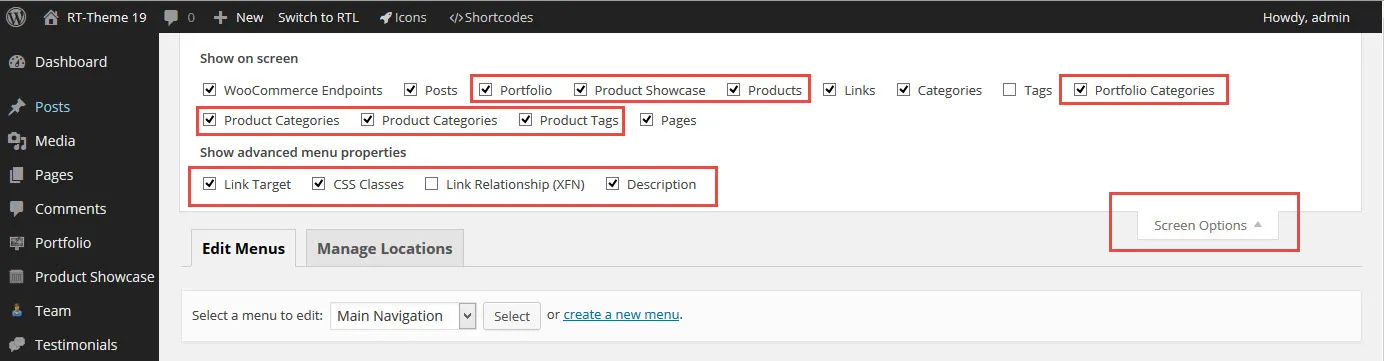
Editing menu items
Section titled “Editing menu items”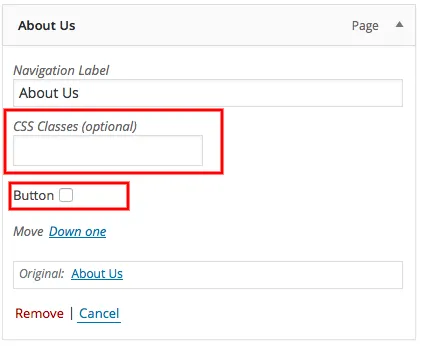
When you have turned on these fields, you can:
- Add an icon to a menu item. Expand the item and click the CSS Classes field: a list of icons appears, and you pick one. The CSS Classes field must be turned on in Screen Options.
- Turn a main navigation item into a button. Check the Button box, like the “Book” button on the demo site.
Mobile navigation
Section titled “Mobile navigation”The mobile navigation also contains the main navigation items, but it shows only on small screens. The mobile menu looks different from the desktop menu, and some settings, such as icons, do not show on mobile.
Fullscreen navigation
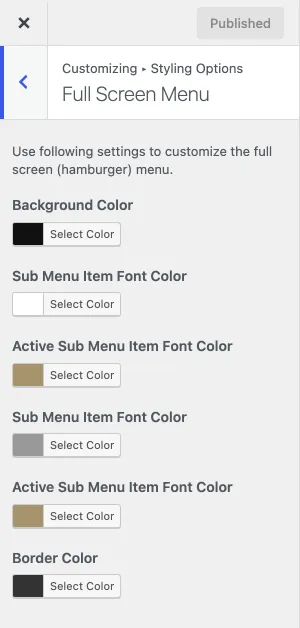
Section titled “Fullscreen navigation”The Full Screen Navigation location shows only when a visitor clicks the full-screen menu button in the header. Turn the button on or off with the Display Full Screen Menu Button checkbox in Customize › Styling Options › Header. You can use the classic navigation and the full-screen navigation at the same time. The colours of the full-screen menu are in Customize › Styling Options › Full Screen Menu.