
Rooms
What the Rooms post type is
Section titled “What the Rooms post type is”Rooms is a built-in post type for room lists and single room pages. We designed it for hotel rooms and similar listings, but you can use it for anything else that suits the design. You find it in the Rooms menu of your WordPress admin, where you also manage the room categories. Use it when you want to show each room with its photos, its features and a gallery, and list the rooms on one or more pages. You can change the permalink structure under Settings › Permalinks.
Creating a room post
Section titled “Creating a room post”To create a room, go to your WordPress admin and click one of the Add New links under Rooms.
Featured image
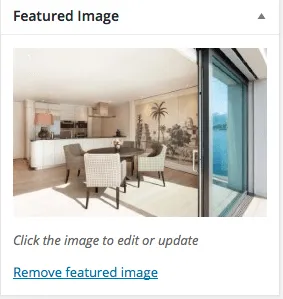
Section titled “Featured image”Use the Featured Image box to upload or select the room’s featured image. Nixe uses the featured image on listing pages and in carousels. It is also added to the image gallery, unless you turn that off in the room options.
Key features
Section titled “Key features”Use the Key Features box to create an inline list that shows on the single room page and on listing pages. All Features creates a bullet list automatically.
If you choose Hide the Key Features and leave All Features empty, the room becomes a regular page, so you can build your own layout with the page builder. The demo importer includes a few variations.
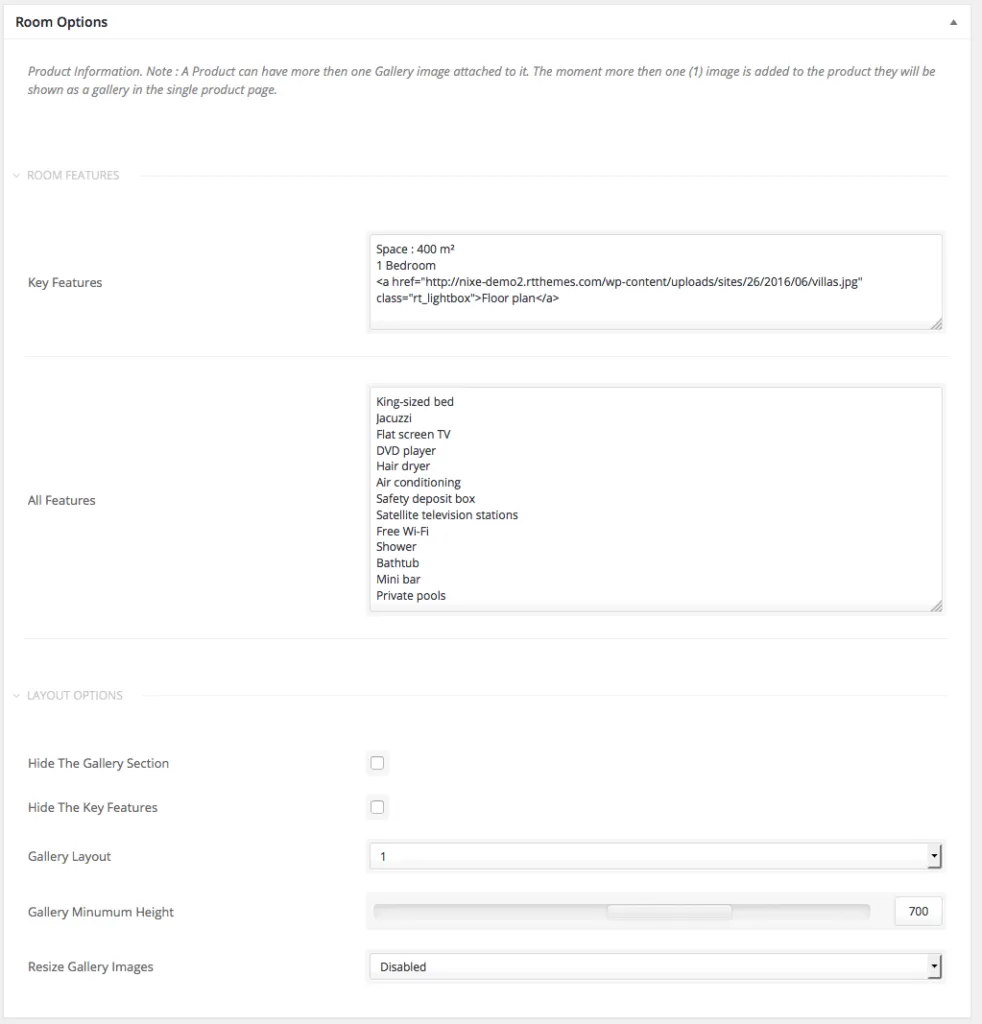
Image gallery
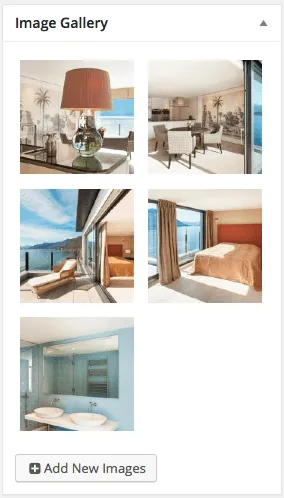
Section titled “Image gallery”Use the Image Gallery box to select or upload the room’s gallery images.
Creating a room listing page
Section titled “Creating a room listing page”Setting up a room listing page takes three steps:
- Create your room posts.
- Create a page.
- Insert the Room Posts shortcode, or use WPBakery Page Builder and add a Room Posts element.
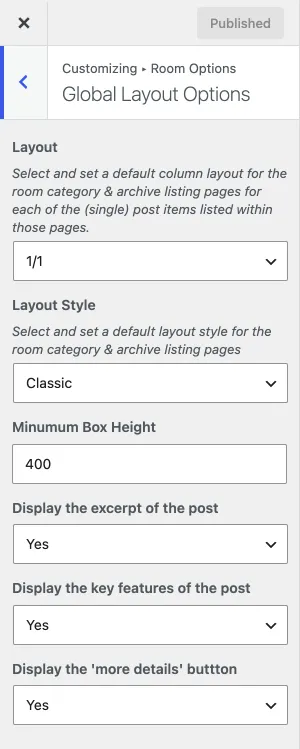
Room category and archive pages use the defaults in Customize › Room Options: Global Layout Options, Listing Parameters (rooms per page and sort order) and Featured Images (resizing, size and cropping).
Room Posts element in WPBakery
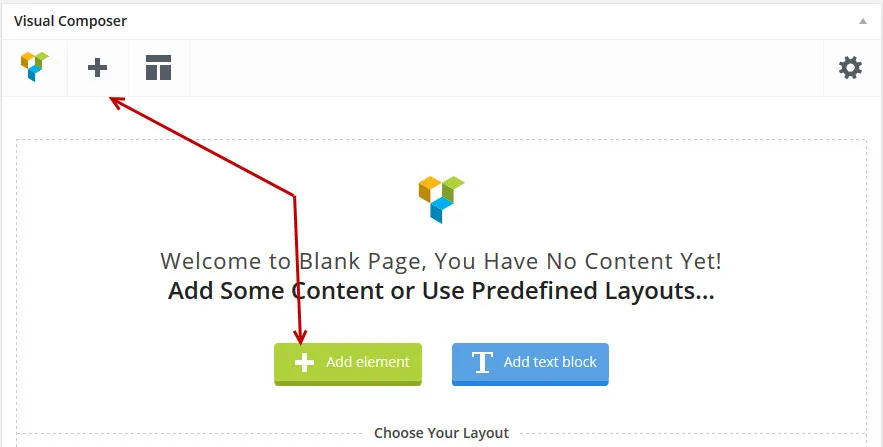
Section titled “Room Posts element in WPBakery”In WPBakery Page Builder, click Add Element (the + sign) and add a Room Posts element.
Room list shortcode
Section titled “Room list shortcode”Click the shortcodes button in the admin bar to open the shortcode helper. In the dialog, select the Room Posts shortcode.