
Portfolio
What the Portfolio post type is
Section titled “What the Portfolio post type is”Portfolio is a built-in post type for flexible portfolio lists and pages. Use portfolio posts to present your products or services in an organised way. You can change the permalink structure under Settings › Permalinks.
Creating a portfolio post
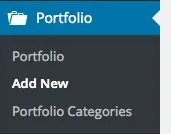
Section titled “Creating a portfolio post”To create a portfolio item, go to your WordPress admin and click one of the Add New links under Portfolio.
Featured image
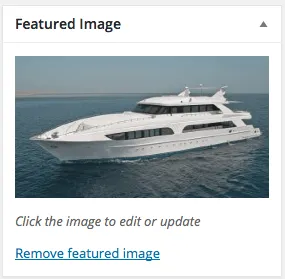
Section titled “Featured image”Use the Featured Image box to upload or select the post’s featured image. Nixe uses the featured image on listing pages and in carousels. It is also added to the image gallery, unless you turn that off in the Portfolio Options box.
Single portfolio posts
Section titled “Single portfolio posts”A single portfolio page can have different layouts:
- Default layouts
- Image / Gallery
- Video
- Custom layouts
- WPBakery Page Builder
- Regular page
Default layouts
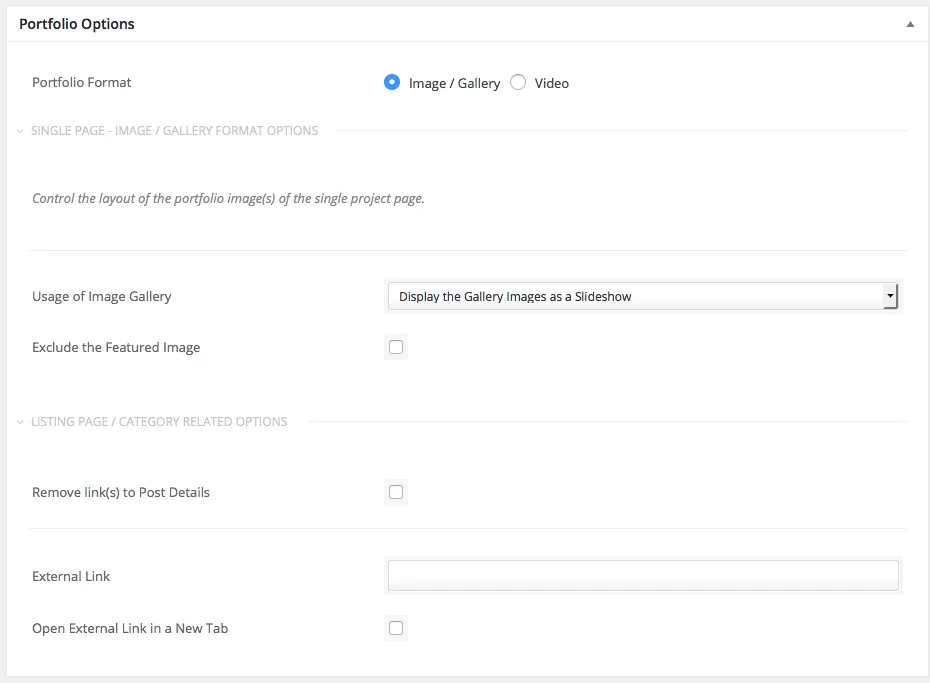
Section titled “Default layouts”A portfolio item has two formats: image / gallery and video. Use the options in the Portfolio Options box to find the layout variation that suits your content best.
Project info or custom layouts
Section titled “Project info or custom layouts”The optional Project Info box places information next to the main content. To turn the box off completely, select Custom layout. If you plan to build your own layout with the page builder or shortcodes, you must select Custom layout.
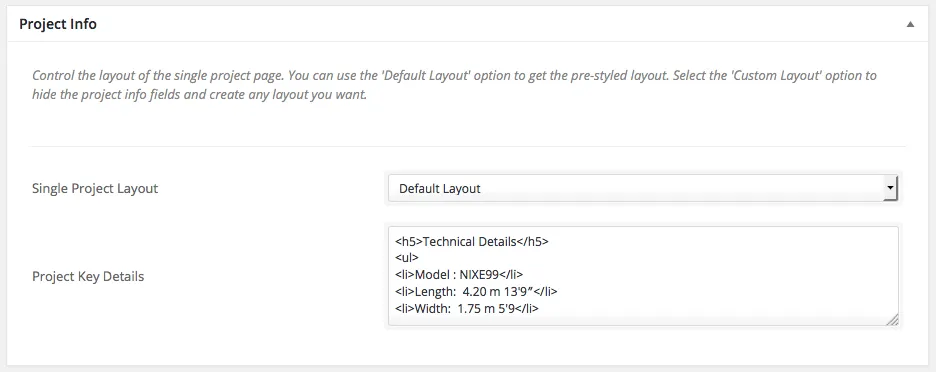
Image gallery
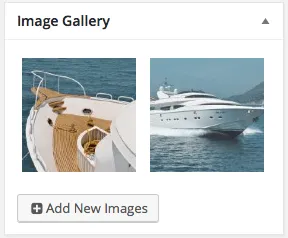
Section titled “Image gallery”If you selected the Image / Gallery format, select or upload the gallery images in the Image Gallery box.
Things to keep in mind
Section titled “Things to keep in mind”- A portfolio post can have a featured image and several other images that show as its image gallery.
- A portfolio post needs at least one portfolio category.
- Use the Portfolio Options box to change the layout and style of the single portfolio page, or how the item behaves in a portfolio list.
Creating a portfolio listing page
Section titled “Creating a portfolio listing page”Setting up a portfolio listing page takes three steps:
- Create your portfolio posts.
- Create a page.
- Insert the Portfolio Posts shortcode, or use WPBakery Page Builder and add a Portfolio Posts element.
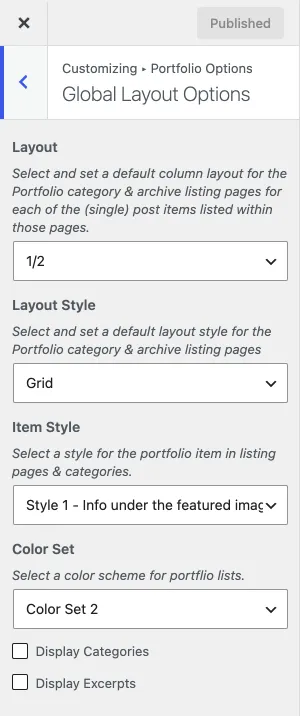
Portfolio category and archive pages use the defaults in Customize › Portfolio Options: Global Layout Options, Listing Parameters, Featured Images and Comments.
Portfolio Posts element in WPBakery
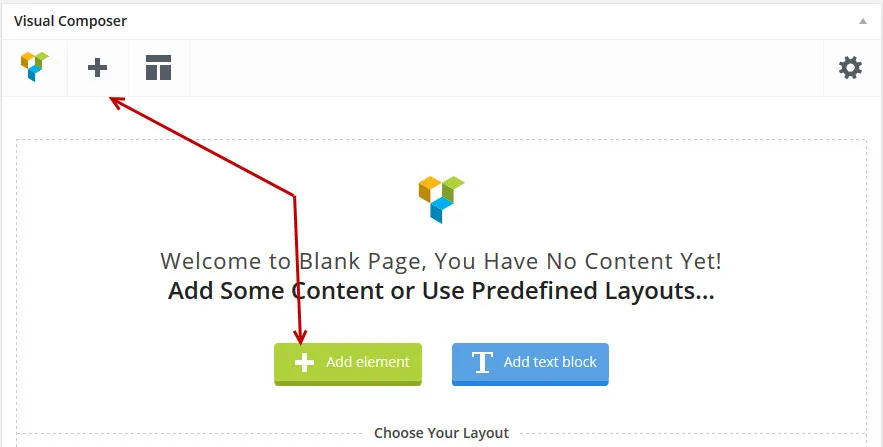
Section titled “Portfolio Posts element in WPBakery”In WPBakery Page Builder, click Add Element (the + sign) and add a Portfolio Posts element.
Portfolio list shortcode
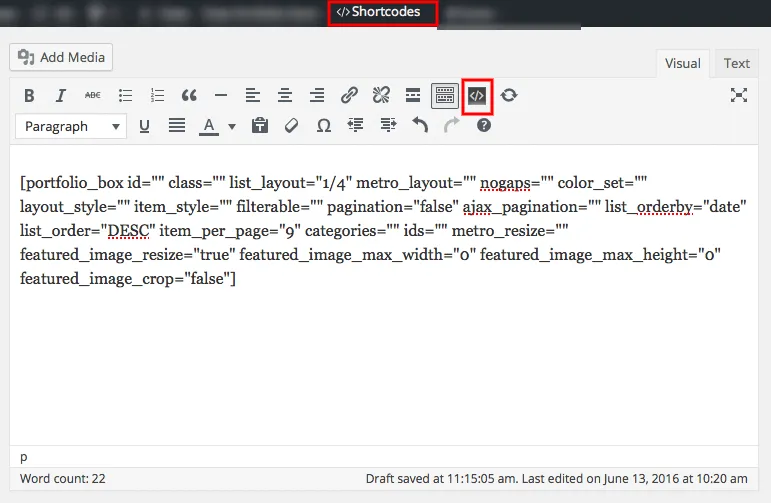
Section titled “Portfolio list shortcode”Click the shortcodes button in the admin bar to open the shortcode helper. In the dialog, select the Portfolio Posts shortcode.
Creating a portfolio carousel
Section titled “Creating a portfolio carousel”Portfolio carousels work like portfolio lists: there is a WPBakery Page Builder element and a shortcode for them. Add the element the same way as the Portfolio Posts element above, or insert the carousel shortcode with the shortcode helper.