
Navigations
RT-Theme 20 has two menu locations: Main Navigation and Footer Navigation. Activating the theme creates both locations. If you already have a menu, assign it to a location on the Manage Locations tab of Appearance › Menus.
Managing navigation menus
Section titled “Managing navigation menus”- Go to Appearance › Menus and select the menu you want to edit.
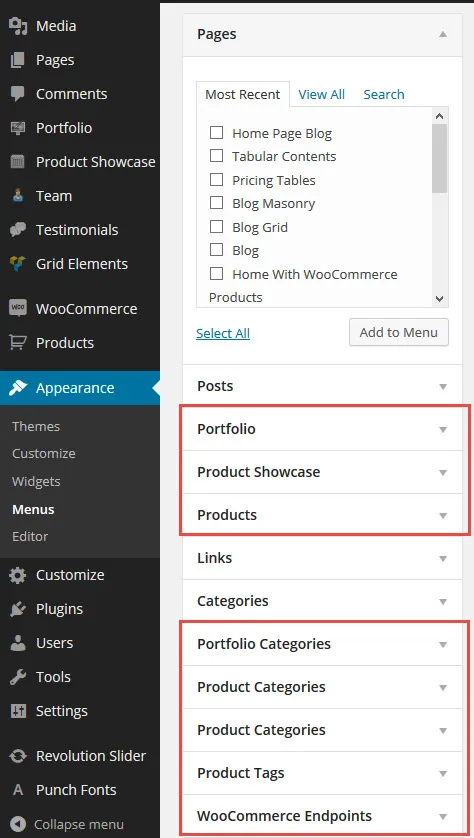
- Add items to the menu from the panel on the left.
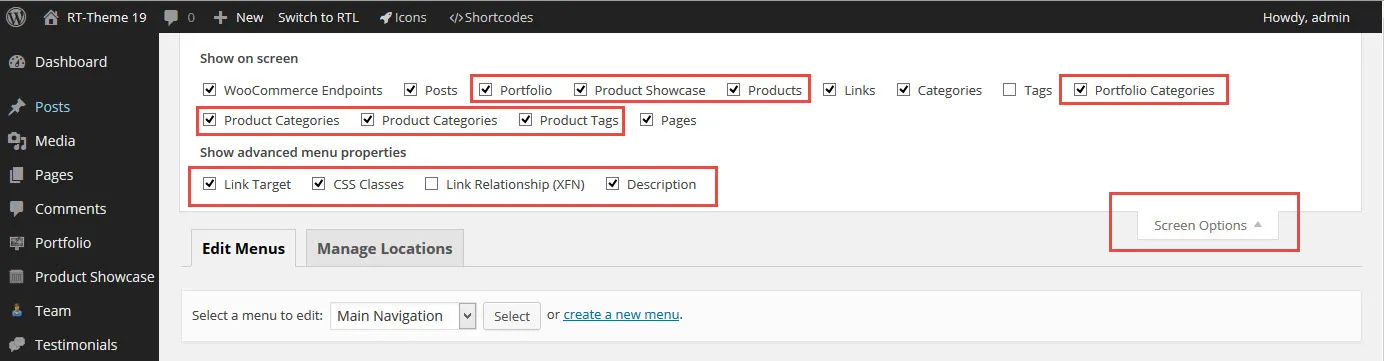
- The theme’s custom post types and WooCommerce products (Product Showcase, Team, Testimonials, Products) do not appear in that panel by default. Turn them on under Screen Options, at the top right of the screen.
Editing menu items
Section titled “Editing menu items”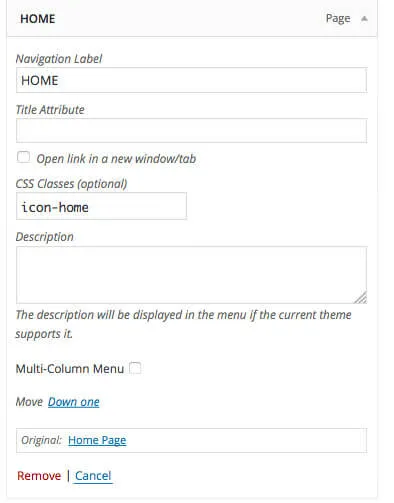
Once these fields are visible on the menu items, you can:
- Add an icon. Expand a menu item and click the CSS Classes field to pick an icon from the list. To see the field, turn on CSS Classes under Screen Options.
- Add a sub text. Text in the Description field shows below the menu item’s label. To see the field, turn on Description under Screen Options.
- Split the sub-menus into columns. Select the Multi-Column Menu option.
Mobile navigation
Section titled “Mobile navigation”The mobile menu is not the same as the desktop menu you see when you make your browser window narrow. It looks different, and some settings, such as icons, do not show in it.
Multi-column navigation (mega menu)
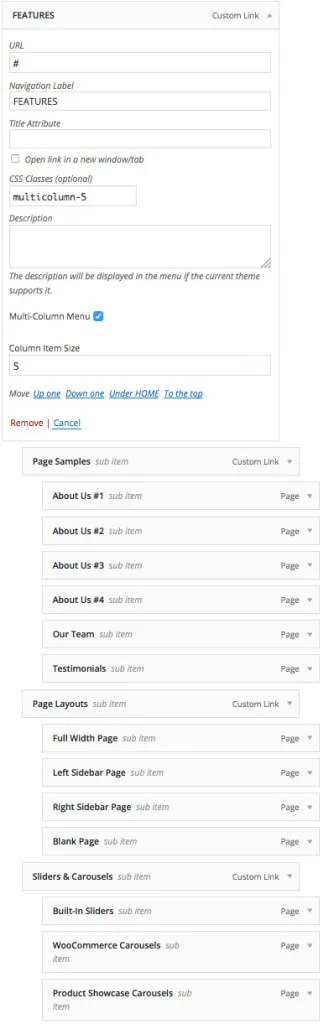
Section titled “Multi-column navigation (mega menu)”To create a multi-column drop-down menu, select the Multi-Column check box of a menu item. It works only on top-level items. Once you check the box, the item’s sub-menu items show in columns.
The screenshot shows the “Features” menu of our demo site. We built it from five second-level items, each with its own third-level items under it. A second-level item that has a sub-menu becomes a section title.
The mobile menu shows multi-column menus as regular menus.