
Blog
Creating a blog post
Section titled “Creating a blog post”A blog list is made of single blog posts. You can group the posts into categories and show them on an overview page (the blog list).
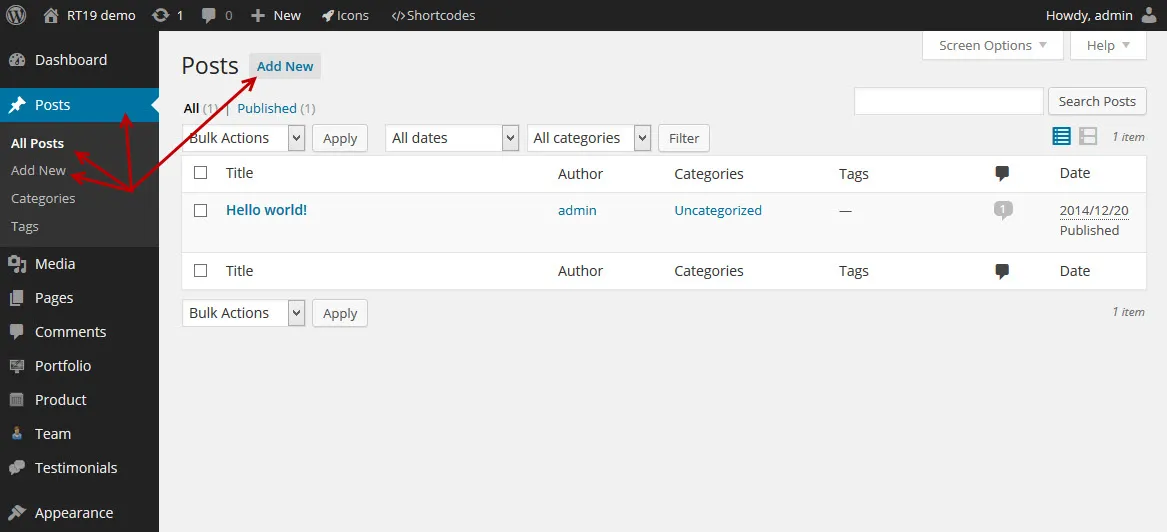
Create your blog posts under Posts in your admin.
Things you should know
Section titled “Things you should know”-
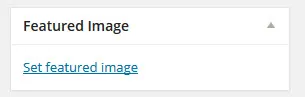
Upload a featured image with the Set featured image link in the Featured Image box.
-
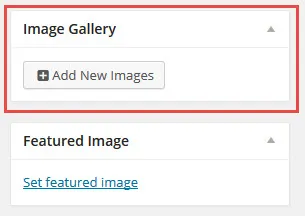
Attach gallery images to the post the same way: click Add New Images in the Image Gallery box.
-
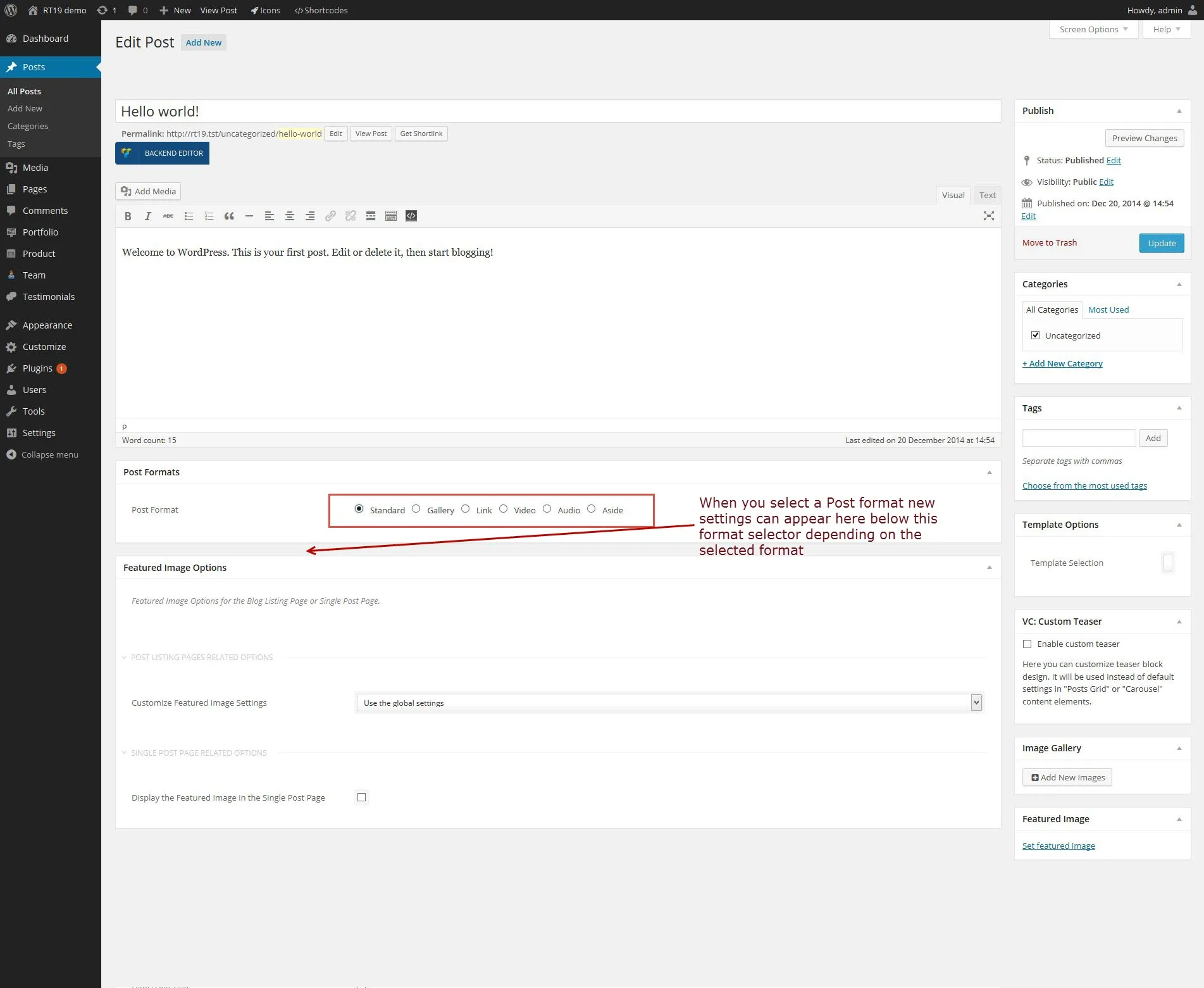
Every post has a format. Depending on the format you choose, more settings appear for you to fill in. Each setting has a help text that explains what to enter. The format decides how the post looks and behaves on your site.

Post format options
Section titled “Post format options”-
Choose one of six post formats in the Format box:
- Standard: shows the featured image.
- Gallery: shows the images as a gallery or a slider.
- Link: tells something about a subject and adds a link to another site.
- Video: shows and plays a video.
- Audio: shows and plays an audio file.
- Aside: the post appears in the blog list but cannot be opened as a single post.
-
When you select a format, its options appear in the post, below the format setting. Fill them in.
Creating a blog listing page
Section titled “Creating a blog listing page”Any page can be your blog listing page. With WPBakery Page Builder and the Blog Posts element you can create several blog listing pages, each showing the posts of different categories.
-
Create a page called “Blog”.
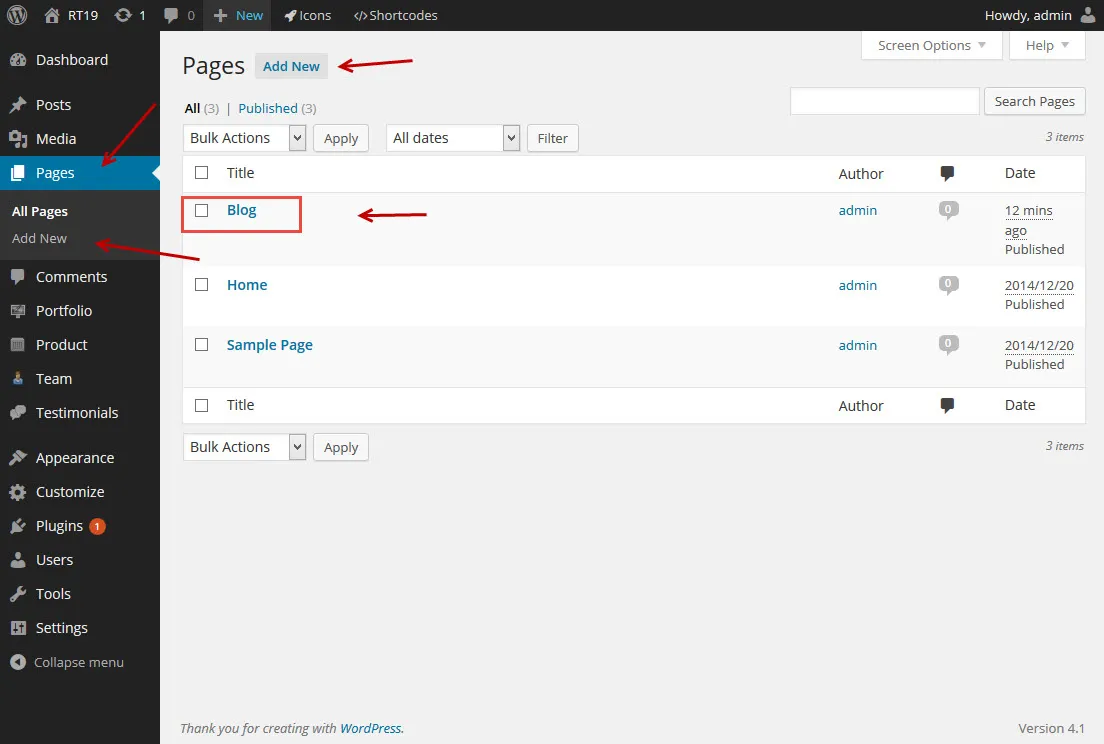
-
Open the page and switch to the WPBakery Page Builder Backend Editor.
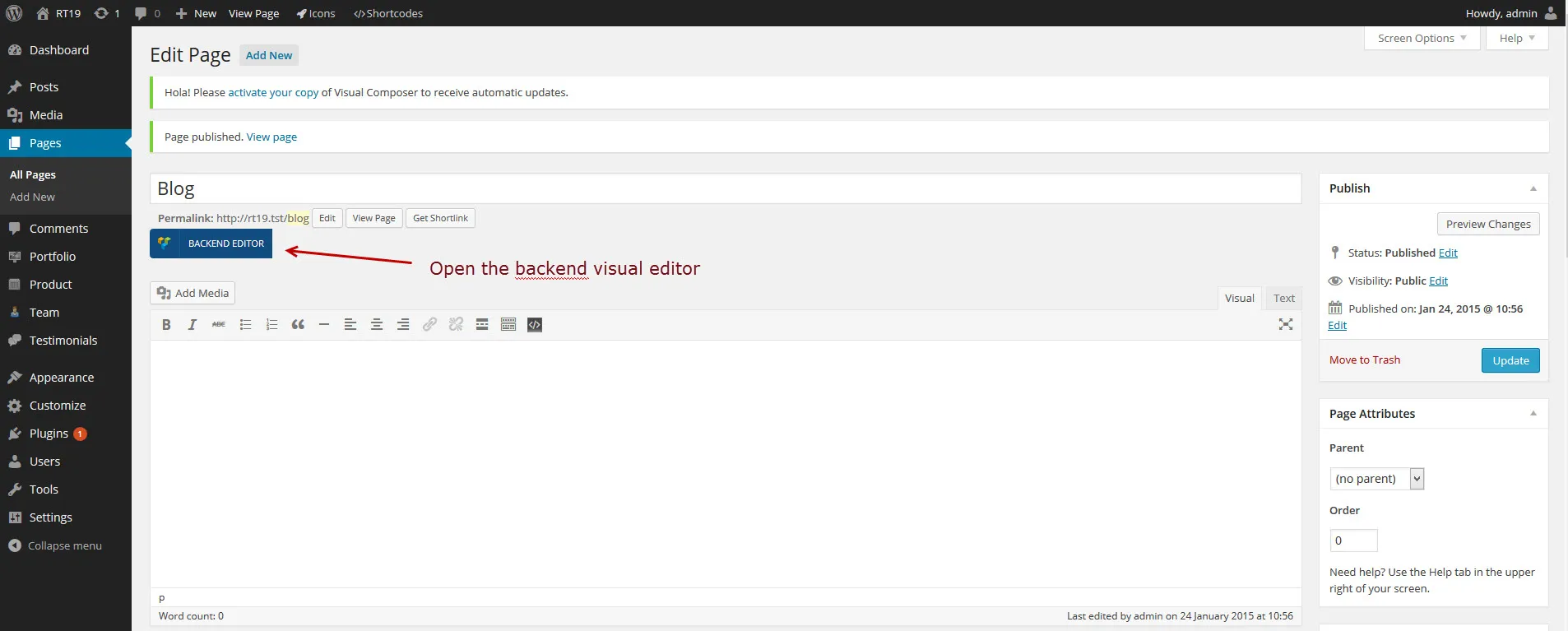
-
Click Add Element.
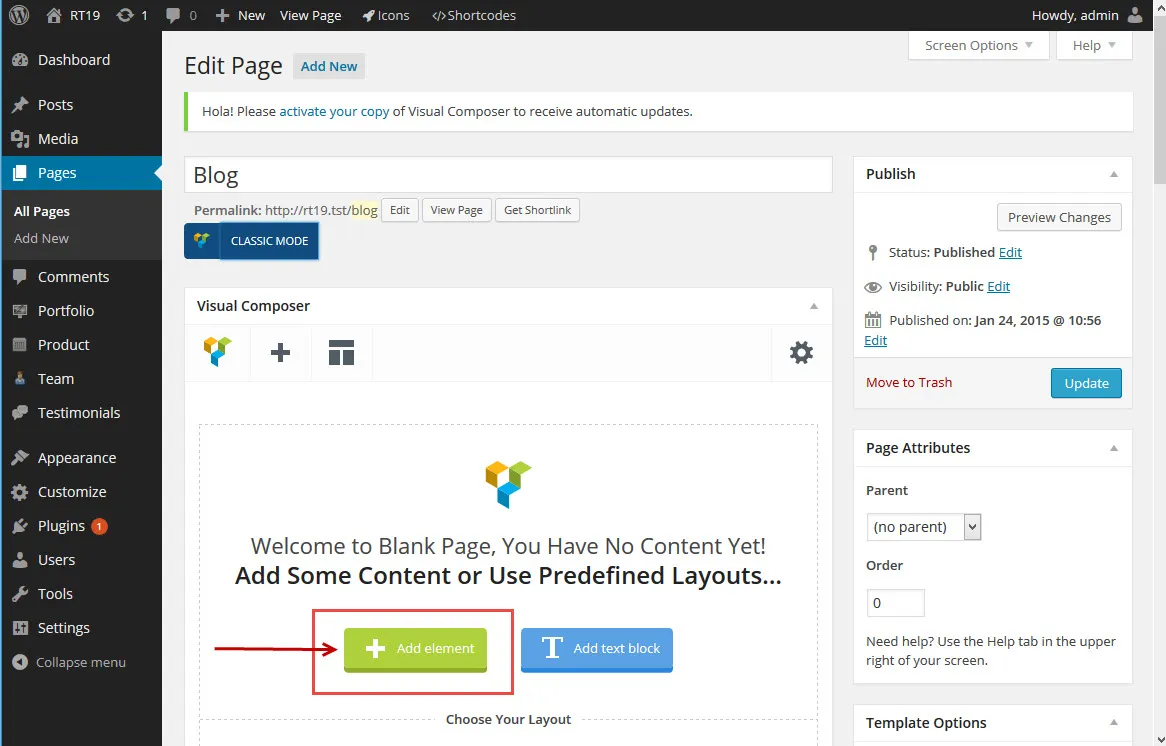
-
In the popup, choose the theme’s Blog Posts element.
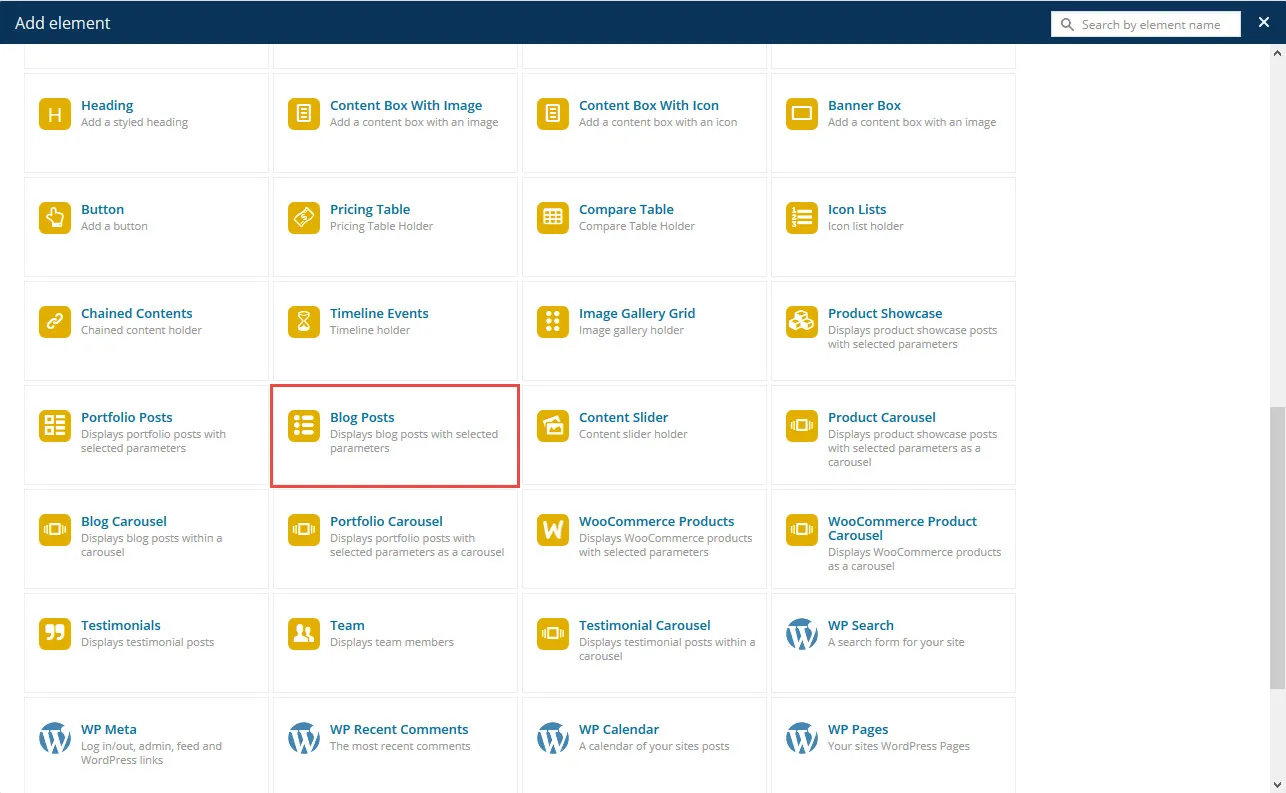
-
A settings window opens with the options of the element.
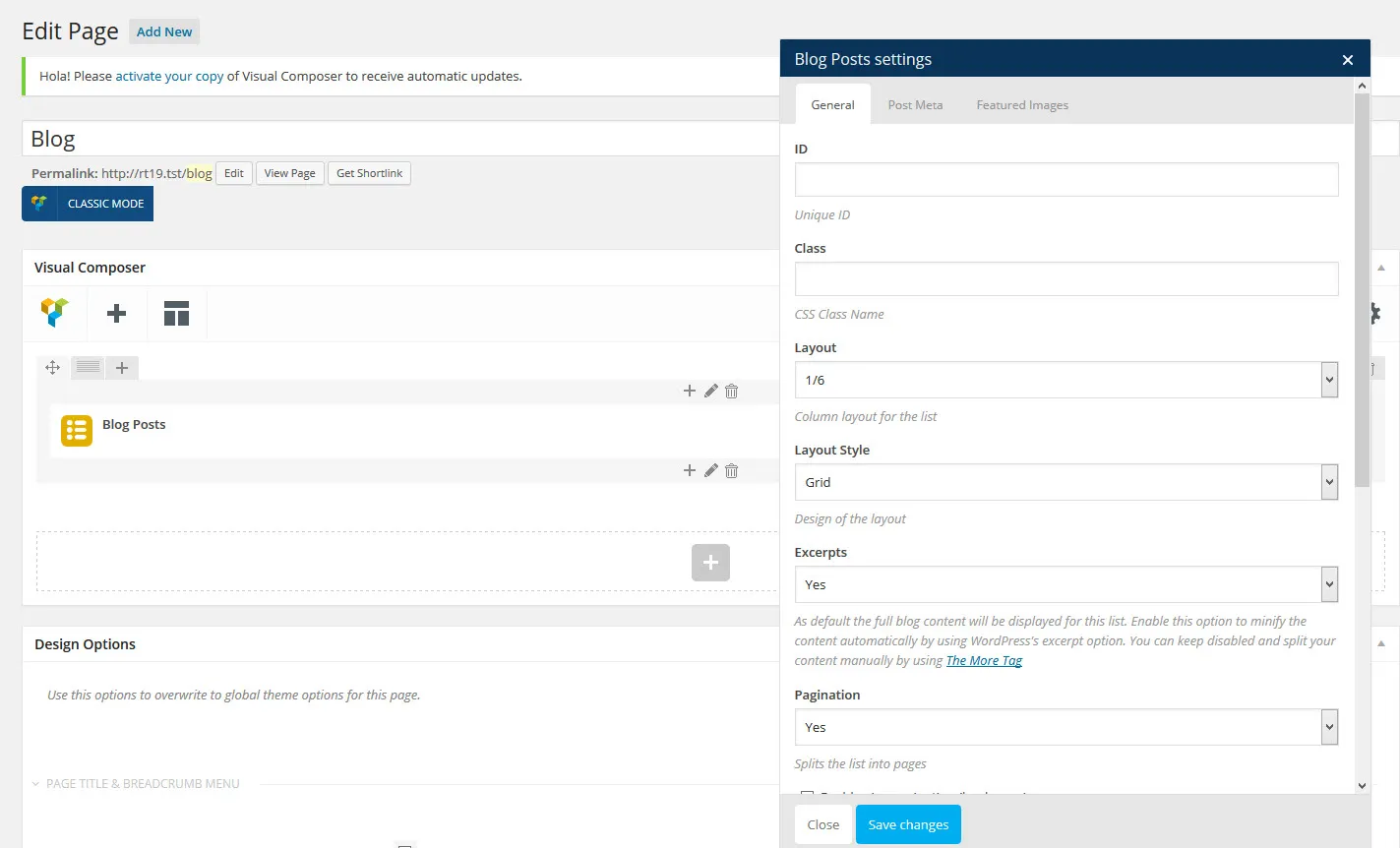
Adjust the settings to get the blog list you want, then save them.
Blog listing page with the Blog Lists shortcode
Section titled “Blog listing page with the Blog Lists shortcode”You can do the same without WPBakery Page Builder. Create a page and add the theme’s “Blog Lists” shortcode. To insert it, use the Theme Shortcodes button in the Classic Editor toolbar or the Theme Shortcodes menu in the admin bar.
Creating a single blog post
Section titled “Creating a single blog post”Create your posts with Posts › Add New in your admin. If you are new to WordPress posts, read the WordPress guide Write posts (Classic Editor).
Post formats
Section titled “Post formats”The theme supports six post formats, so you can write different kinds of posts. Change the format of a post in the Format box of the post edit screen. When you click a format, its options appear in a second box below it.