
Team List / Post
Creating team members
Section titled “Creating team members”A team page is made of team member items. Create the members first, then show them on an overview page, such as a team list or an “About us” page, with a shortcode or a WPBakery Page Builder element.
Creating a team listing page
Section titled “Creating a team listing page”You can list the team members on any page or post. There are two ways to add them.
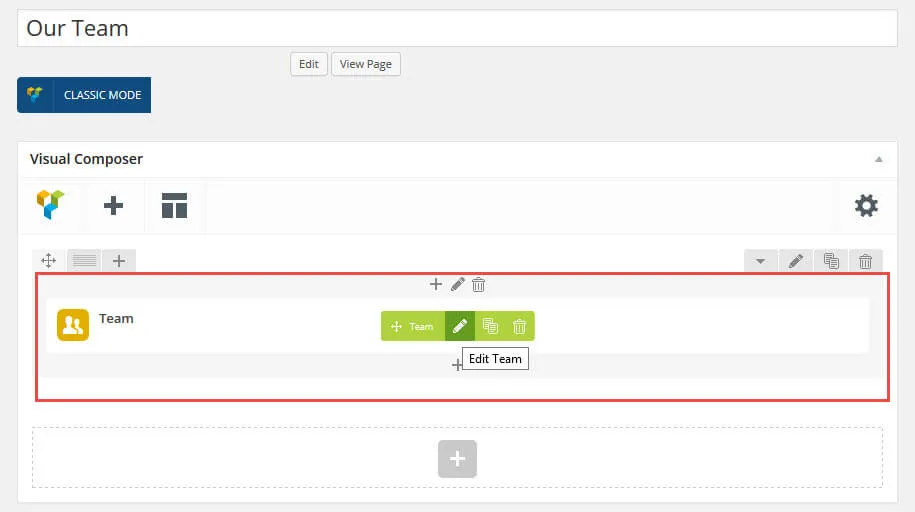
Inserting a Team element with WPBakery Page Builder
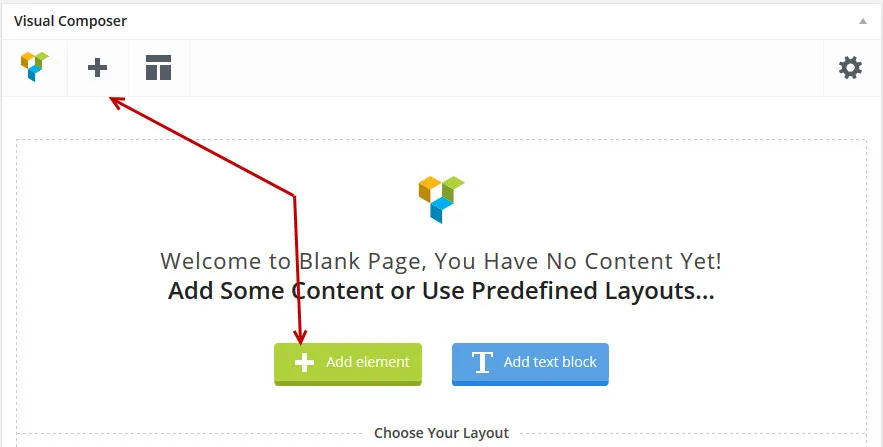
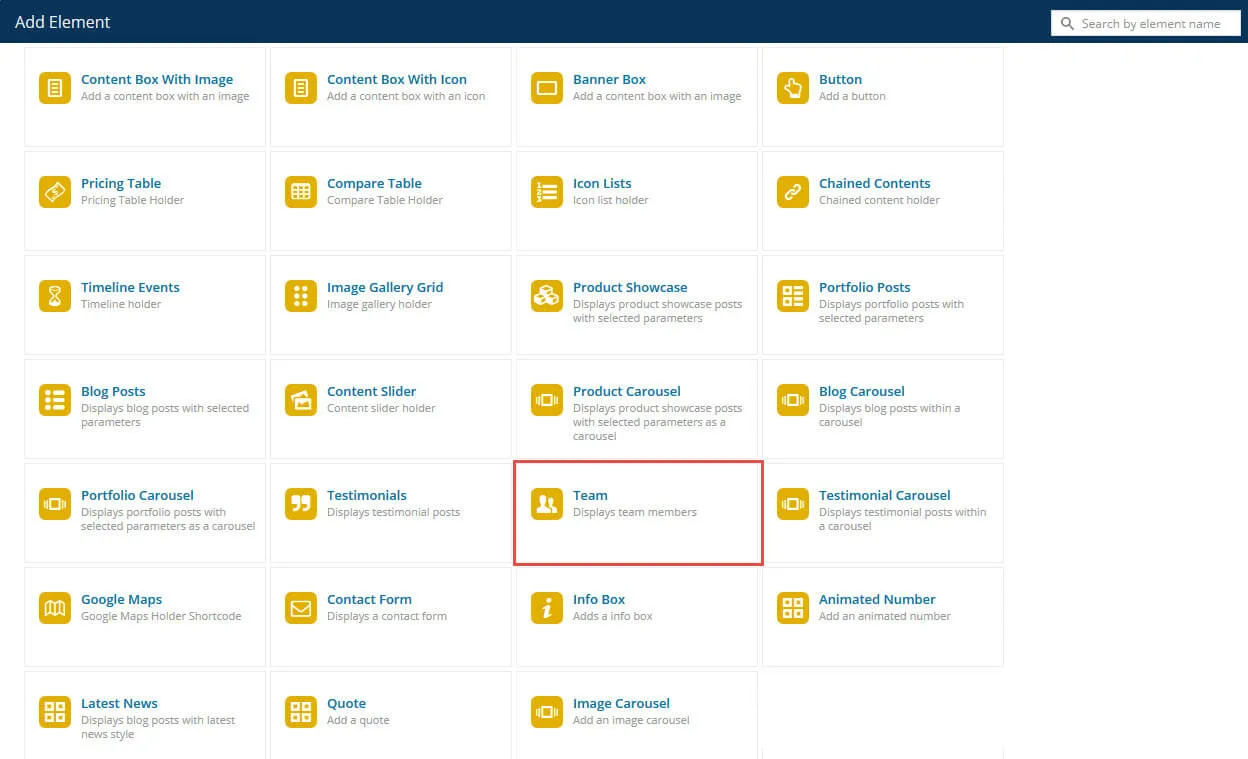
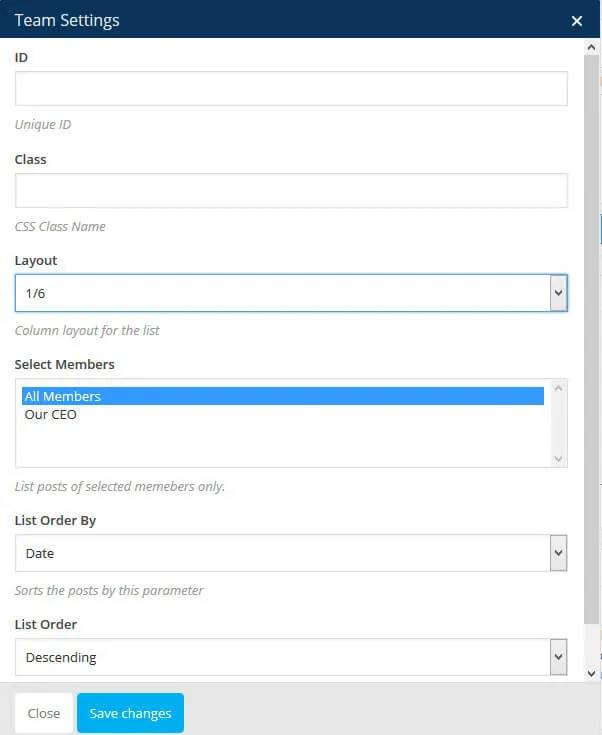
Section titled “Inserting a Team element with WPBakery Page Builder”In WPBakery Page Builder, click Add Element (the + sign) and add a Team element.
Adding team members with a shortcode
Section titled “Adding team members with a shortcode”Open the Theme Shortcodes menu in the admin bar and select the Team shortcode in the popup. Adjust the code to your needs, then copy it and paste it into your page content where the team list should appear.
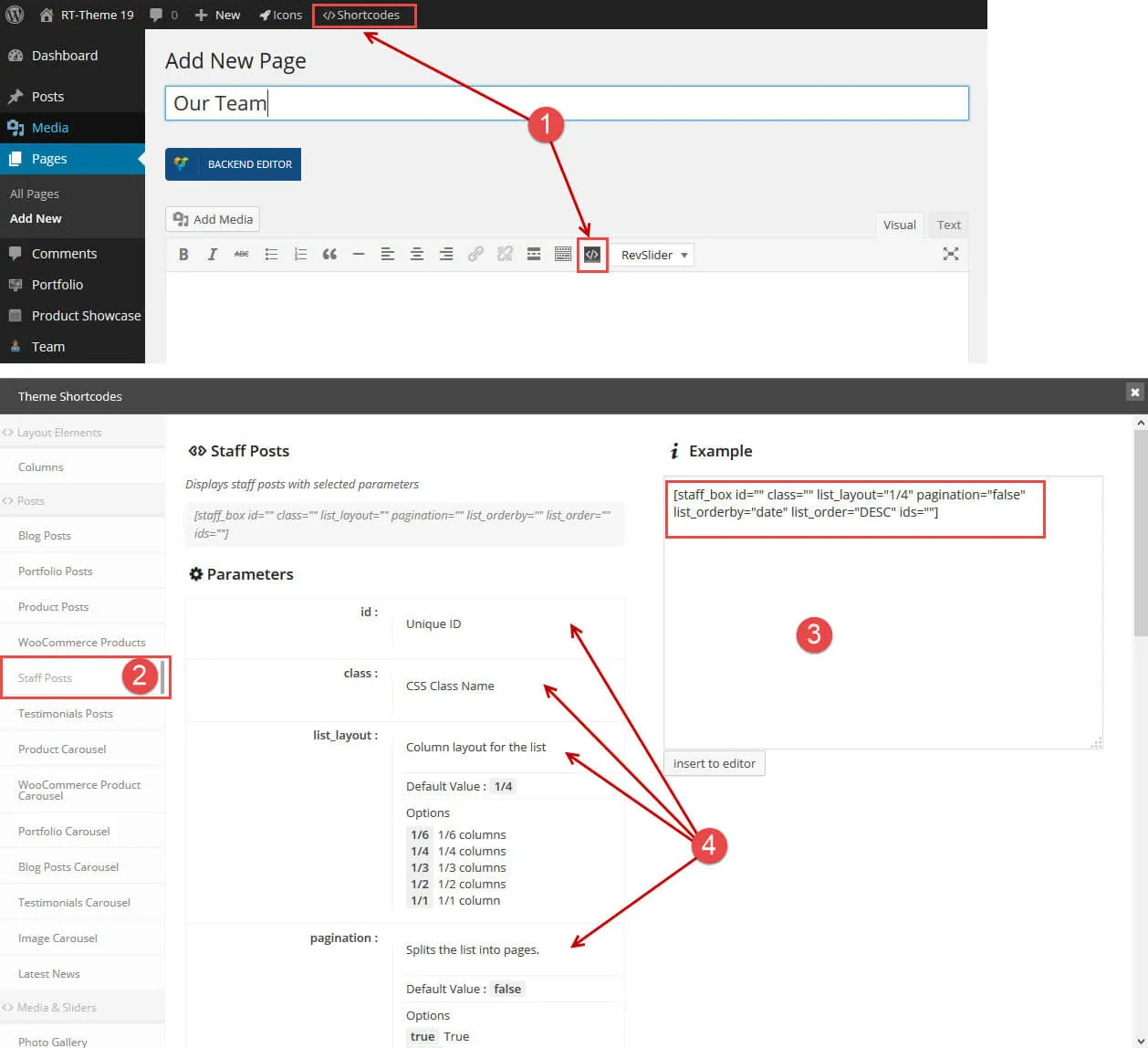
- The shortcode button.
- The Team / Staff Posts shortcode.
- The shortcode example. Copy it into the content of your page and adjust the parameters.
- The explanation of the parameter options. Change them in the shortcode from step 3.
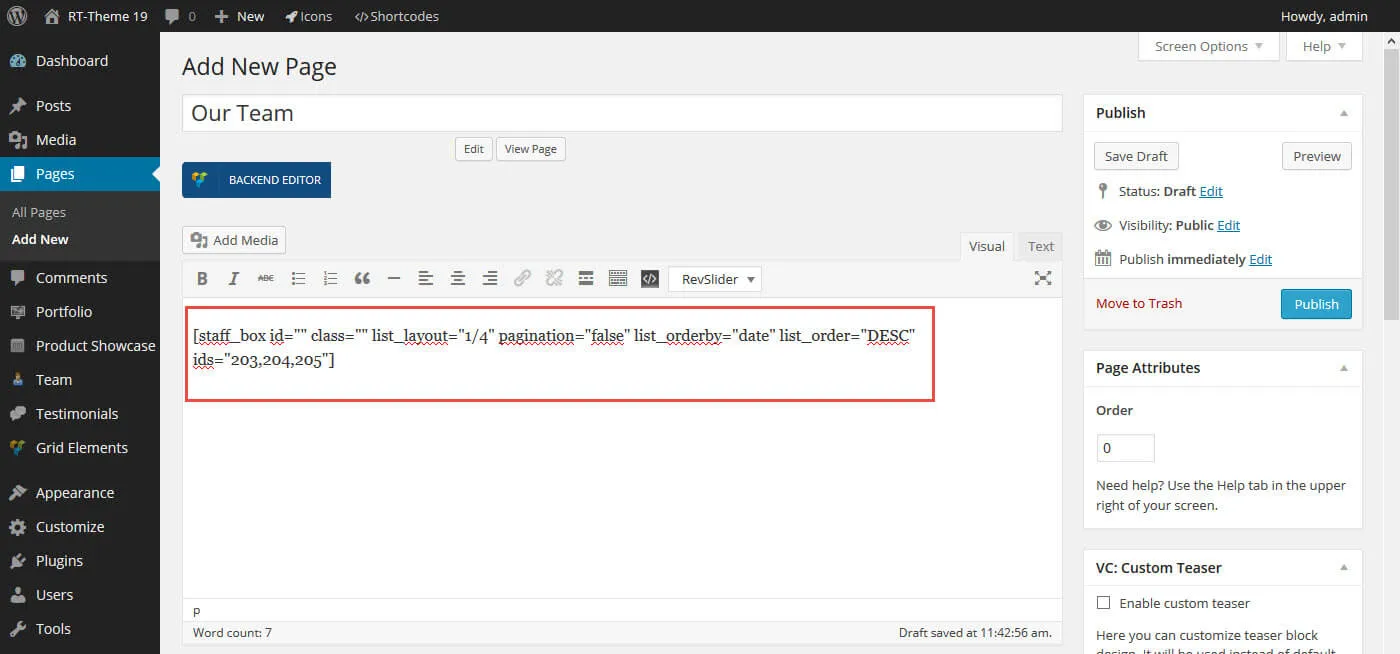
The shortcode in the page can look like this:
Creating a team member
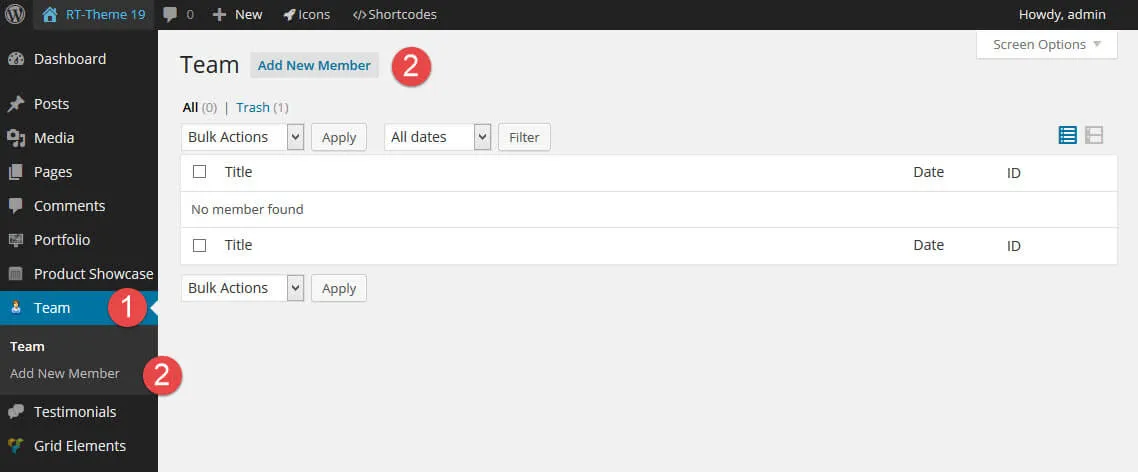
Section titled “Creating a team member”Creating a team member is straightforward. Use the Team custom post type to add your members.
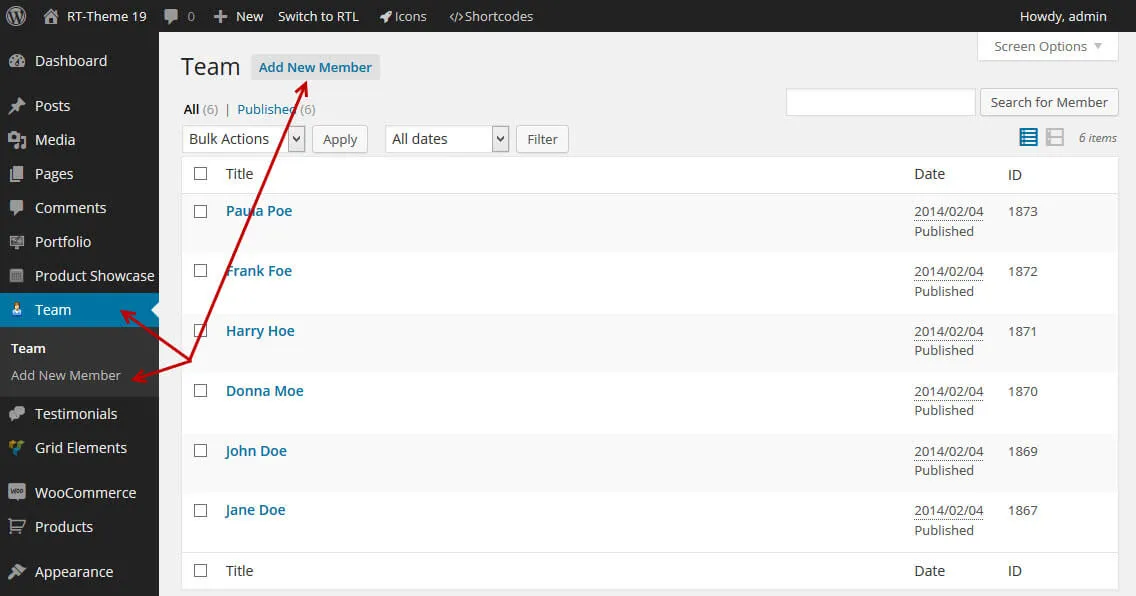
- In the WordPress admin, open the Team menu.
- Click Add New Member, either in the menu or at the top of the list of members.
Things you should know
Section titled “Things you should know”- Team members don’t have categories.
- In the shortcode, you select team members by their ID. In the WPBakery Page Builder element, you select them one by one in the element settings.
- Upload a featured image with the Set featured image link in the Featured Image box.
- The team member excerpt (the short info) accepts valid HTML, such as heading tags, links and
divelements. We suggest you keep it as simple as possible. - For each team member you can add:
- A position (job title).
- A short info box for the listing pages: a small excerpt.
- Links to social pages, about 40 of them, each with its own icon.
- The full “story” of the person in the body content of the post. Any valid HTML and shortcodes are allowed, and you can also design the whole content with WPBakery Page Builder elements.
The single team member item
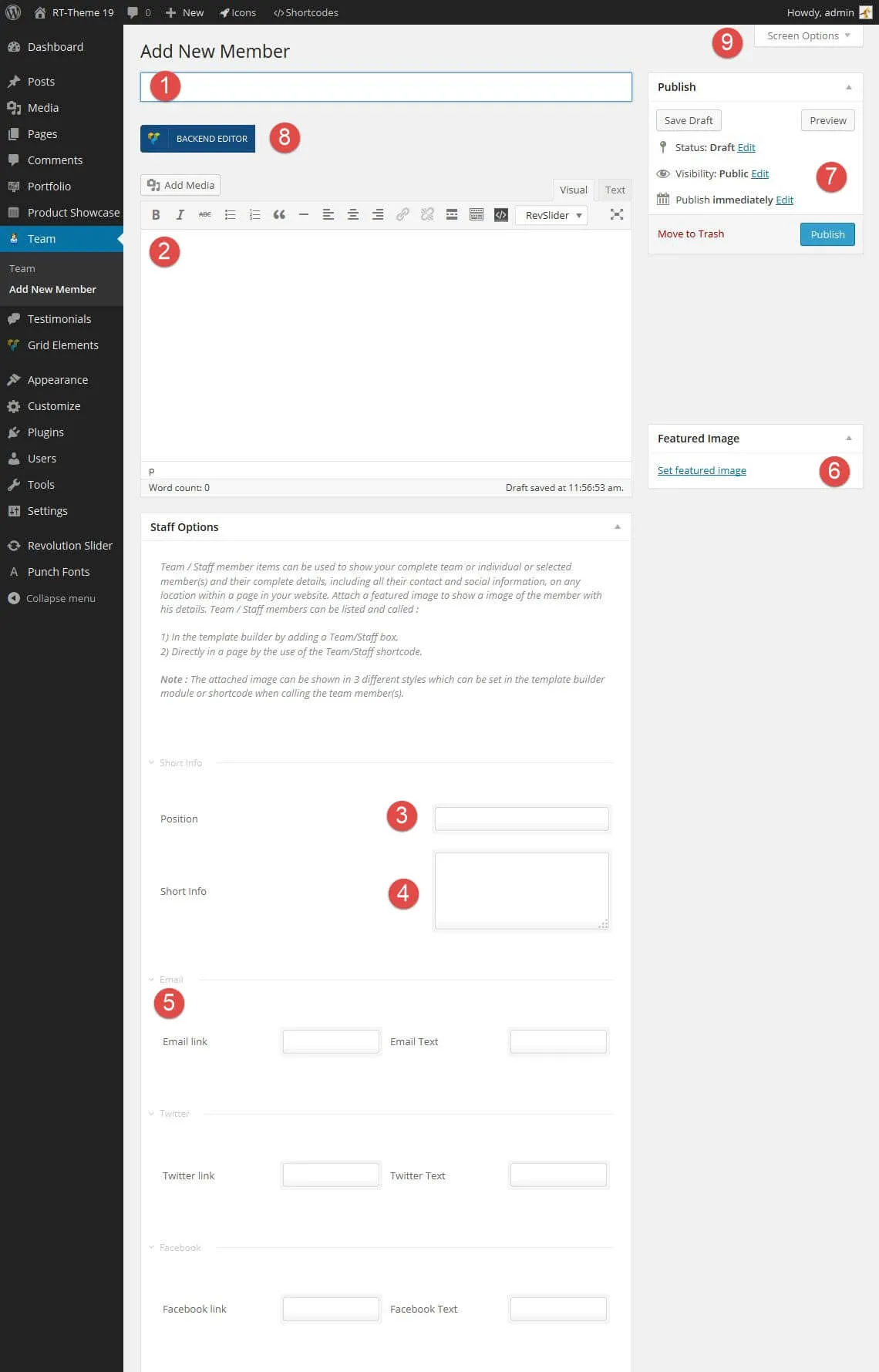
Section titled “The single team member item”A single team member has many options.
-
The title: the name of the team member.
-
The content of the team member: the story you want to tell. It shows on the single team member page.
-
The position (job title).
-
The short info for the listing pages.
-
The social icons you want to attach to this team member. The screenshot doesn’t show all of the about 40 icons.
-
Attach a featured image of your team member.
-
Publish the post to make it visible on your site. You can also change its date or visibility, save it as a draft or preview it.
-
Switch to WPBakery Page Builder to add page builder elements, or use the classic mode to add shortcodes or text the usual WordPress way.
-
Screen Options: show or hide the boxes of this custom post type.
When you have added all settings and content to the team member, publish the post. It then shows in every team list you created on a page with the Team shortcode or the WPBakery Page Builder Team element.