Theme Sliders
Content slider
Section titled “Content slider”To add a content slider, use the Content Slider element in WPBakery Page Builder, or its shortcode. You find the details of the shortcode in the Theme Shortcodes helper window.
Adding a content slider with WPBakery Page Builder
Section titled “Adding a content slider with WPBakery Page Builder”-
Click Add Element and select Content Slider.
-
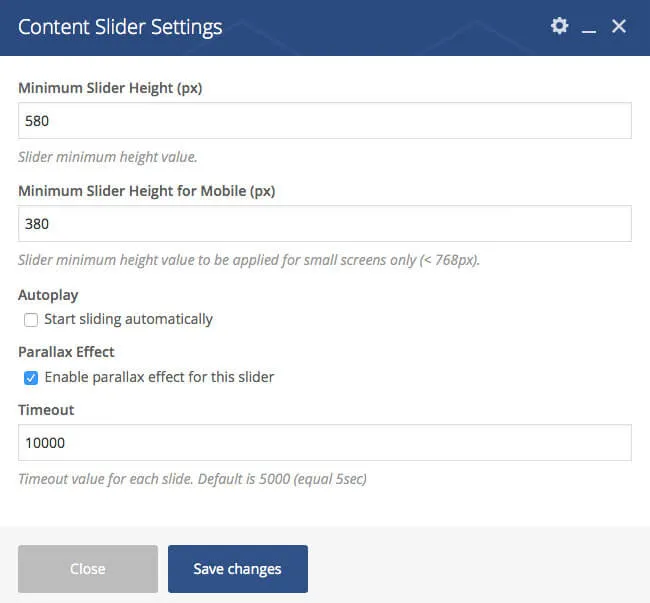
The element you add first is the “parent” of your slides. Use its settings for the slider height, the timeout and so on.
-
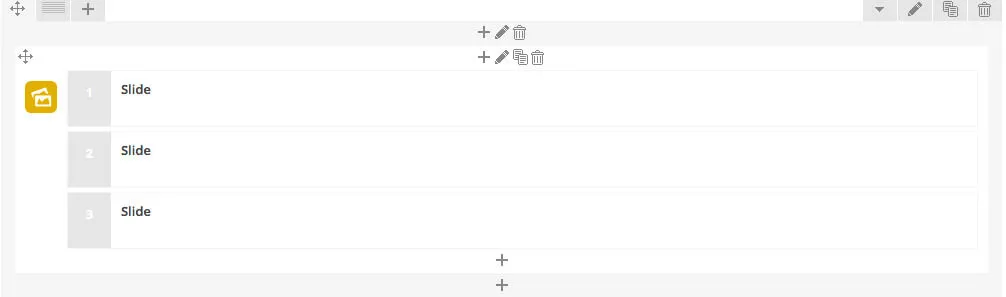
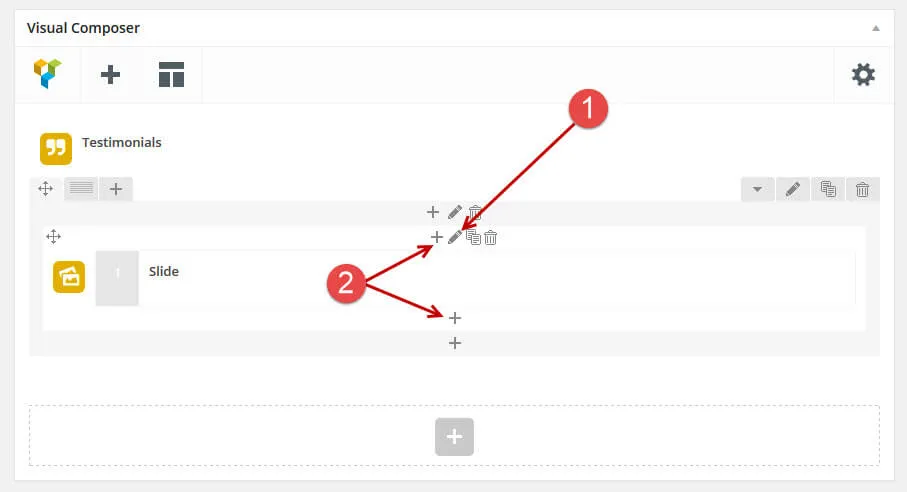
Add your slides with the + icon inside the parent element.
-
Each slide can have its own style and content.
-
This is one of the demo sliders in WPBakery Page Builder:
Content slider settings
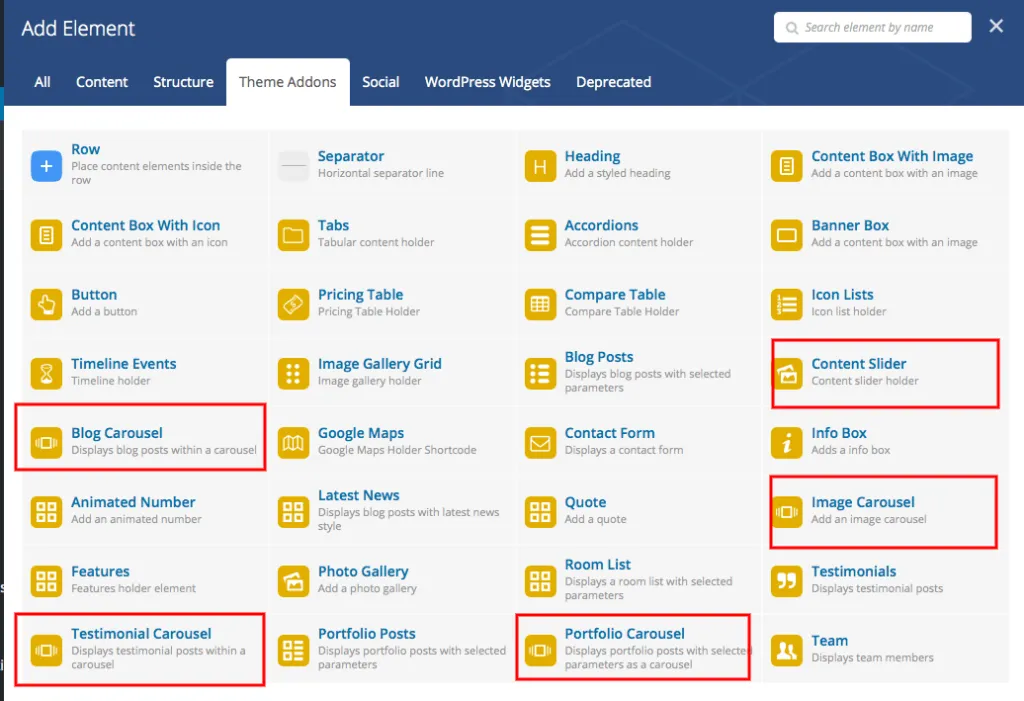
Section titled “Content slider settings”The Content Slider element sits in the Theme Addons tab of the Add Element window, next to the carousel elements.
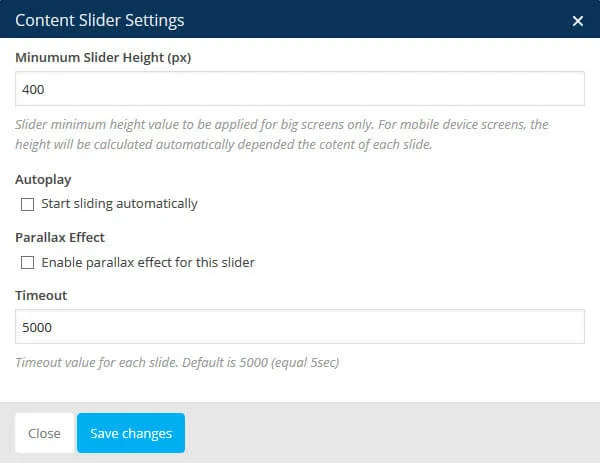
When you have added the element, adjust the slider settings, such as the height, the transition speed, auto start and the parallax effect. Then add the individual slides inside the element.
-
Adjust the slider settings.
-
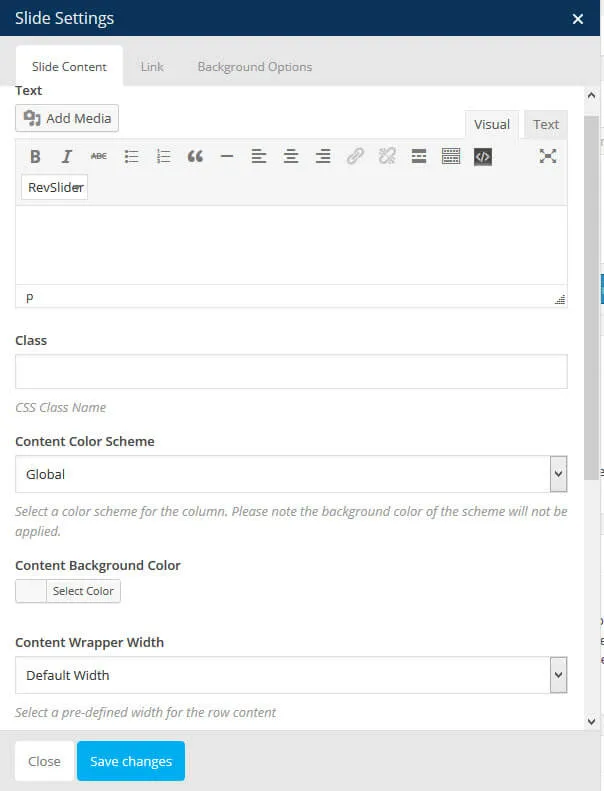
Add a new slide and set its content and style.
Slider Revolution
Section titled “Slider Revolution”Slider Revolution is a plugin for responsive sliders with text, video and image layers. To show a Slider Revolution slider on a page, add a Slider Revolution element and choose a slider you created with the plugin. How to create sliders is explained in the Slider Revolution documentation.
Creating a slider
Section titled “Creating a slider”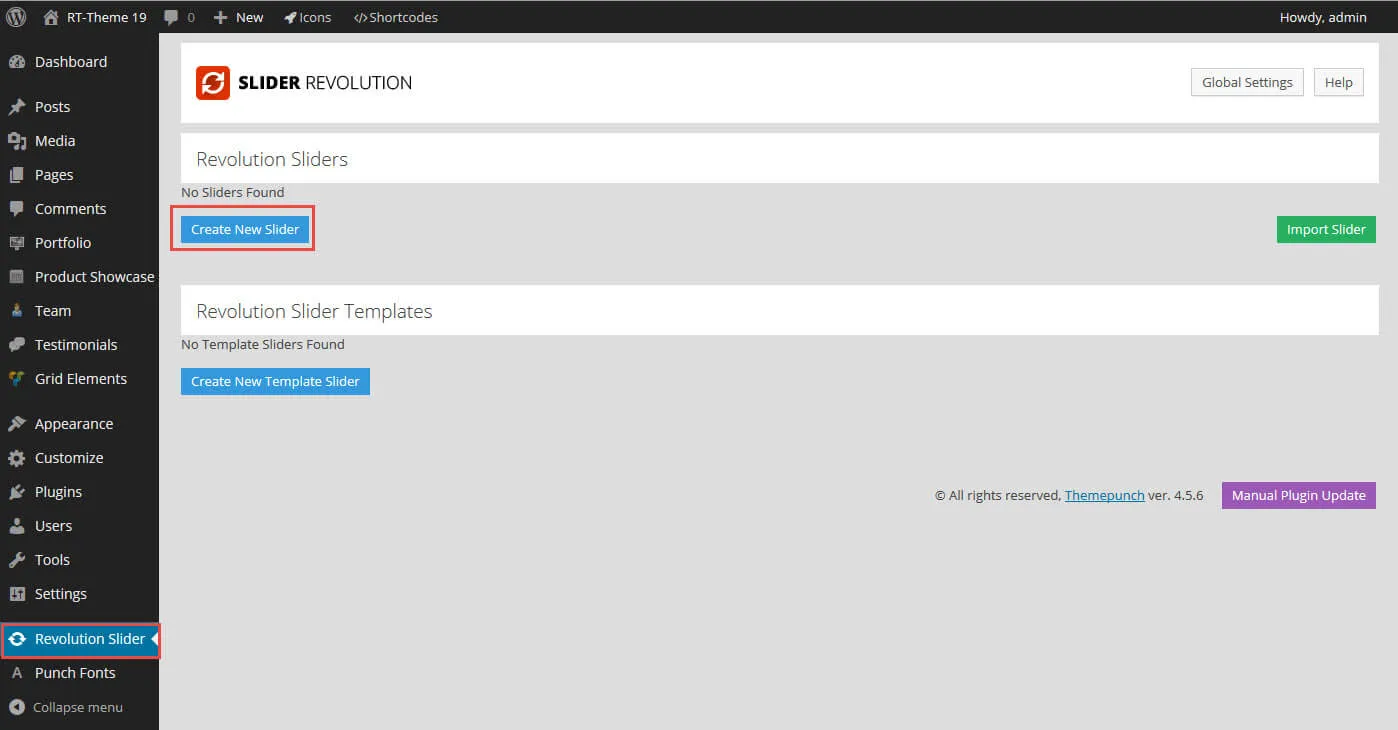
- Click Create New Slider.
- Give your slider a name and an alias.
- After you create the slider, adjust its settings.
- When the global slider settings are done, add your slides to the slider.
- Open each slide and add layers, such as text, video, images and buttons. Drag the layers into position in the preview, and adjust each layer in its settings.
- Save the slider.
Demo sliders
Section titled “Demo sliders”The demo sliders are included in the All files and documentation package, which you download from your ThemeForest Downloads page. Import them for a quick start:
- Open Slider Revolution and click Import Slider.
- Select one of the demo sliders on your computer, in the
Dummy Contents/Rev Sliderfolder of the package:ava-business.zip,ava-business-underlapped.ziporava-shop.zip.
Adding a slider to a page
Section titled “Adding a slider to a page”You can add any slider created with Slider Revolution to any page or post:
- With the Slider Revolution element of WPBakery Page Builder.
- With the slider’s shortcode anywhere in the content. You find the shortcode in the Slider Settings of the slider.
- With the shortcode inside any WPBakery Page Builder element that accepts shortcodes, or in a text widget.
To use the element:
-
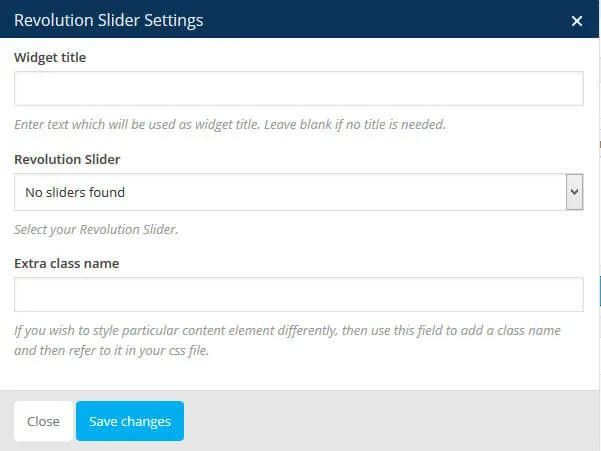
Create a page and insert a Slider Revolution element in WPBakery Page Builder.
-
In the settings window that opens, select a slider from the dropdown list.
Design notes
Section titled “Design notes”For a full-width slider without space on the left and right, open the settings of the row that holds the element and select no paddings in the Paddings tab.
Support for Slider Revolution
Section titled “Support for Slider Revolution”We include Slider Revolution as it is. If there is a problem with how the theme integrates the plugin, we fix it. We don’t support how the slider itself works, such as how to build a slider or its multi-language support. We did not develop the plugin, and we don’t support modified or added CSS for it. We can report real bugs in the plugin to its developers, or you can report them yourself if you own a Slider Revolution licence. We then wait for a fix like any other customer of the plugin: when it is fixed is not in our hands.
Sliders and carousels
Section titled “Sliders and carousels”Ava has two slider types, which you add with a shortcode or a WPBakery Page Builder element:
- The Content Slider
- Slider Revolution, integrated as a plugin
Ava also has four carousel types, which you add with a shortcode or a WPBakery Page Builder element:
- Blog Carousel
- Portfolio Carousel
- Testimonial Carousel
- Image Carousel
A carousel shows a rotating list of blog posts, portfolio items, testimonials or photos anywhere in the content of your pages. It takes its items from the post types that the theme has by default: Posts, Portfolio and Testimonials.
Adding a carousel
Section titled “Adding a carousel”Insert a carousel shortcode, or add a carousel element with WPBakery Page Builder, to the content of a page. Adjust the settings in the popup window and insert it. The carousel shows where you inserted it on the page.