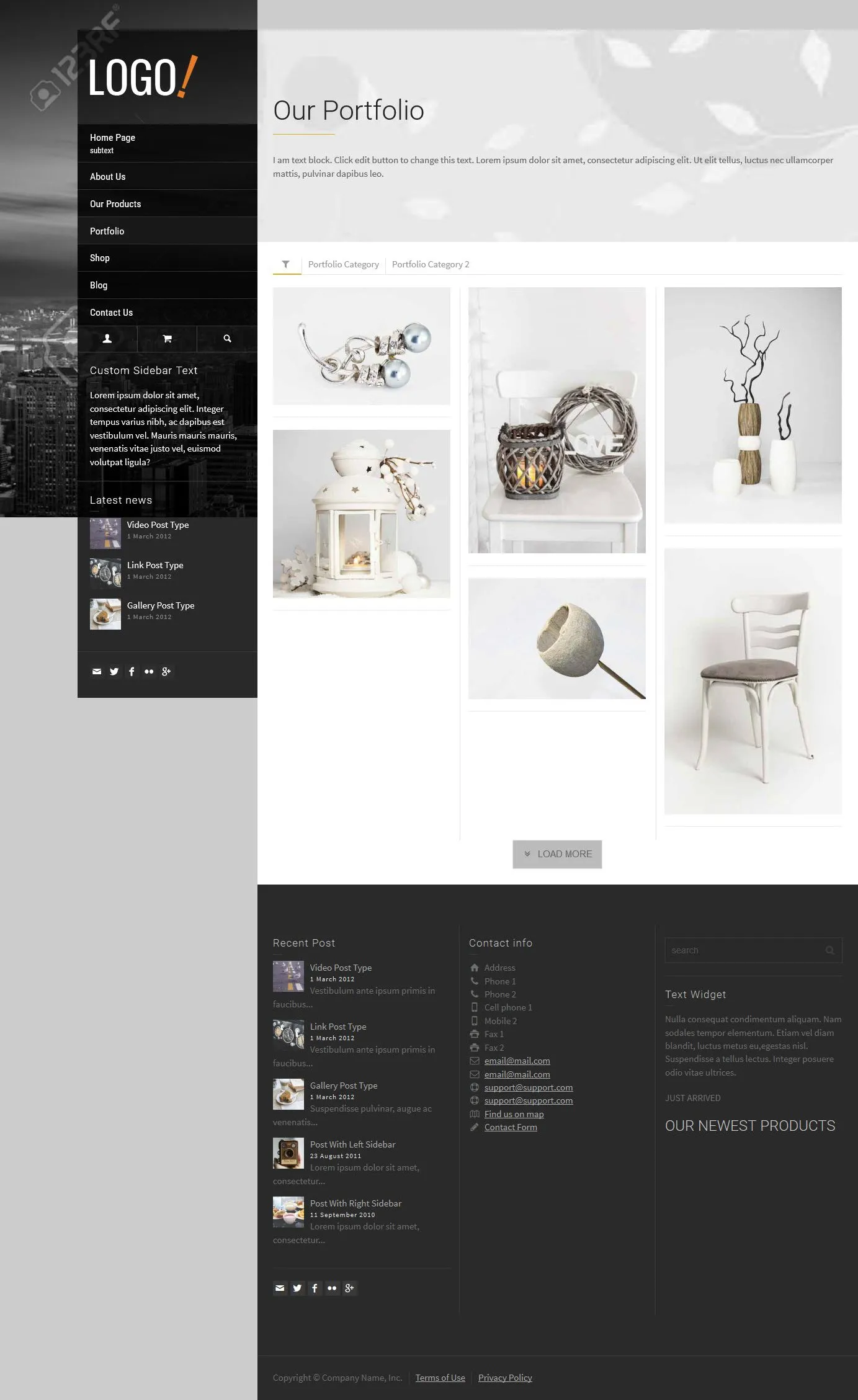
Portfolio List / Post
Creating a Portfolio
Section titled “Creating a Portfolio”A portfolio is made of portfolio items. You can group the items by category and show them on an overview page, called a portfolio listing page. You manage the items under Portfolio in the WordPress admin.
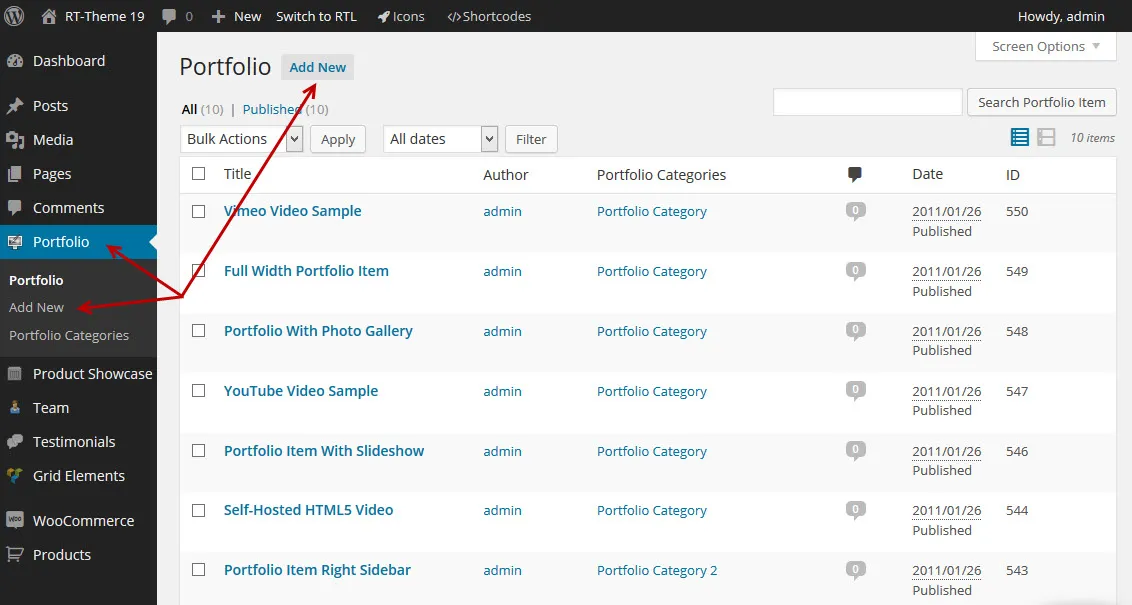
The Portfolio post type comes with the RT-Theme 19 Extensions plugin, so keep that plugin active.
Things you should know
Section titled “Things you should know”-
To show a list of portfolio items on a page, add the portfolio shortcode or the Portfolio Posts element of WPBakery Page Builder to that page.
-
You can create as many portfolio listing pages as you like, each with its own shortcode or element.
-
The settings of the shortcode or the element decide how the items are listed.
-
Every portfolio item needs at least one category, and it can belong to more than one.
-
When you open a portfolio category, it lists all items in that category with the theme’s default portfolio settings.
-
You can add portfolio categories to your menus under Appearance › Menus.
-
A portfolio item can have several images. By default they appear in a slider; you can switch to an image gallery.
-
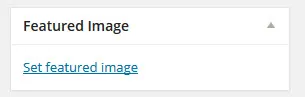
To add a featured image, click Set featured image in the Featured Image box.
-
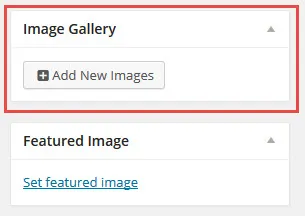
To add gallery images, click Add New Images in the Image Gallery box.
-
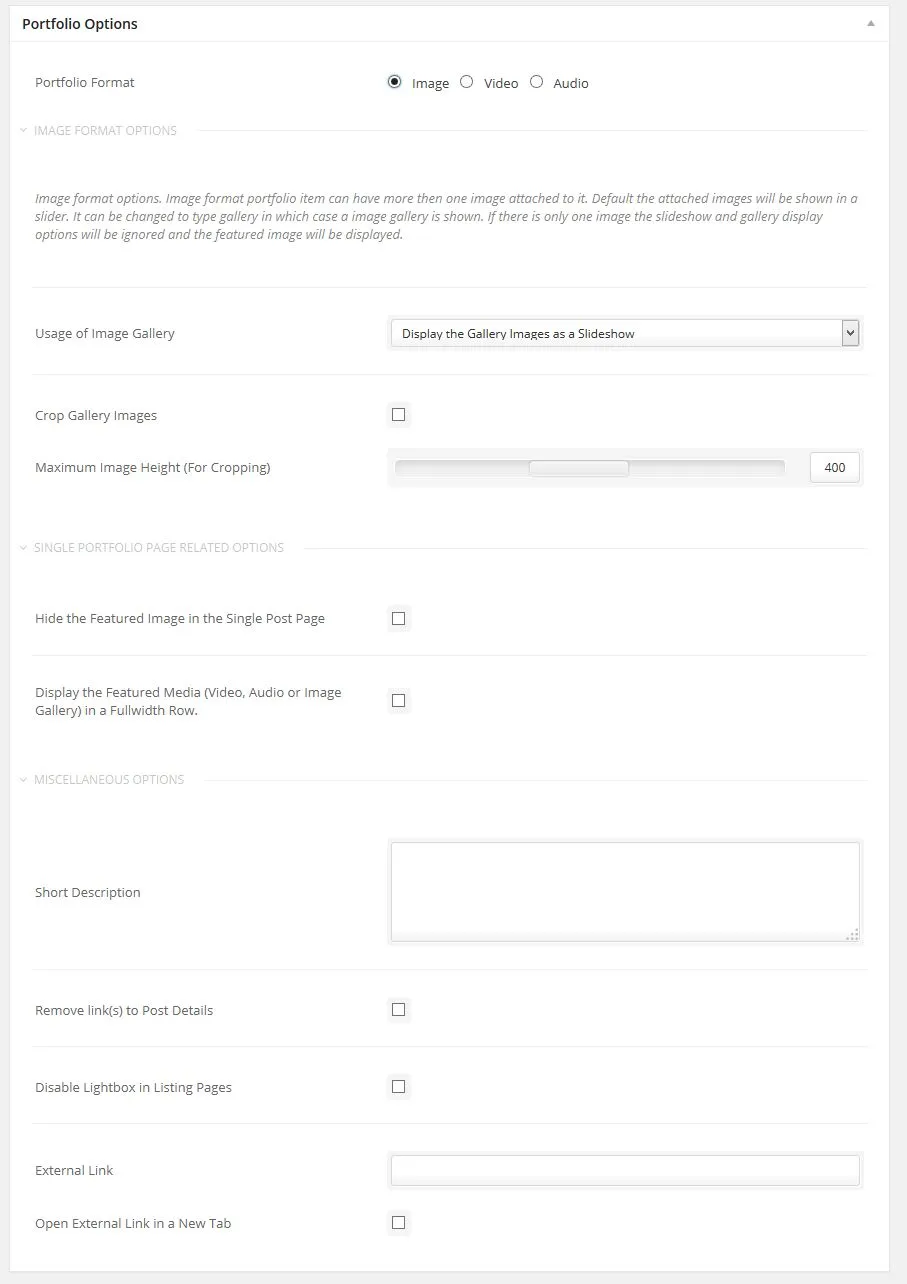
A portfolio item has its own Portfolio Options that only this post type has.
Creating a Portfolio Item
Section titled “Creating a Portfolio Item”Add your portfolio items with the Portfolio post type:
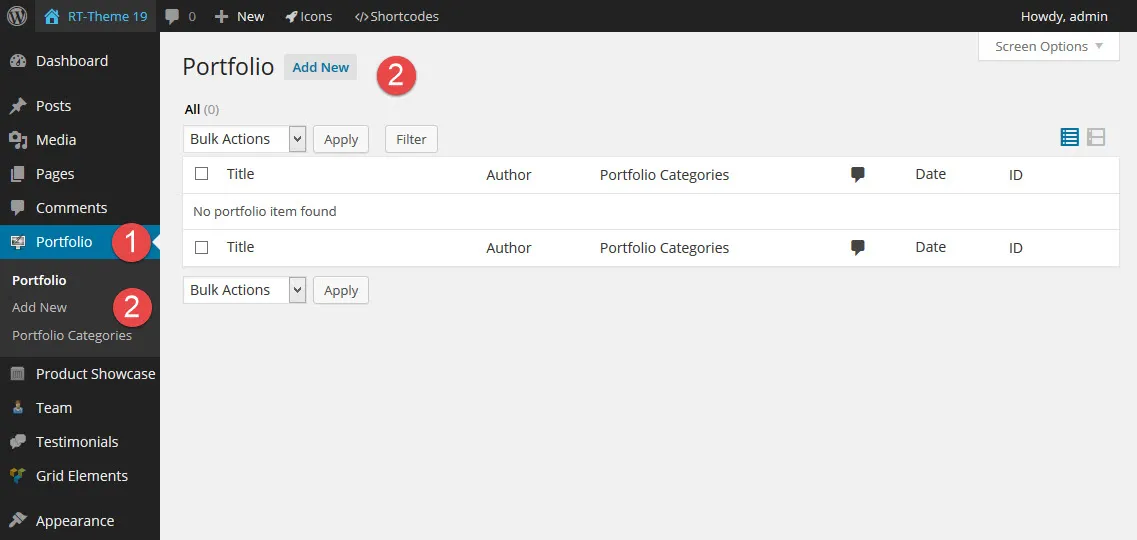
- In the WordPress admin, go to Portfolio.
- Click Add New in the menu, or the Add New button at the top of the list.
Things you should know
Section titled “Things you should know”-
Every portfolio item needs at least one category, and it can belong to more than one.
-
You can add portfolio categories to your menus.
-
To add a featured image, click Set featured image in the Featured Image box.
-
To add gallery images, click Add New Images in the Image Gallery box.
-
The images appear as a slider or as a gallery. You choose this in the Portfolio Options of the item.
-
You can turn off the links and the lightbox for each item.
-
The Portfolio Options apply only to this post type.

You can also change the global design settings, such as the backgrounds and background colours of the body and the left and right side areas, on each single portfolio item.
The single portfolio item
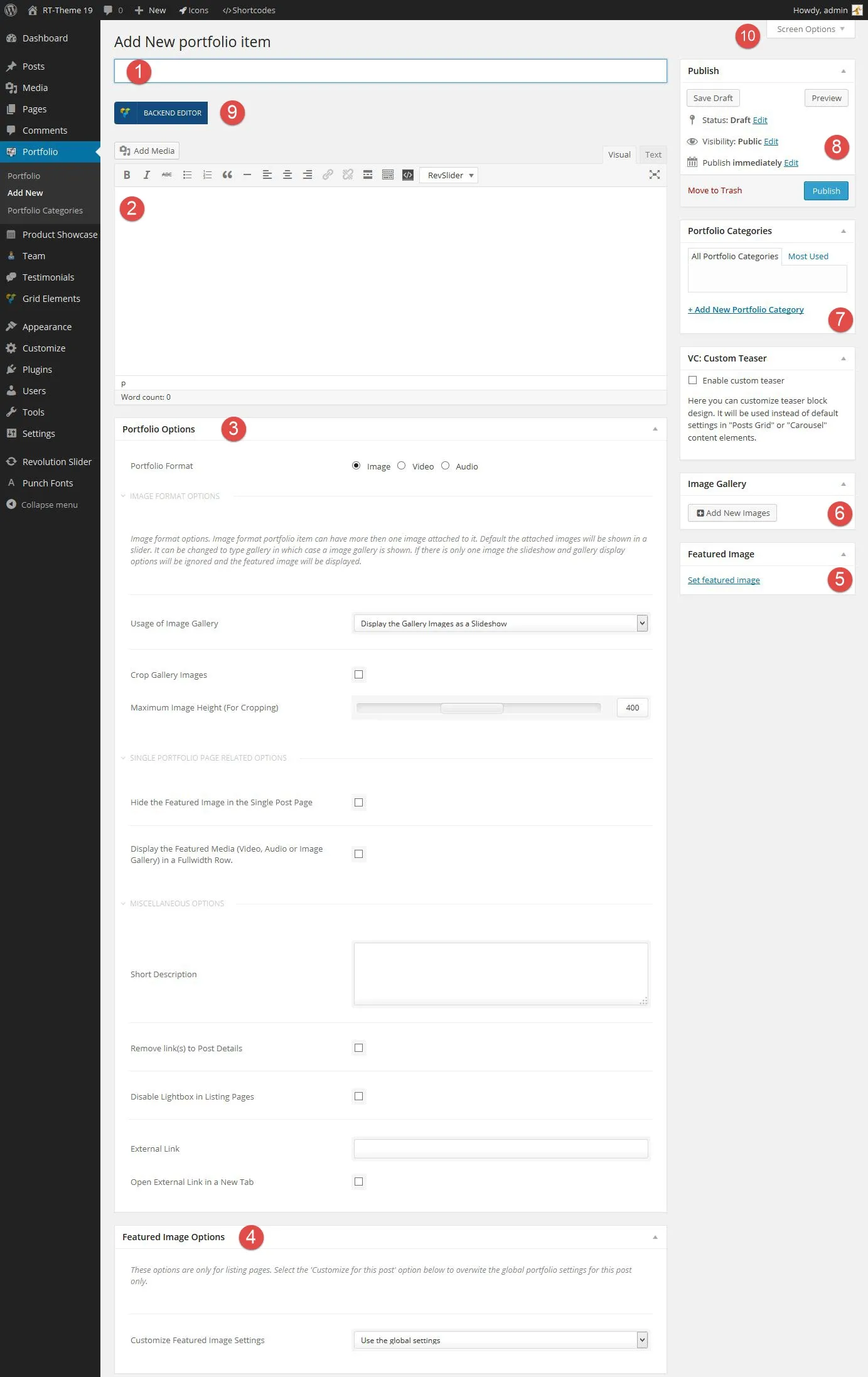
Section titled “The single portfolio item”The portfolio item editor has many options. The numbers below match the screenshot.
-
The title of the portfolio item.
-
The content of the portfolio item.
-
Portfolio Options:
- Set the format to Image, Video or Audio.
- Hide the featured image on the single portfolio page.
- Show the image, video or audio in a full-width row on the single page.
- Short Description: the description shown on portfolio listing pages.
- Remove all links from the item on portfolio listing pages.
- Disable the lightbox for the image on portfolio listing pages.
- External Link: make the item link to another site from listing pages.
-
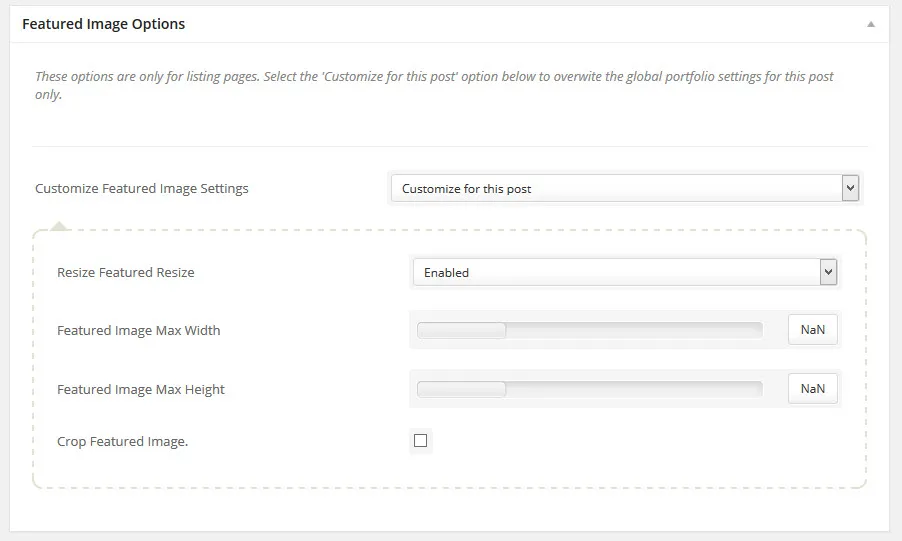
Featured Image Options: change the height, width and cropping of the featured image.
-
Featured Image: the image used for the item on listing pages.
-
Image Gallery: add more images to show as a gallery.
-
Portfolio Categories: put the item in a category.
-
Publish: make the item visible on your site, or change its date or visibility, save it as a draft or preview it.
-
Backend Editor: switch to WPBakery Page Builder to add its elements, or stay in the Classic Editor and add shortcodes or text the usual WordPress way.
-
Screen Options: choose which boxes appear on the editing screen of this post type.
Image format
Section titled “Image format”The Image format has these settings:
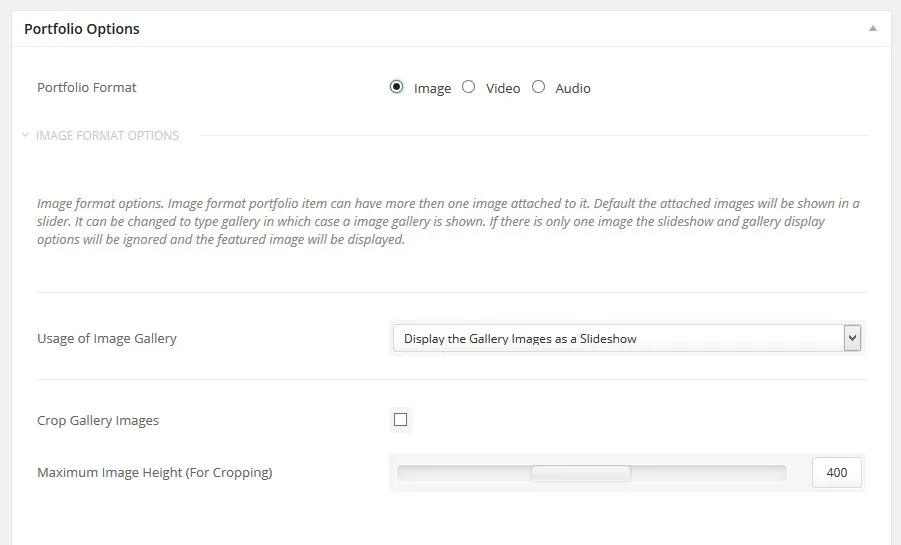
- Show the attached images as a slideshow or an image gallery.
- Crop the gallery images.
- The maximum height of the images.
Video format
Section titled “Video format”The Video format has these settings:
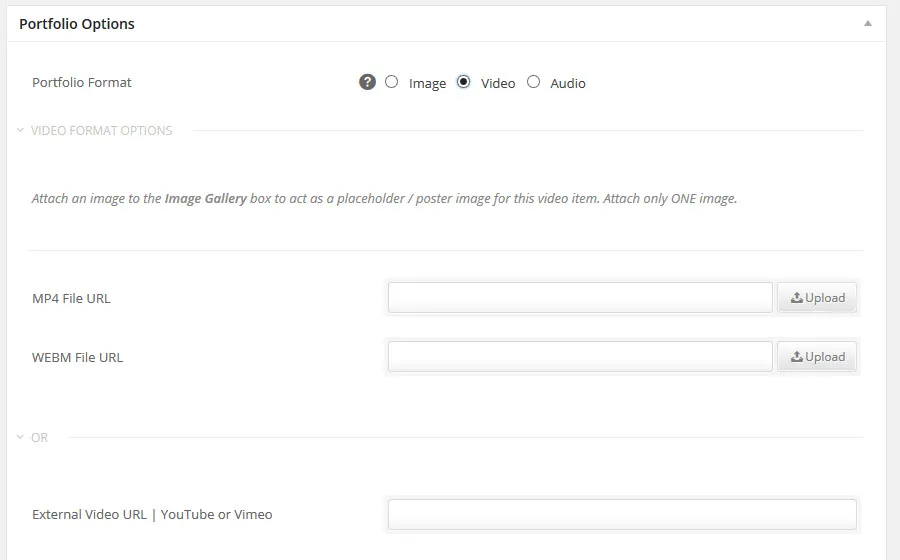
- The URL of a self-hosted MP4 file.
- The URL of a self-hosted WEBM file.
- The URL of a Vimeo or YouTube video.
Audio format
Section titled “Audio format”The Audio format has these settings:
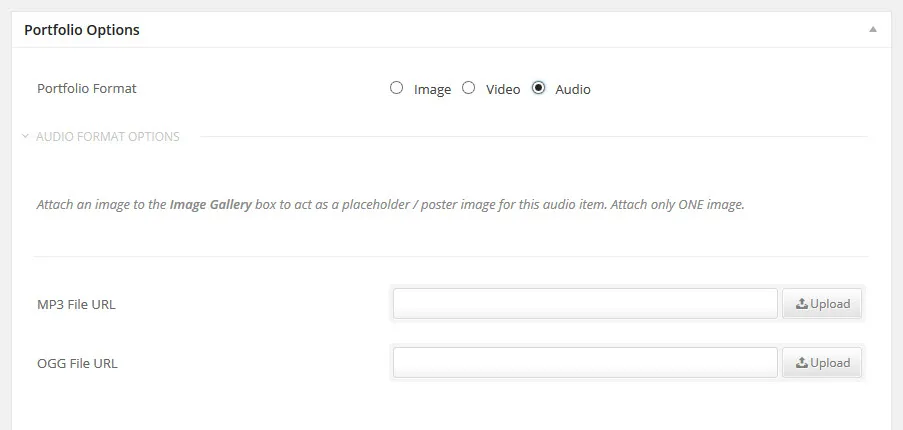
- The URL of a self-hosted MP3 file.
- The URL of a self-hosted OGG file.
When the content and settings are complete, publish the item. It then appears in every portfolio list whose page has the portfolio shortcode or the Portfolio Posts element in the place where you want the list.
Design Options
Section titled “Design Options”Every portfolio item has a Design Options section that overrides the global Customizer styling, such as backgrounds and colours, for that item only. View the abilities of the Design Options
Portfolio Listing Page
Section titled “Portfolio Listing Page”To set up a portfolio listing page:
- Create your portfolio items.
- Create a page.
- Add the portfolio shortcode to the page, or add the Portfolio Posts element with WPBakery Page Builder.
Creating the portfolio page
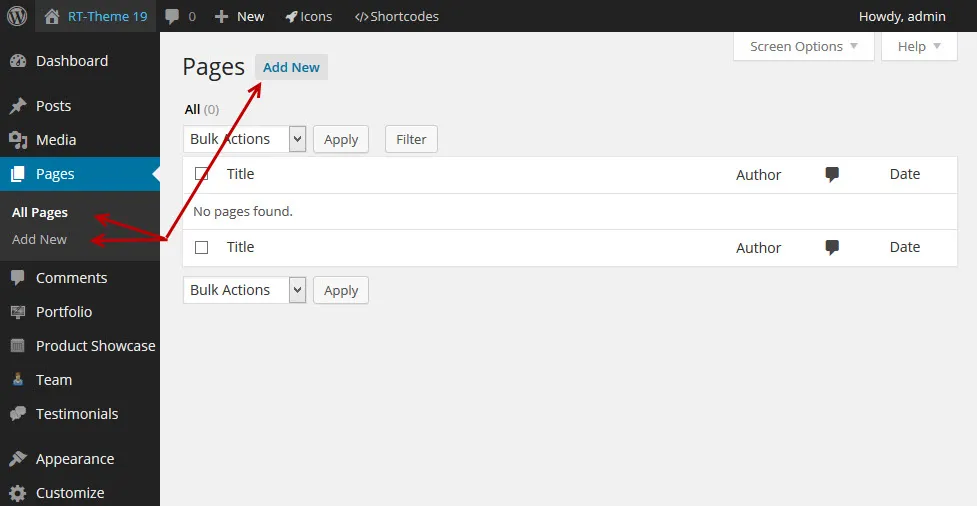
Section titled “Creating the portfolio page”Go to Pages › Add New and create the page that will hold the portfolio.
Adding the Portfolio Posts element (WPBakery Page Builder)
Section titled “Adding the Portfolio Posts element (WPBakery Page Builder)”-
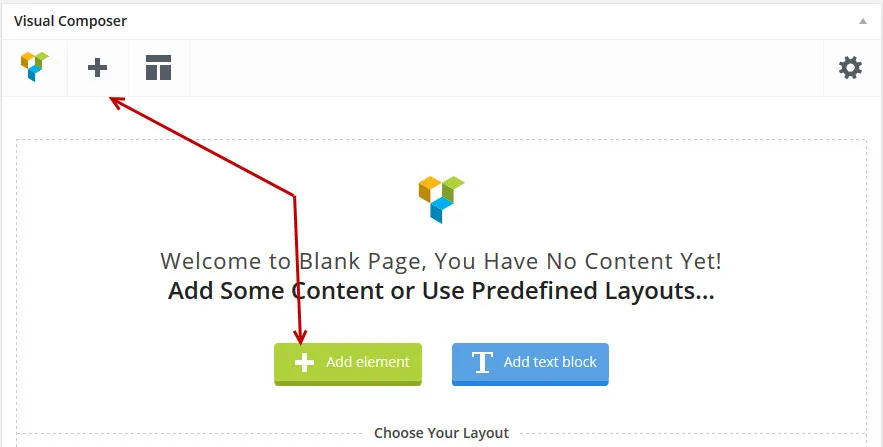
In WPBakery Page Builder, click Add element (the + sign).
-
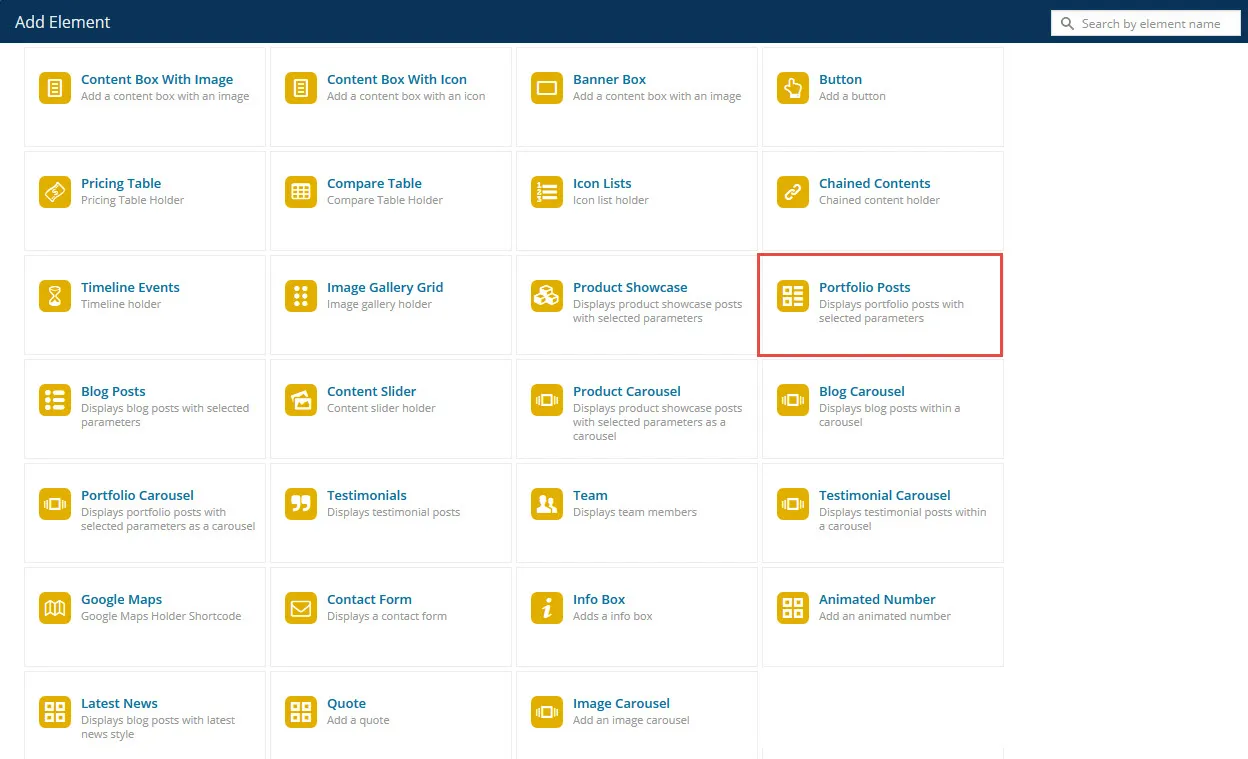
Choose Portfolio Posts.
-
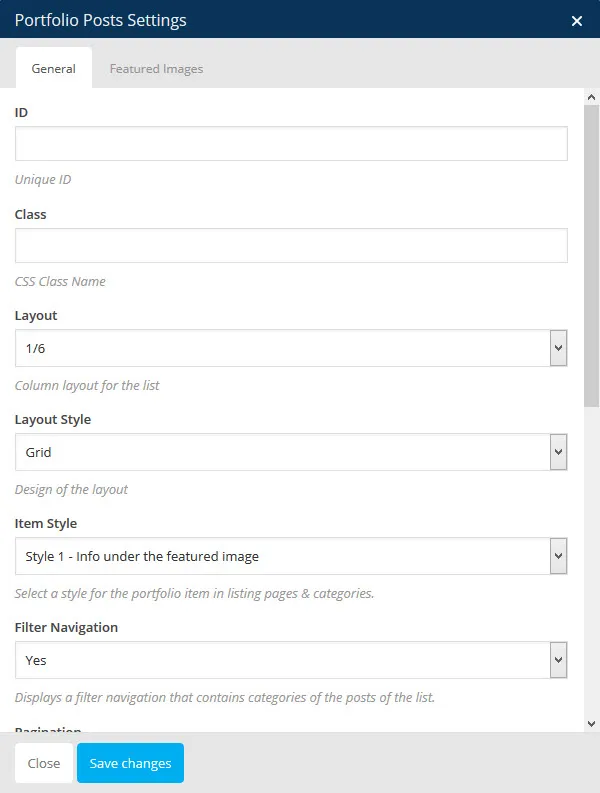
A window opens with all the settings of the element.
-
Adjust the settings. You can always edit them later if you don’t like the result.
-
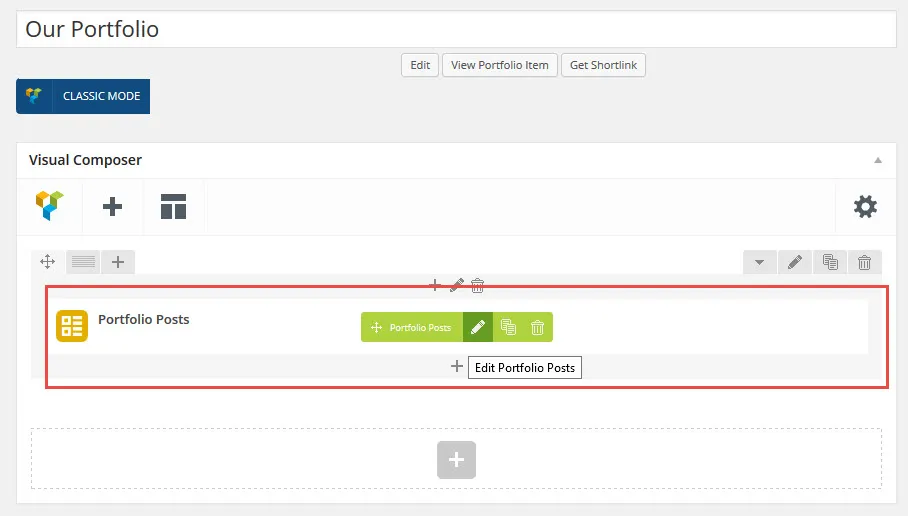
Click Save changes in the window. The page editor now shows the element:
Adding the portfolio with a shortcode
Section titled “Adding the portfolio with a shortcode”Click Shortcodes in the admin bar, or the shortcode icon in the Classic Editor toolbar. In the Theme Shortcodes window, select Portfolio Posts, adjust the example to your needs, and copy and paste the shortcode into the page where you want the portfolio to appear. The numbers below match the screenshot.
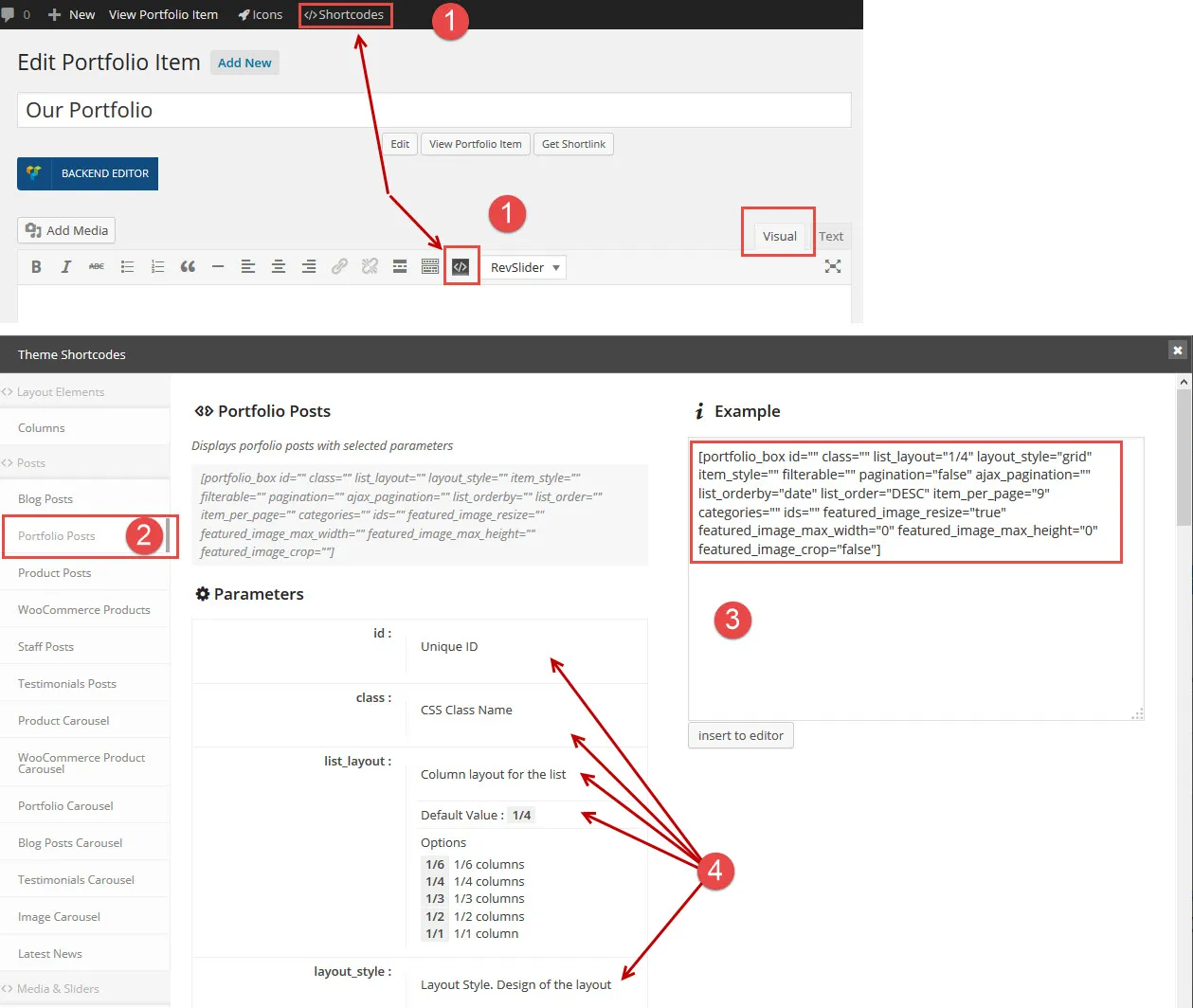
- The Shortcodes buttons.
- The Portfolio Posts shortcode.
- The example shortcode. Adjust it, then copy and paste it into the page content.
- The explanation of each parameter. Use it to adjust the parameters in the example from step 3.
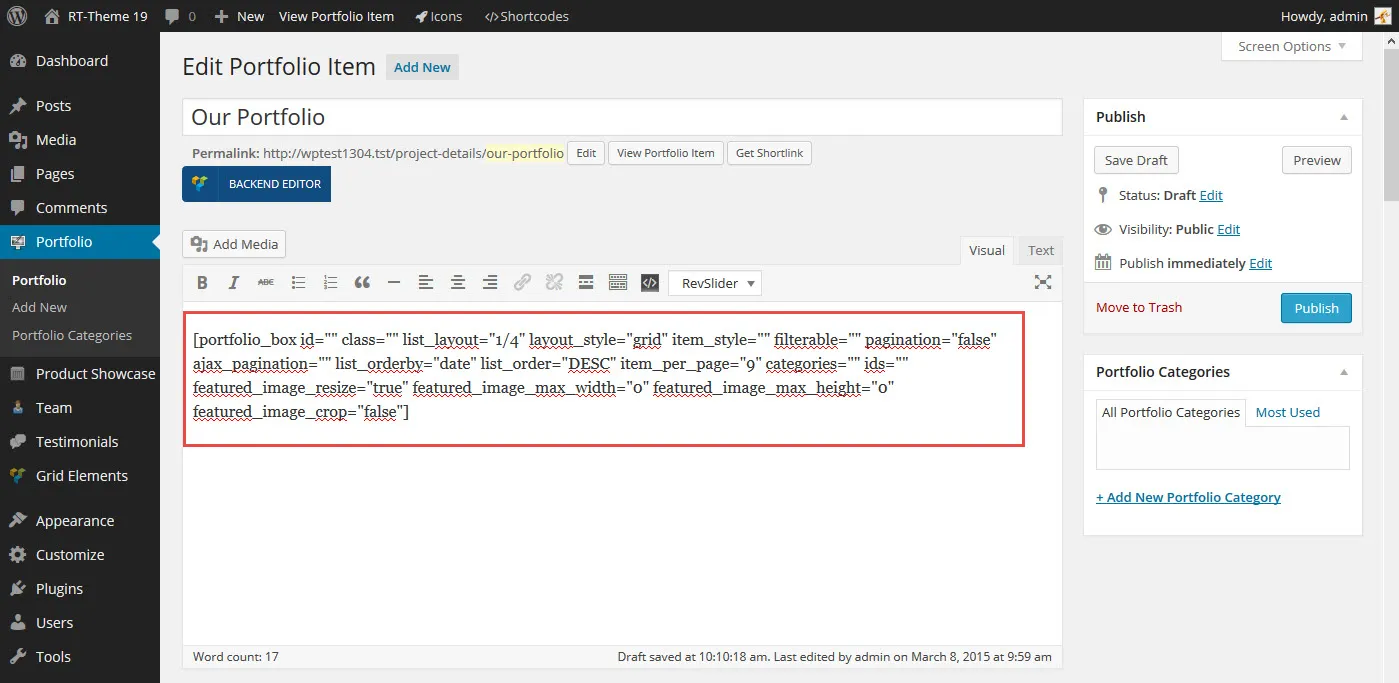
In the page, the shortcode can look like this:
Page design options
Section titled “Page design options”If the page needs a look that differs from your Customizer settings, change its Design Options. View the abilities of the Design Options
When you are done, click Publish and view the page on your site. It might look like this: