Theme Sliders
Sliders and carousels
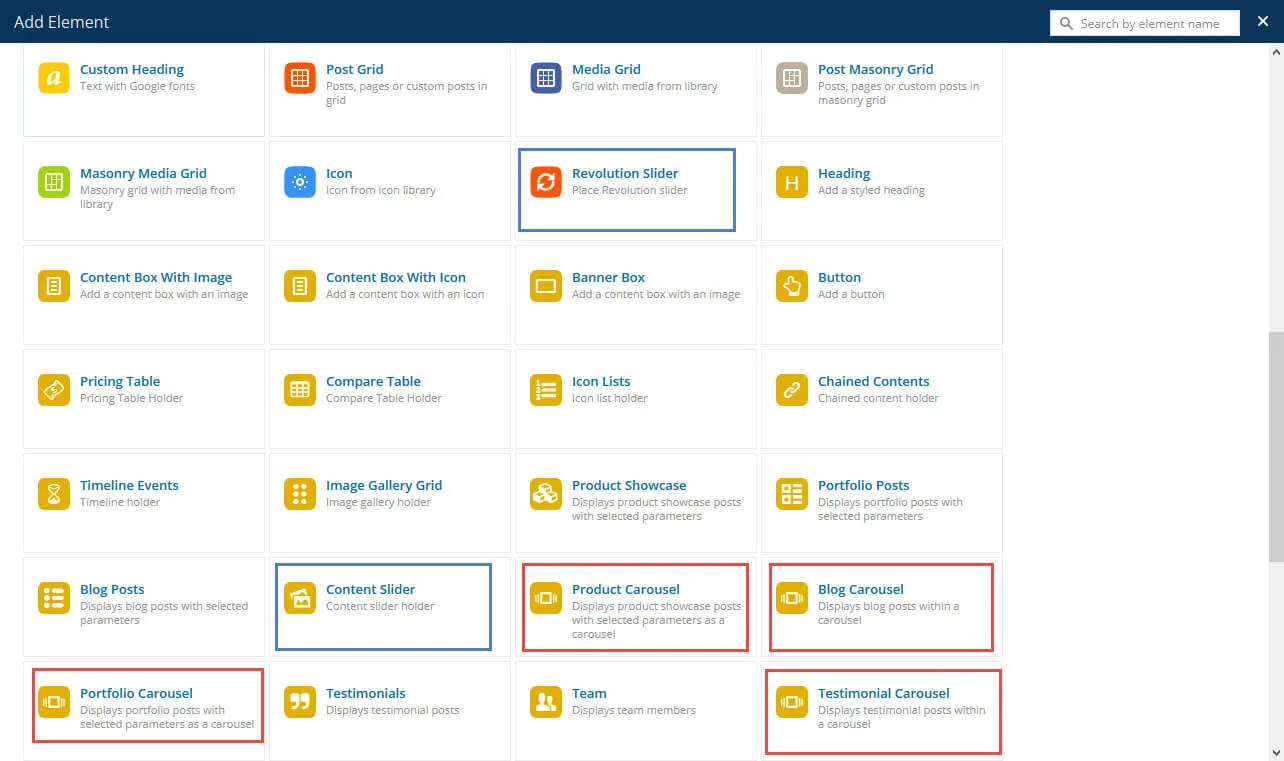
Section titled “Sliders and carousels”RT-Theme 19 has two sliders. You can add each of them as a WPBakery Page Builder element or as a shortcode:
- The Content Slider, the theme’s own slider.
- Slider Revolution, a bundled plugin.
The theme also has five carousels. You add them the same way, as a WPBakery Page Builder element or as a shortcode:
- The Blog Carousel
- The Product Carousel (Product Showcase)
- The Portfolio Carousel
- The Testimonial Carousel
- The WooCommerce Product Carousel. It is available only when WooCommerce is active.
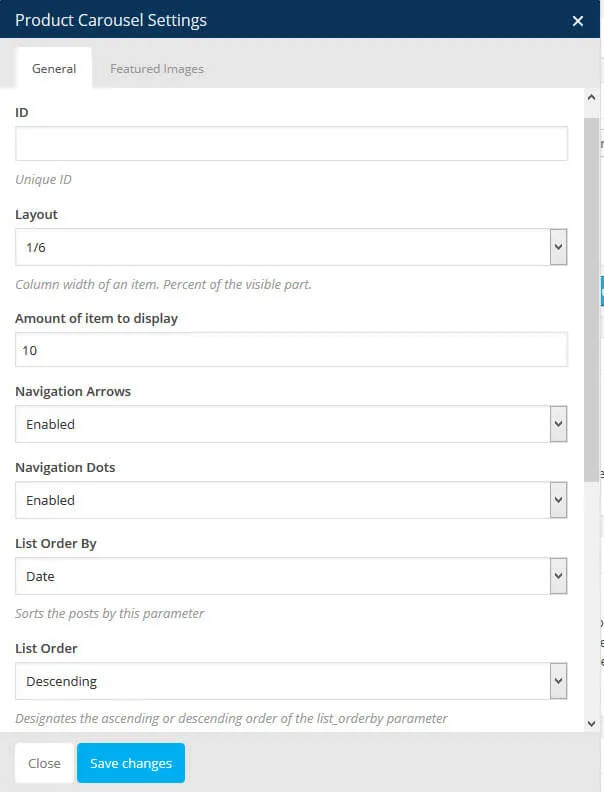
A carousel shows a rotating list of blog posts, products, portfolio items or testimonials anywhere in the content of a page. It takes its items from the post types that come with the theme: Posts, Product Showcase, Portfolio and Testimonials, plus WooCommerce products for the WooCommerce carousel.
The Content Slider
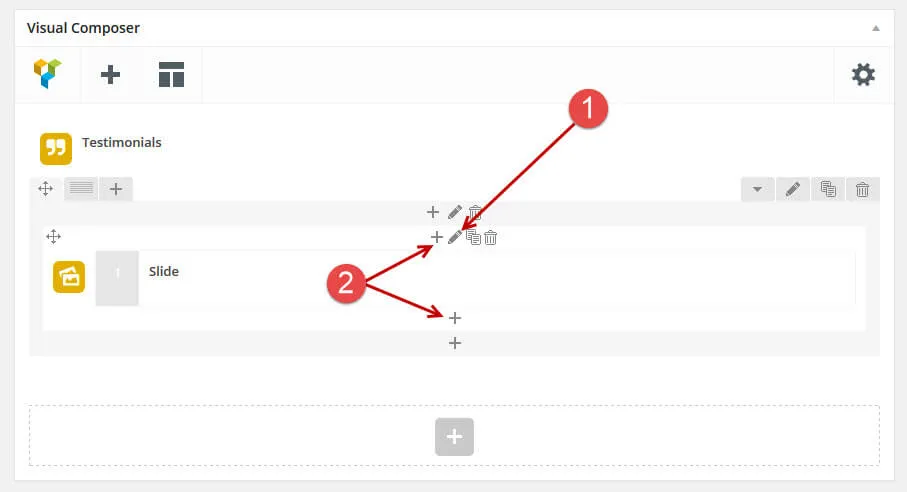
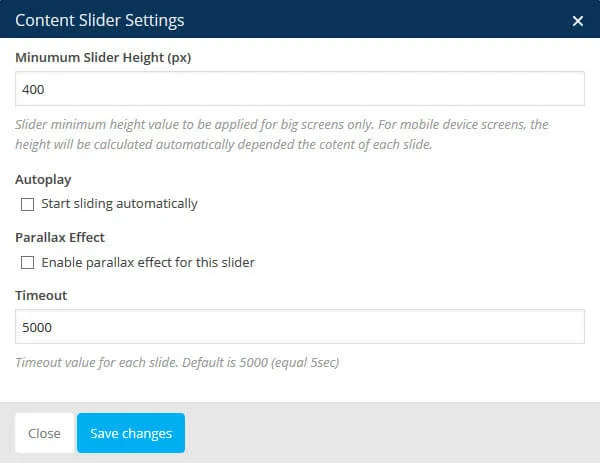
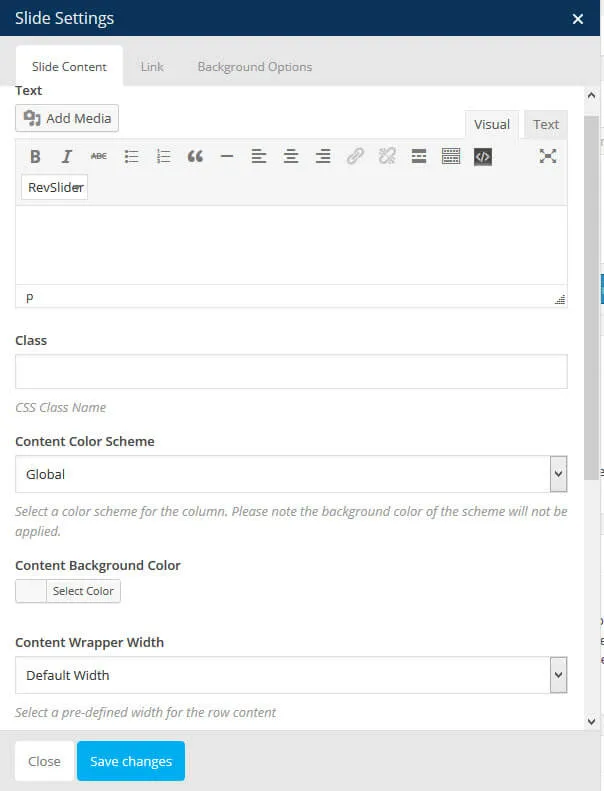
Section titled “The Content Slider”Add the Content Slider element to a row in WPBakery Page Builder. In its settings you can set the slider’s height, transition speed, auto start and parallax effect. Inside the element you add the individual slides.
-
Adjust the slider settings.
-
Add a slide and set its content.
Slider Revolution
Section titled “Slider Revolution”Slider Revolution is a plugin for responsive sliders with layers of text, video, images and buttons. You build the slider in the plugin, then place it on a page with the Slider Revolution element. How to build a slider is covered in the Slider Revolution documentation and the Slider Revolution help center.
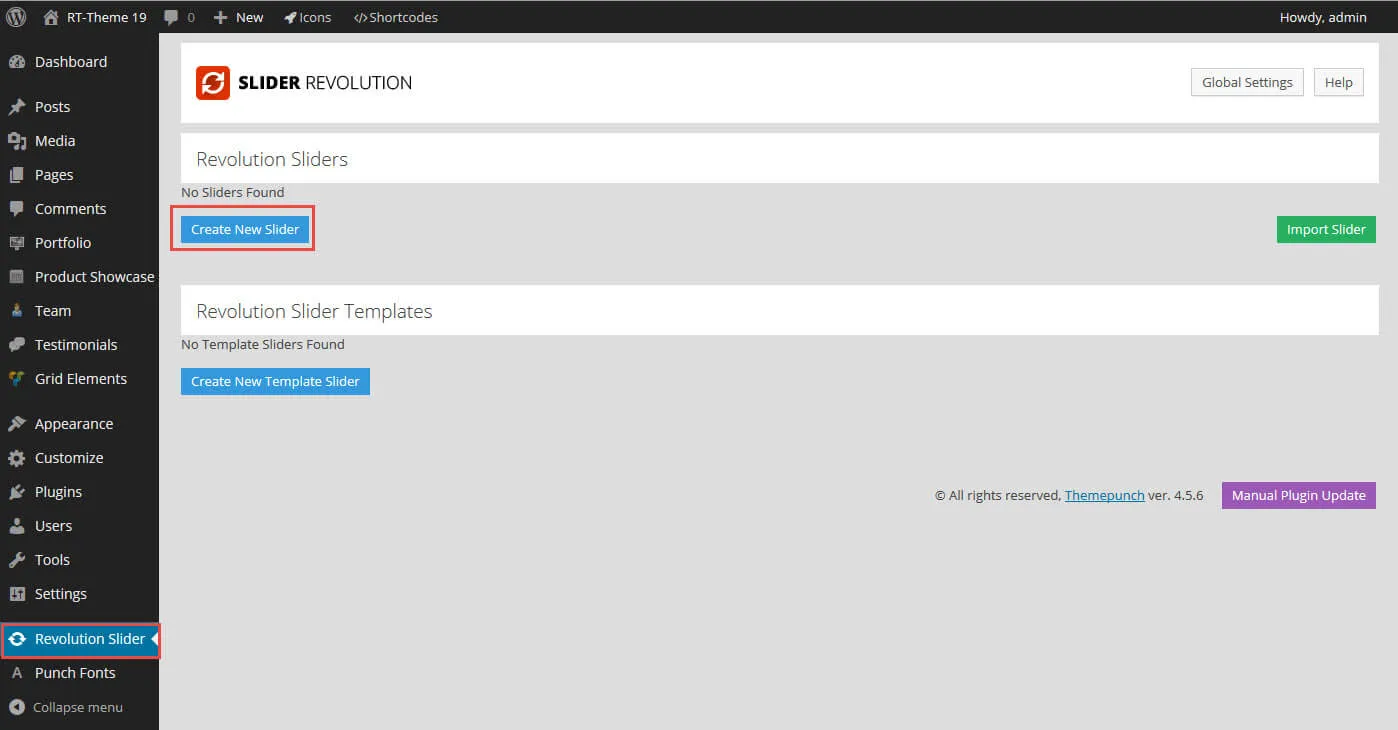
In short:
- Go to Slider Revolution in the admin menu and create a new slider.
- Give the slider a name and an alias.
- Adjust the slider’s global settings.
- Add the slides.
- Open each slide and add layers, such as text, video, images and buttons. Drag the layers into place in the preview and adjust each layer’s settings in the options panel.
- Save the slider.
You can then show any Slider Revolution slider on any page or post in three ways:
- Add the Slider Revolution element in WPBakery Page Builder.
- Paste the slider’s shortcode anywhere in the content.
- Paste the shortcode into any WPBakery element that accepts shortcodes, or into a text widget.
Adding a slider to a page
Section titled “Adding a slider to a page”-
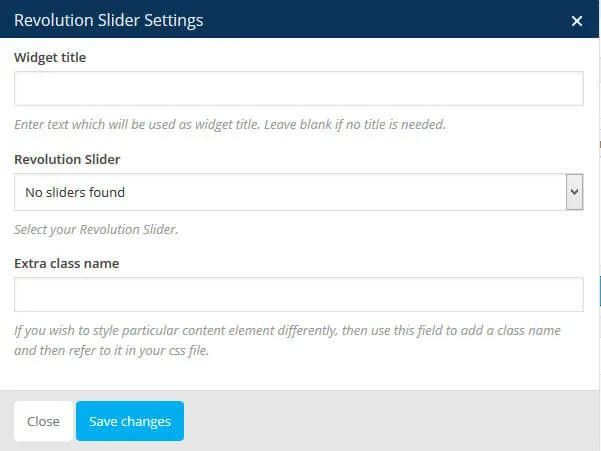
Create a page and, in WPBakery Page Builder, add a Slider Revolution element.
-
In the settings window that opens, choose a slider from the dropdown list.
Support for Slider Revolution
Section titled “Support for Slider Revolution”We fix problems with how Slider Revolution works inside the theme. We did not develop the plugin and ship it as it is, so we cannot help with how to use it, with its multilingual support or with your own CSS changes to it. ThemePunch, its developer, fixes bugs in the plugin itself; we report them, or you can report them yourself if you have your own Slider Revolution licence.
The carousels
Section titled “The carousels”Add a carousel element in WPBakery Page Builder, or insert a carousel shortcode into the content. Adjust the settings in the window that opens and save. The carousel shows at that place on the page.