
Catalog and Custom Fields
The RT-Themes Toolkit plugin holds your site’s content structure: post types, taxonomies and custom fields. It is a plugin, not part of the theme, so your catalog stays when you switch themes.
The Catalog
Section titled “The Catalog”The Catalog feature (turned on in the setup wizard) shows your furniture without a shop: no cart and no checkout, for showrooms, manufacturers and made-to-order work. It adds:
- the Catalog menu in your admin, with Catalog Categories;
- catalog item and archive templates (see Templates and Pages);
- the catalog patterns and the catalog pages (Catalog Home, Grid, Metro, Masonry, Carousel).
You can use the Catalog and the Shop on the same site.
Add a catalog item
Section titled “Add a catalog item”- Go to Catalog › Add New Catalog Item.
- Enter the title, the description in the content, an excerpt and a featured image.
- Fill in the fields in the sidebar, under Details:
| Field | What it is |
|---|---|
| SKU | Model or product code |
| Price | Shown on the item and its cards. Leave it empty for “price on request”. |
| Width, Depth, Height | In cm |
| Material | For example “Solid oak, wool bouclé” |
| Designer | |
| Lead time | For example “4–6 weeks” |
| Specifications | Label and value rows, for example “Seat height: 44 cm” |
| Gallery | Photos of the piece and in-situ shots |
| Related items | Other catalog items shown under this one |
- Pick a Catalog Category and publish.
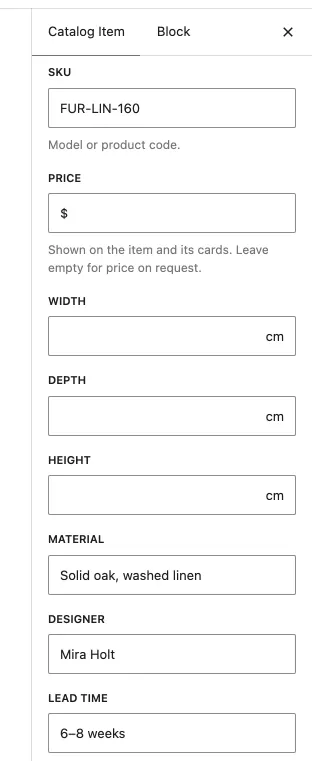
The item page shows the fields through the template, so every item looks the same. To change the layout of all items at once, edit the Single Catalog Item template in Appearance › Editor › Templates.
Show fields in a template
Section titled “Show fields in a template”Two blocks show an item’s fields:
- Field List: one list field (such as Specifications), or every field of the item. Style: Ring rows.
- Field Gallery: the Gallery field as a WordPress gallery, so its styles and lightbox work.
To show a single field in a Heading or Paragraph, select the block and, under Attributes, connect its text to the field (WordPress calls this a block binding).
Content Types: your own post types and fields
Section titled “Content Types: your own post types and fields”RT-Themes › Content Types lists the post types and taxonomies, with Furnica’s Catalog already there. You can:
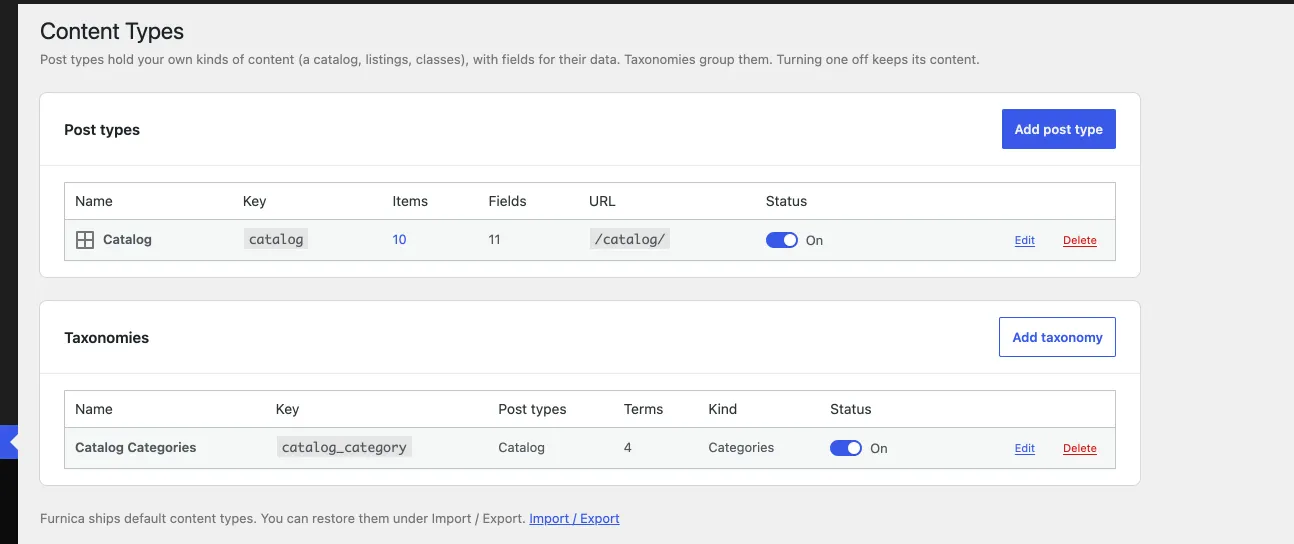
- Add fields to the Catalog: text, long text, number, URL, toggle, choice list, image, date, email, phone, colour, gallery, list or relation. A field can be required, have a placeholder, a prefix and suffix (such as
$orcm), an admin column, Quick Edit, and appear only when another field is filled. - Add your own post types and taxonomies, for example Projects or Showrooms, with their URL, menus, archive order and permissions.
- Rename labels, URL bases and options. The key of a post type, taxonomy or field is set when it is created and can’t change later.
Turning an entry off keeps its definition and content but hides it. Deleting a post type removes only its definition: the items stay in the database and come back when you add a post type with the same key.
Import / Export
Section titled “Import / Export”RT-Themes › Import / Export moves the content structure (not the items) between sites:
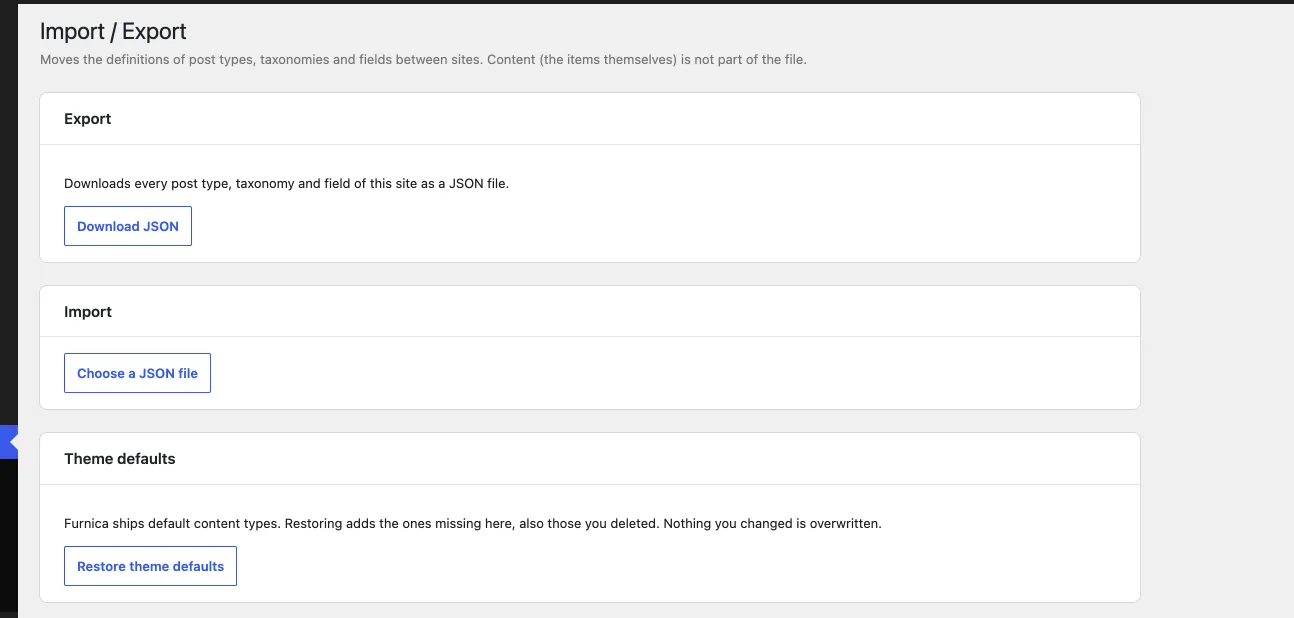
- Export (Download JSON) downloads the definitions as a JSON file.
- Import reads a file in merge mode (entries with the same key are replaced, the others kept) or replace mode.
- Restore theme defaults brings back Furnica’s Catalog and fields as the theme ships them, also ones you deleted, without overwriting ones you changed.
To move the catalog items themselves, use Tools › Export and Tools › Import in WordPress.
Site Mode: coming soon and maintenance
Section titled “Site Mode: coming soon and maintenance”RT-Themes › Site Mode shows visitors a single page while you work on the site. Administrators see the site as usual.
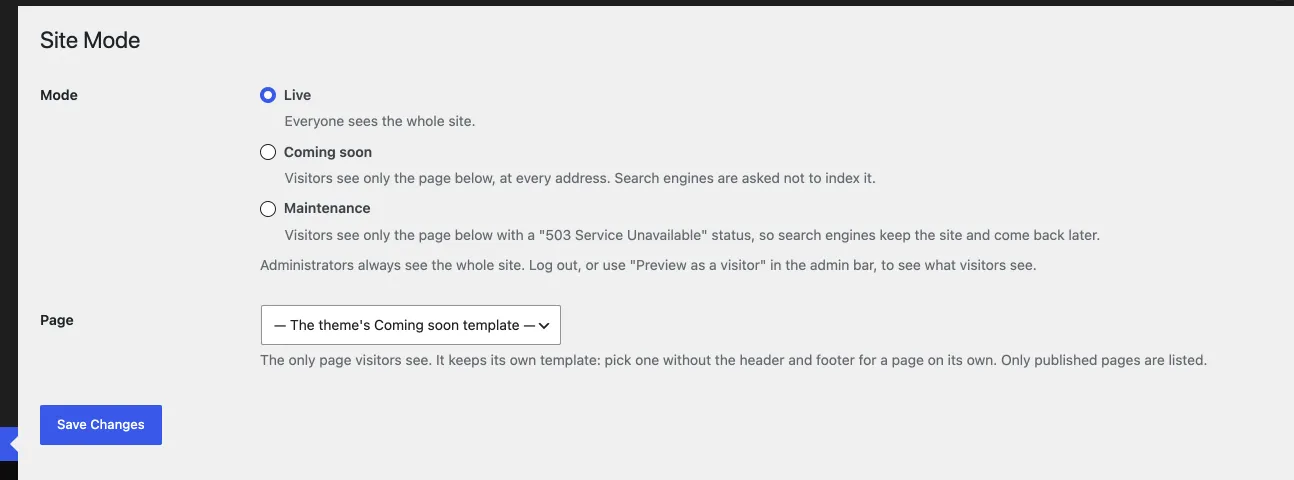
- Under Mode, pick one:
- Live: everyone sees the whole site (the normal state).
- Coming soon: visitors see only the chosen page, at every address. Search engines are asked not to index it.
- Maintenance: visitors see only the chosen page with a “503 Service Unavailable” status, so search engines keep the site and come back later.
- Under Page, pick the page visitors see, for example Furnica’s Under Construction page, or leave The theme’s Coming soon template. The page keeps its own template: pick one without the header and footer (“Page, no header or footer”) for a page on its own.
- Save.
While a mode is on, the admin bar shows Coming soon or Maintenance, with Preview as a visitor. To open the site again, choose Live.
If WooCommerce’s own Site visibility › Coming soon is also on, Site Mode takes over and the screen tells you.