
Templates and Pages
A template is the layout of one kind of page: where the header, the page title band, the content and the footer go. A page’s own content goes between them. Furnica comes with WordPress’s standard templates and extra page and post templates you can pick for each page.
Pick a template for a page
Section titled “Pick a template for a page”- Open the page in Pages.
- In the page sidebar, under Template, click the current template’s name.
- Pick another template and save the page.
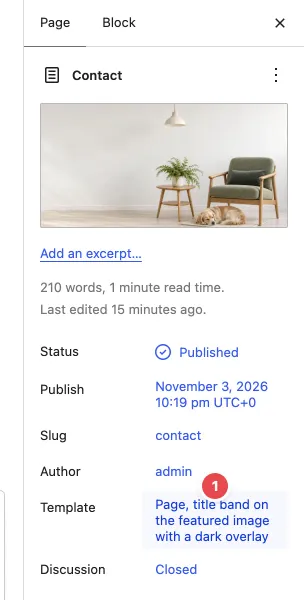
The same works for posts and catalog items, each with its own list of templates.
Page templates
Section titled “Page templates”| Template | Looks like |
|---|---|
| Pages (default) | The header, a title band with the breadcrumb and the title, then the content |
| Page, no title band | The header and the content: the page builds its own top section |
| Page, centered title band with the excerpt | A centered title with the page’s excerpt under it |
| Page, title band with the breadcrumb on the right | The title on the left, the breadcrumb on the right |
| Page, title band with the excerpt | The title with the page’s excerpt beside it |
| Page, title band with a table of contents | A title band, then the content beside a table of contents that follows the reading |
| Page, title band on the featured image | The title over the page’s featured image |
| Page, title band on a light featured image | The same, for light photos (dark text) |
| Page, title band on the featured image with a dark overlay | The same, with a dark overlay and white text |
| Page, header over the hero | No title band; the header sits over the first block, for pages that start with a large photo or a slider |
| Page, white header over the hero | The same, with a white header for dark photos |
| Page, yellow header over the hero | The same, with a yellow header band |
| Page, no header or footer | Only the content, for landing and coming soon pages |
The title band templates use the page’s excerpt and featured image. Set them in the page sidebar. If the page sidebar shows no Excerpt field, turn it on under ⋮ › Preferences › General › Excerpt.
Post and catalog templates
Section titled “Post and catalog templates”| Template | Used for |
|---|---|
| Single Posts (default) | A blog post under a title band, with share links, related posts, comments and the blog sidebar |
| Post, full width on the featured image | The title over a full-width featured image |
| Post, full width with a table of contents | The same, with a table of contents beside the text |
| Single Catalog Item (default) | A catalog item: a photo slider beside its key facts, then the description, specifications and related items |
| Catalog item, editorial | A long, magazine-style item page |
| Catalog item, gallery tiles and sticky summary | Photo tiles beside a summary that stays in view |
The other templates
Section titled “The other templates”WordPress picks these by itself. Edit them in Appearance › Editor › Templates.
| Template | Shows |
|---|---|
| Index, Blog Home, Archives, Search Results | The blog, its category and tag pages, and search |
| 404 | The “page not found” page |
| Catalog archive, Catalog category | The catalog’s list pages (with the Catalog feature) |
| Product Catalog, Single Product, Product category | The shop (with the Shop feature), see WooCommerce Pages |
| Page: Cart, Page: Checkout, Page: My Account | The WooCommerce pages |
Which header each template uses is listed in Header and Footer.
Page patterns
Section titled “Page patterns”Every page the setup wizard creates is built from a page pattern: Home 1 to Home 6, Shop Home, Catalog Home, About, Services, Pricing, Our Team, FAQ, Contact, Privacy Policy, Terms & Conditions, Under Construction, Blog Home and the catalog pages.
You can start any new page from one:
- Go to Pages › Add New Page.
- In the Choose a pattern window, pick a page, for example Home 3. Click Furnica or Pages in the window to see only Furnica’s page patterns.
- The page gets the pattern’s blocks and the template that goes with it (for example Home 3 picks “Page, white header over the hero”). Replace the text and the images, then publish.
The page holds its own copy of the blocks: theme updates don’t change pages you made. To add a single section rather than a whole page, use the section patterns, see Pattern Categories.
Edit a template
Section titled “Edit a template”- Go to Appearance › Editor › Templates and open the template.
- Change it like a page: move, add or remove blocks. The Content block is where each page’s own content goes; keep it.
- Click Save. Every page that uses the template follows.
To undo all your changes, click ⋮ next to the template’s name and choose Reset. Theme updates reach templates you have not edited.