
Style Variations
A style variation changes the colours or the fonts of the whole site at once. Every page, pattern and block style follows, because Furnica’s designs use the palette’s colours instead of fixed ones.
Pick a variation
Section titled “Pick a variation”- Go to Appearance › Editor › Styles.
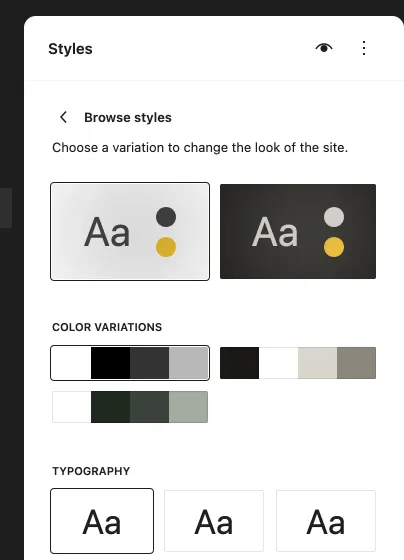
- Click Browse styles. The panel shows the full variations at the top (Default and Evening), then Color variations (Default, Night, Sage) and Typography (Default, Classic, System). Click one to preview it.
- Click Save.
To go back to Furnica’s own look, pick Default.
Furnica’s variations
Section titled “Furnica’s variations”| Variation | Changes | Look |
|---|---|---|
| Default | — | White background, black and grey text, yellow accent, cream sections. Fonts: Inter, with Poppins for labels |
| Night | Colours | Dark background with white text, the yellow accent stays, dark cream sections |
| Sage | Colours | White background, dark green text, sage green accent and pale green sections |
| Evening | Colours and fonts | Night’s colours with Georgia headings |
| Classic | Fonts | Georgia (serif) headings, Inter text |
| System | Fonts | The visitor’s system font for everything: no web fonts to load, the fastest |
Colour variations (Night, Sage) and font variations (Classic, System) combine: pick one of each. Evening sets both.
Change single colours or fonts
Section titled “Change single colours or fonts”In Styles › Colors › Palette you can change any colour of the palette, for example the accent. Furnica’s colours have names that say what they are for:
| Colour | Used for |
|---|---|
| Base | The page background |
| Contrast | Headings and strong text |
| Body | Running text |
| Accent | Highlights, buttons, markers |
| Cream, Cream Deep | Light section backgrounds |
| Surface, Line | Cards and lines |
| On Accent, On Image | Text on the accent colour and on photos |
In Styles › Typography change the fonts of the text, headings and labels.
The section styles (Cream, Grey, Yellow and Dark section, see Block Styles) follow the palette, so they suit every variation.
Undo your changes
Section titled “Undo your changes”In Styles, click ⋮ › Reset styles to go back to the variation as Furnica ships it.