
Header and Footer
There are two different changes you can make to Furnica’s header, and they live in different places:
| You want to change… | Where | What it does |
|---|---|---|
| How wide the header, footer or page title band is, on every page | RT-Themes › Furnica › Design | Full width, Wide or Content width, for the whole site |
| Whether the header stays at the top while scrolling, on every page | RT-Themes › Furnica › Design | Sticky header on or off |
| Which header one kind of page uses (for example a white header over a photo) | Appearance › Editor › Templates, then Replace | Points that template to another header template part |
Start with the Design tab. Use Replace only when one template needs a different header look.
Change the width for the whole site
Section titled “Change the width for the whole site”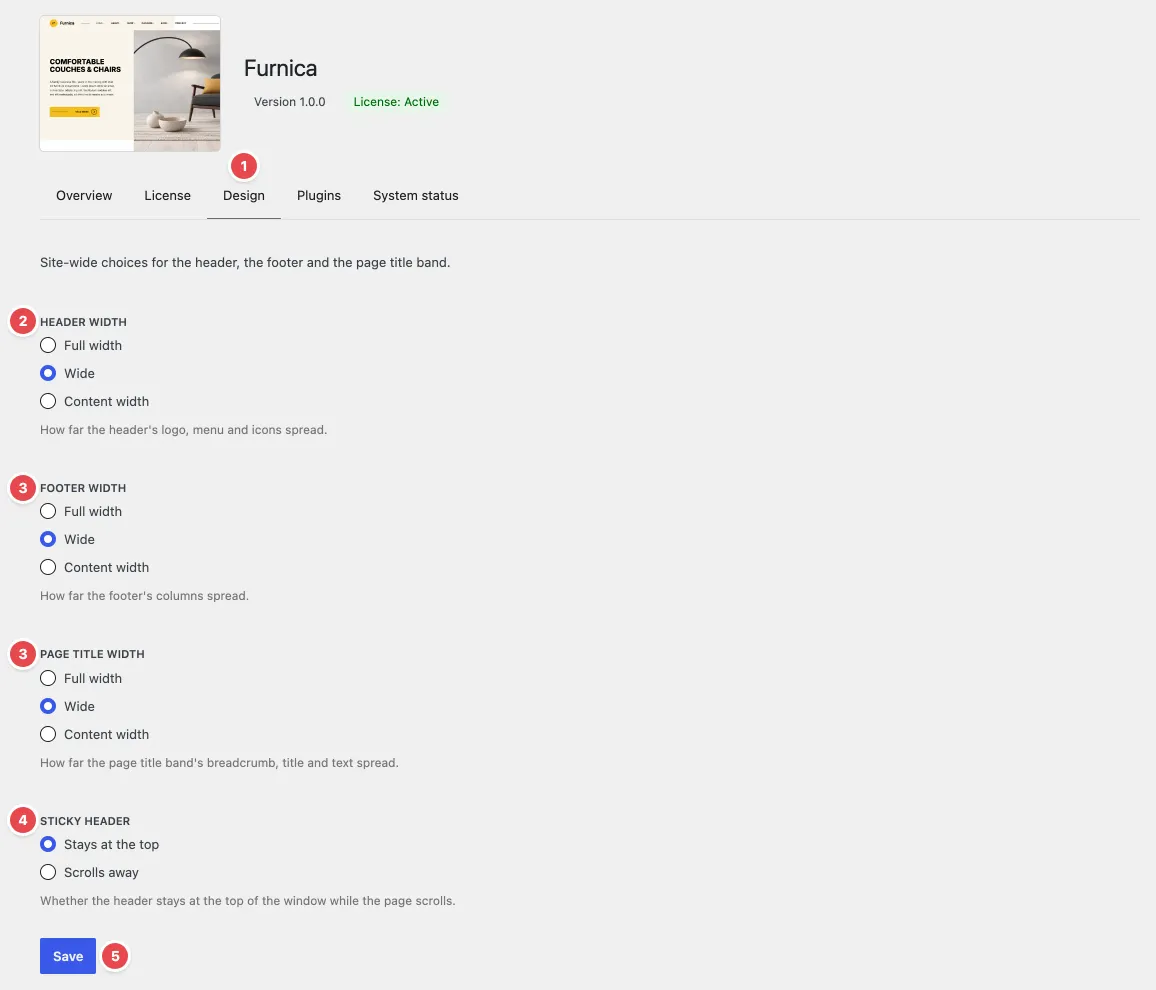
- In your admin, go to RT-Themes › Furnica and open the Design tab (1).
- Under Header width (2), pick one:
- Full width: the logo, menu and icons spread across the screen (up to a 1680px frame on very large screens).
- Wide: they line up with wide blocks, such as wide images. This is the default.
- Content width: they line up with the page’s text.
- Pick a width for Footer width and Page title width (3) the same way. The page title band is the strip with the breadcrumb and the page title at the top of inner pages.
- Under Sticky header (4), choose Stays at the top or Scrolls away.
- Click Save (5). Every page follows at once, in the editor and on the site.
The setup wizard shows the same choices in its Design step. Whatever you pick there can be changed here later.
The Design tab needs the RT-Themes Toolkit plugin. The setup wizard installs it; if the tab says the toolkit is missing, see Installation and Licence.
When a choice does not reach the header
Section titled “When a choice does not reach the header”The Design tab changes Furnica’s own header, footer and page titles. If you have edited one of these template parts in the Site Editor and saved it, WordPress uses your saved copy instead, and the choice no longer reaches it. The Design tab then shows a warning under the choice, such as “Header bar was edited in the Site Editor”, with two buttons:
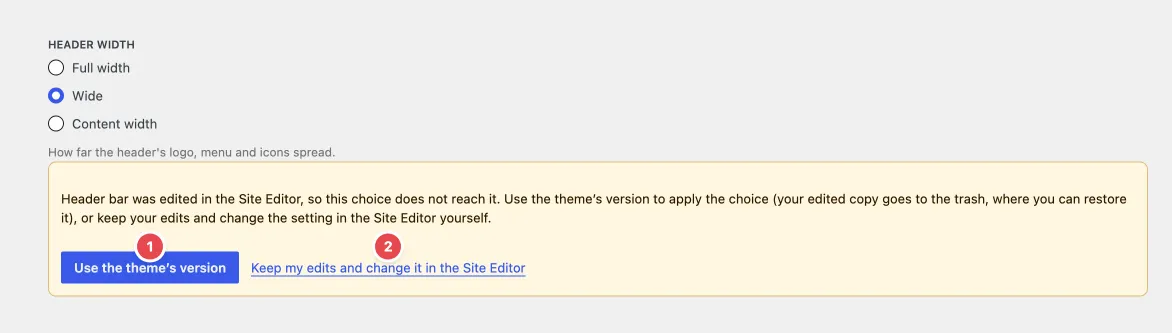
- Use the theme’s version (1): your edited copy goes to the trash (you can restore it from there) and the choice applies again.
- Keep my edits and change it in the Site Editor (2): your copy stays. Change its width yourself, see Set the width by hand.
Furnica’s header template parts
Section titled “Furnica’s header template parts”Some pages put the header over a large photo or a coloured hero, so Furnica has four header looks. Each is a template part in the Header area. All four share one inner template part, Header bar, which holds the logo, the menu and the icons. Edit the menu or the logo once in Header bar and every header shows it.
| Template part | Look | Used by these templates |
|---|---|---|
| Header | Dark text on the page background | Index, Blog Home, Archives, Search Results, 404, Pages, Single Posts, the catalog templates, and the page templates “Page, no title band”, “Page, centered title band with the excerpt”, “Page, title band with the breadcrumb on the right”, “Page, title band with a table of contents” and “Page, title band with the excerpt” |
| Header, over the hero | Dark text over the top photo | “Page, header over the hero”, “Page, title band on the featured image”, “Page, title band on a light featured image”, and the shop, single product, cart, checkout and my account pages |
| Header, over the hero, white text | White text over a dark photo | “Page, white header over the hero”, “Page, title band on the featured image with a dark overlay”, “Post, full width on the featured image”, “Post, full width with a table of contents” and product category pages |
| Header, over the hero, accent background | Yellow band | “Page, yellow header over the hero” |
“Page, no header or footer” and the coming soon page show no header at all.
There is one Footer template part, used by every template.
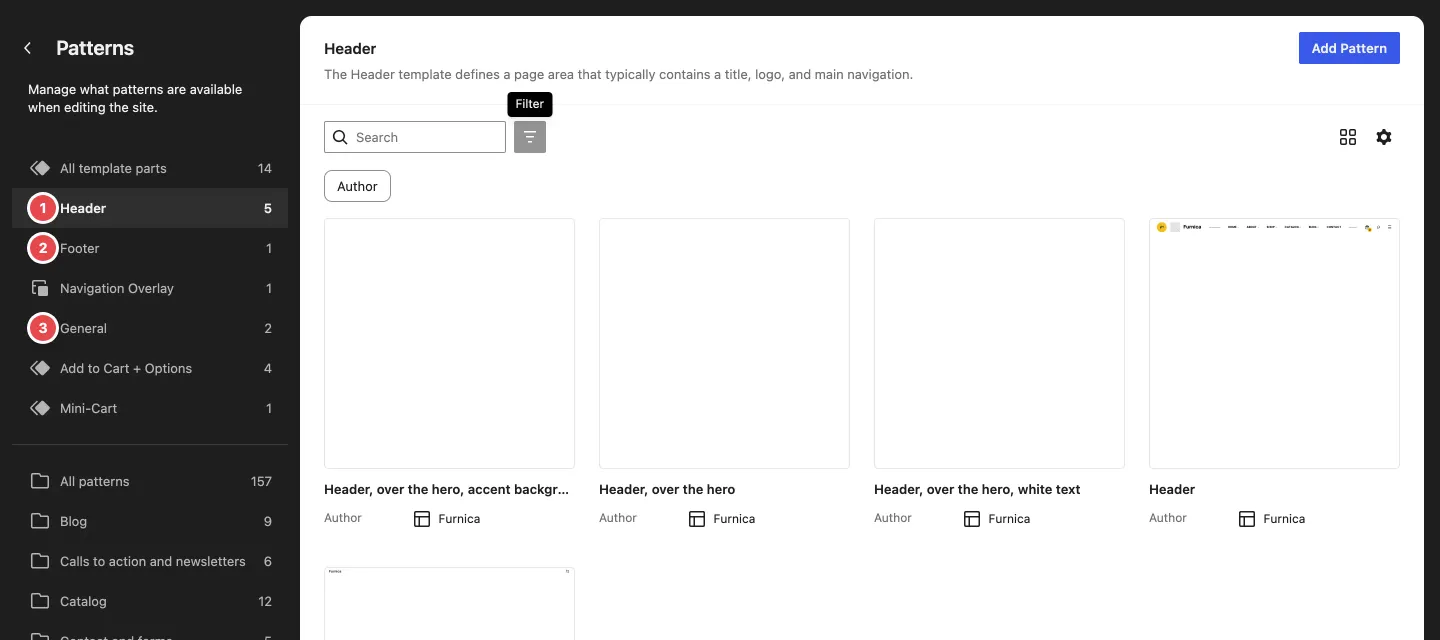
You find them all in Appearance › Editor › Patterns, under Template Parts: the four headers under Header (1), the footer under Footer (2), and Header bar under General (3). WooCommerce adds a Checkout Header of its own; Furnica doesn’t use it.
Use another header on one kind of page
Section titled “Use another header on one kind of page”Point one template to another header template part. Other templates stay as they are.
-
Go to Appearance › Editor › Templates.
-
Open the template, for example Single Posts.
-
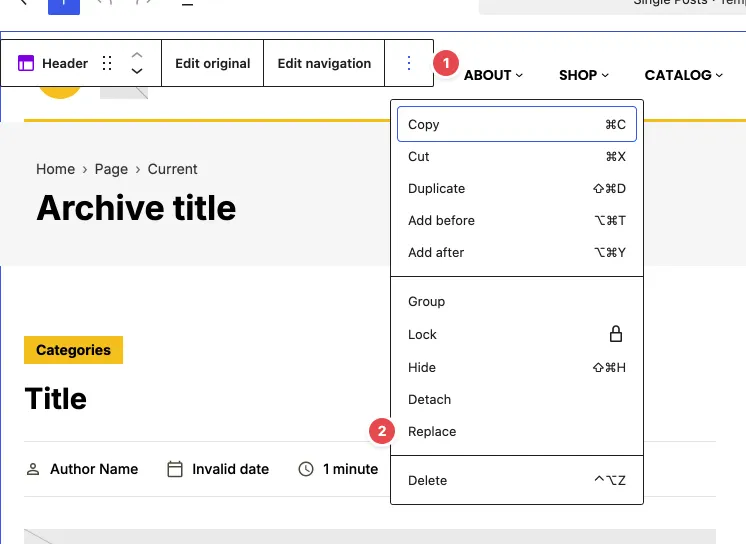
Click the header. Make sure the whole template part is selected: the block toolbar shows its name, for example Header. If you selected a block inside it, open List View and click Header there.
-
In the block toolbar, click ⋮ (Options, 1) and choose Replace (2).
-
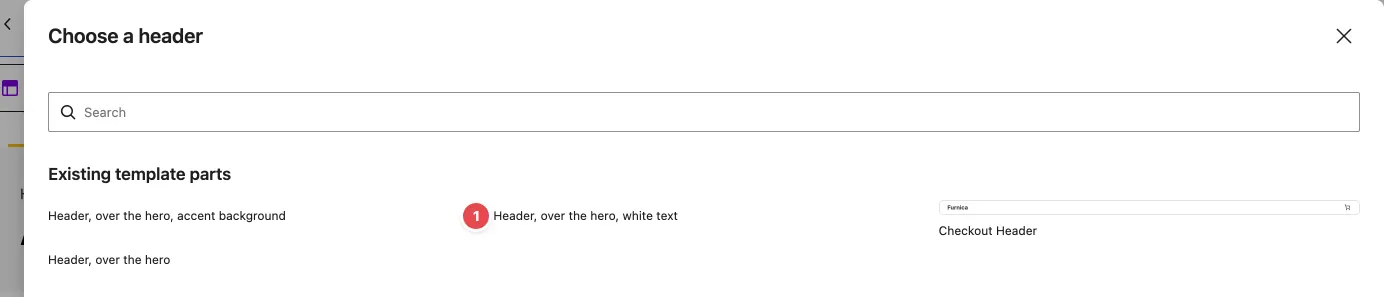
In the Choose a header window, under Existing template parts, click another header, for example Header, over the hero, white text (1). The window shows only their names: these headers take their look from the page under them.
-
Click Save.
The headers over the hero sit on top of the first block of the page. Use them on templates whose content starts with a large photo or cover; on a plain page the menu sits over the text.
To give a single page another look, you usually don’t need to change templates at all: open the page, and in the page sidebar under Template pick one that already uses the header you want, for example Page, white header over the hero. See Templates and Pages.
Set the width by hand
Section titled “Set the width by hand”Use this when you keep your own edited copy of a template part (see above), or want a width only in one place.
- Go to Appearance › Editor › Patterns.
- Open the template part:
- for the header: under Template Parts › General, open Header bar;
- for the footer: under Template Parts › Footer, open Footer.
- Open List View and select Header row (in Header bar) or Footer content (in Footer).
- In the block toolbar, click Align and choose None (content width), Wide width or Full width.
- Click Save.
Undo your changes
Section titled “Undo your changes”To go back to Furnica’s original header or footer, reset the template part: open it in Appearance › Editor › Patterns, click ⋮ next to its name and choose Reset. The Design tab’s choices reach it again.
To undo a Replace in one template, open the template and choose ⋮ › Reset next to the template’s name. This brings back the theme’s version of the whole template, including Furnica’s header for it.