
Installing
Installing the theme
Section titled “Installing the theme”Thank you for purchasing RT-Theme 18. Before you start on your new site, you install the theme in WordPress. To do that, you download the package from your ThemeForest account and unzip it on your computer. This page covers what is specific to RT-Theme 18. The general steps for every RT-Themes theme are in Installing an RT-Themes WordPress theme.
Downloading the theme from ThemeForest
Section titled “Downloading the theme from ThemeForest”- Log in to your ThemeForest account.
- Go to your Downloads page.
- Click Download next to RT-Theme 18 and choose All files and documentation.
Package contents
Section titled “Package contents”Unzip the package on your computer. It looks similar to this:
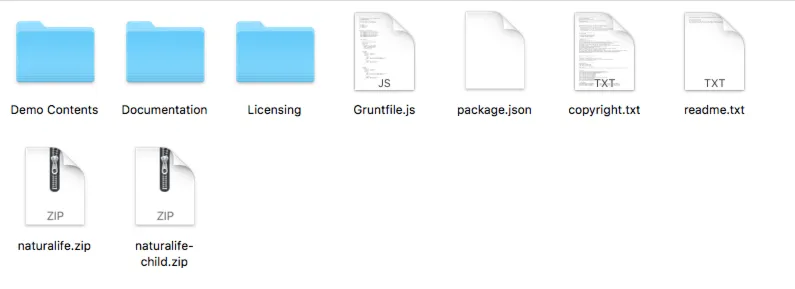
The file you install in WordPress is rttheme18.zip. Do not upload the whole package: WordPress expects the theme ZIP only. The package also holds the demo content for a manual import (see Installing the demo content below).
Two ways to install the theme
Section titled “Two ways to install the theme”You can install RT-Theme 18 in one of two ways:
- Upload
rttheme18.zipin your WordPress admin. - Upload the unzipped
rttheme18folder towp-content/themesby FTP.
Installing an RT-Themes WordPress theme describes both step by step.
Uploading the theme in WordPress
Section titled “Uploading the theme in WordPress”- Log in to your WordPress admin (
/wp-admin/). - Go to Appearance › Themes and click Add New Theme at the top.
- Click Upload Theme.
- Choose
rttheme18.zipfrom your computer and click Install Now. - When the installation is complete, click Activate.
Activating an installed theme
Section titled “Activating an installed theme”If you installed the theme but did not activate it yet, go to Appearance › Themes and click Activate under RT-Theme 18.
Uploading the theme by FTP
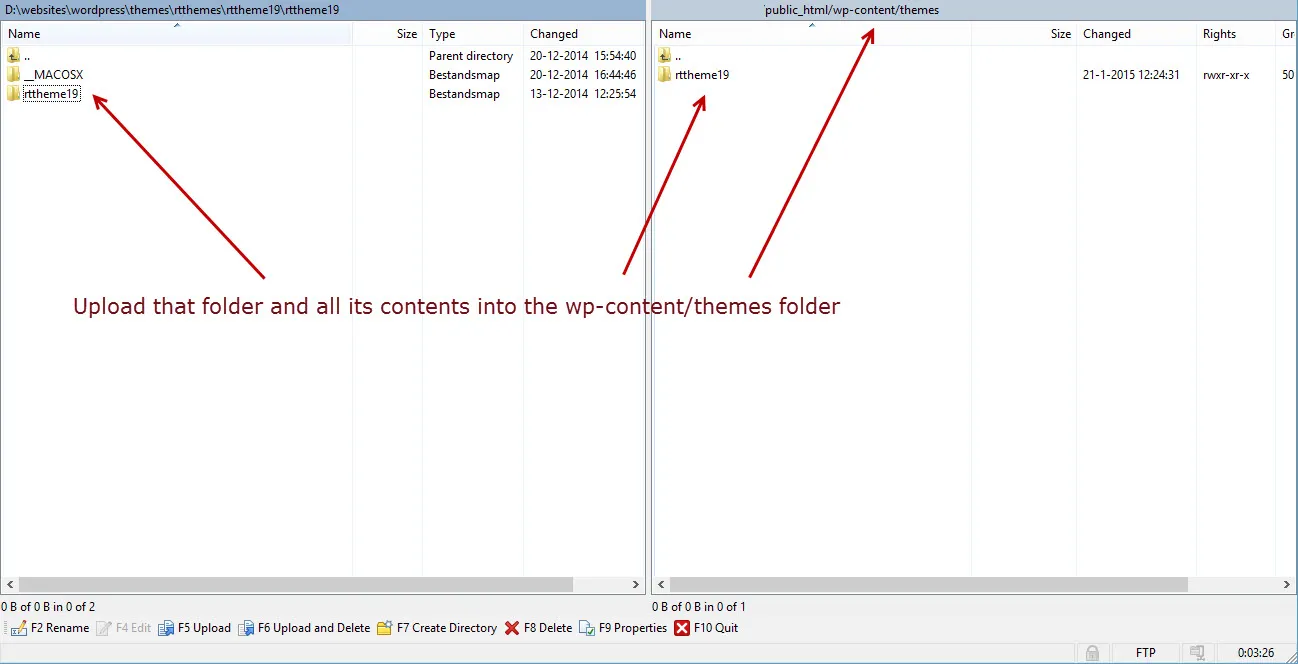
Section titled “Uploading the theme by FTP”For an FTP upload, first unzip rttheme18.zip from your download package. Connect to your server with an FTP program such as FileZilla or WinSCP. Upload the rttheme18 folder with all its subfolders into wp-content/themes, so that you end up with wp-content/themes/rttheme18. Then activate the theme in Appearance › Themes.
Install and setup video
Section titled “Install and setup video”This video shows how to install the theme and the plugins and how to import the demo content. Watch it in full screen at 720p. It uses our Business Lounge theme and has no sound, but the installation steps are the same for RT-Theme 18: watch the install video on YouTube.
Licence activation
Section titled “Licence activation”Activate your licence to receive theme updates, install the bundled plugins and import the demo content.
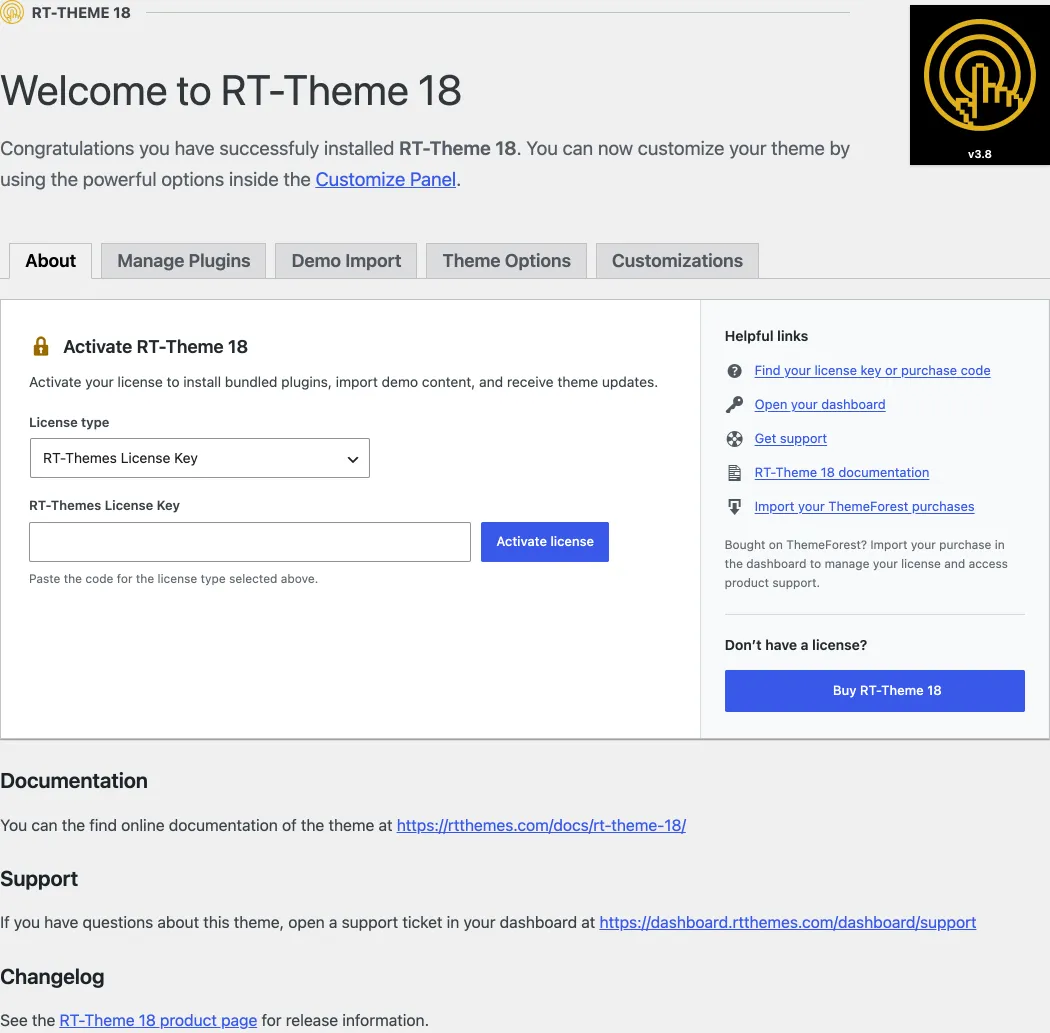
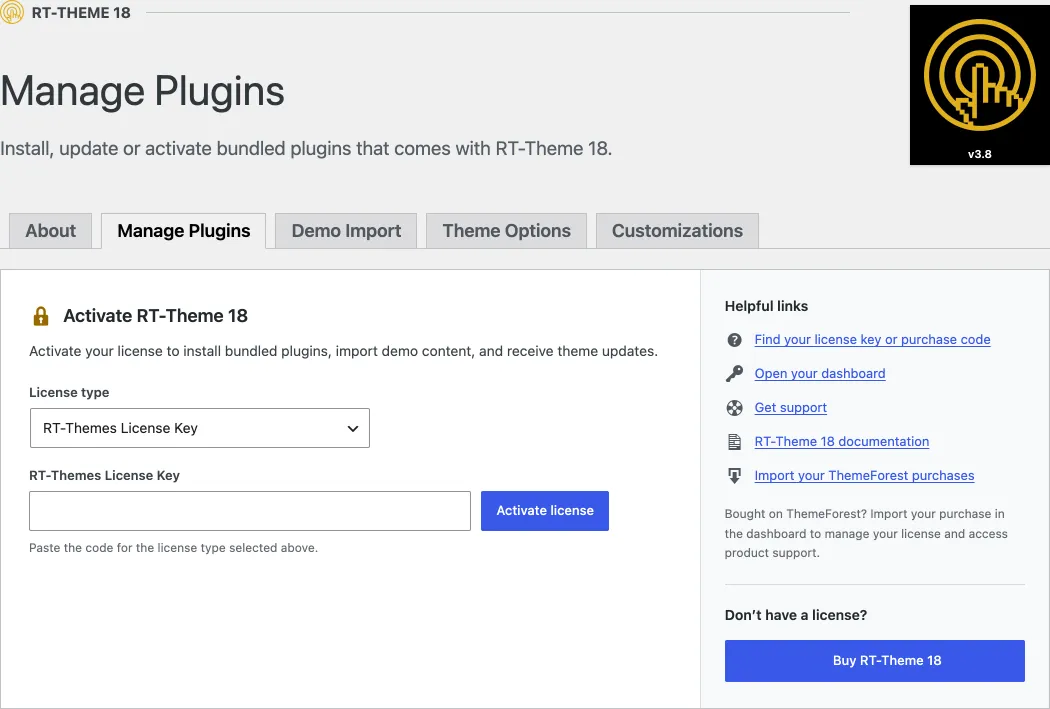
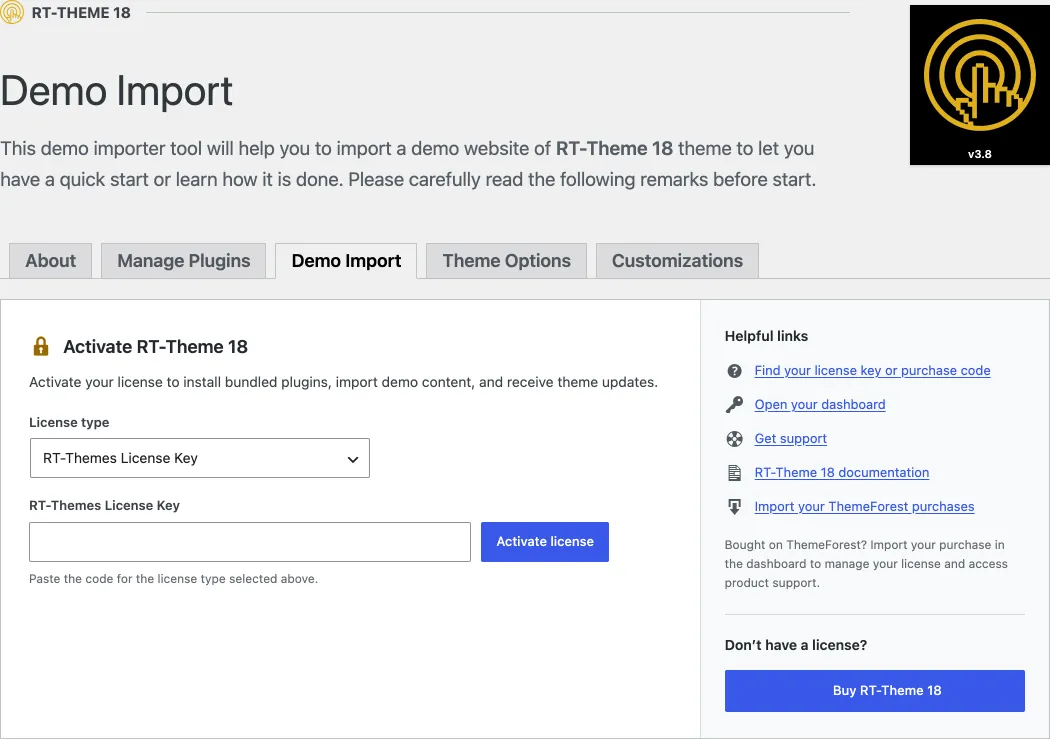
- Open RT-Theme 18 › Plugins in your admin sidebar. Until the licence is active, the Manage Plugins tab, like every other tab of the theme’s About page, shows the Activate RT-Theme 18 form.
- Choose the License type: RT-Themes License Key for a direct purchase or a Club License Code, or Envato Purchase Code for a ThemeForest purchase.
- Paste your key or purchase code in the field below it.
- Click Activate license. Theme updates, the bundled plugins on the Manage Plugins tab and the one-click demo import are now available.
Finding your license key or purchase code explains where to find your key or code. To activate the licence on another site or move it, see Requesting license activation or deactivation. If the activation fails, see Troubleshooting license activation.
Installing the bundled plugins
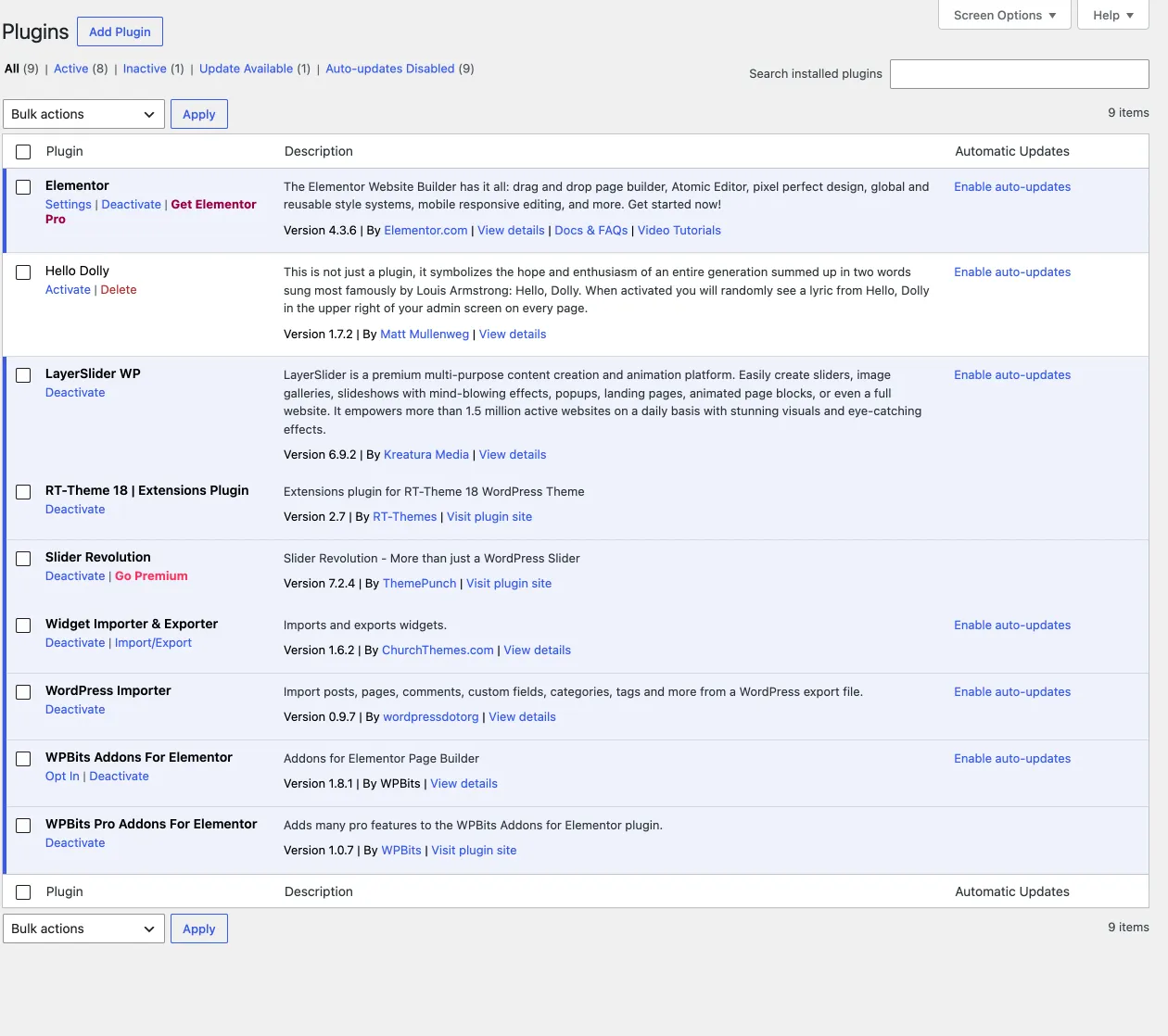
Section titled “Installing the bundled plugins”Go to RT-Theme 18 › Plugins and open the Manage Plugins tab to install the plugins that come with the theme. This needs an activated licence key. The free plugins from wordpress.org, such as Elementor and WooCommerce, also install and update from the regular Plugins screen. RT-Theme 18 Extensions and the premium plugins install and update only from the Manage Plugins tab. If the tab does not work for you, Appearance › Install Plugins lists the same plugins as a fallback. The full workflow is in Installing bundled plugins. Until your licence is active, the tab shows the licence activation form instead of the plugin list.
| Plugin | Status | Source |
|---|---|---|
| RT-Theme 18 Extensions | Required | Bundled |
| Elementor | Required | wordpress.org |
| WPBITS Addons For Elementor | Required | wordpress.org |
| WPBITS Pro Addons For Elementor | Required | Bundled |
| Slider Revolution | Optional | Bundled |
| LayerSlider | Optional | Bundled |
| WooCommerce | Optional | wordpress.org |
Manually install or update the bundled plugins
Section titled “Manually install or update the bundled plugins”If the Manage Plugins tab does not work for you, update the plugins by hand.
- Download the theme package from the Downloads page of your ThemeForest account and unzip it on your computer.
- In your WordPress admin, go to Plugins › Add New Plugin and click Upload Plugin.
- Choose the plugin ZIP from the
rttheme18/rt-framework/plugins/packages/folder of the unzipped theme and click Install Now. - When WordPress asks, confirm Replace current with uploaded.
- Repeat for each bundled plugin.
The Plugins screen then lists each plugin with its version, so you can check that the update went through.
Installing the demo content
Section titled “Installing the demo content”Before you import into a site that already has content, read Importing demo content into an existing site safely.
One-click demo import
Section titled “One-click demo import”The Demo Import page is the first choice. Go to RT-Theme 18 › Demo Import and follow the instructions on the screen. The page downloads the demo from rtthemes.com, so it needs an activated licence key. Without one, the page shows the licence activation form first.
- The mailing list subscription forms depend on the Contact Form 7 plugin. The theme does not bundle it. If you need those forms, install and activate Contact Form 7 from wordpress.org before you start the import.
- Import into a clean install. The demo import adds media, posts, settings and more. Use a fresh WordPress install to get an exact copy of the demo.
- Do not interrupt the import: click the import button only once and keep the page open until it finishes.
Manually import the content
Section titled “Manually import the content”The All files and documentation package holds the same content for a manual import:
| File or folder | What it contains | How to import it |
|---|---|---|
Dummy Contents/contents.xml | The demo content | Tools › Import › WordPress |
demo contents/demo-xml-export/demo-website-contents.xml | The demo website pages, posts and other content | Tools › Import › WordPress |
demo contents/Revolution Slider Samples/ | Four demo sliders as ZIP files | Slider Revolution’s Import Slider |
demo contents/Layer Slider/LayerSlider_Export.zip | The LayerSlider demo sliders | LayerSlider’s import |
demo contents/Widgets/ | The widgets of the demo | The Widget Importer & Exporter plugin |
demo contents/RT-Theme 18 - Demo Templates/ | Template Builder exports as .txt files: Default Templates, Home Page Samples 1-14, Other Pages and All Templates | RT-Theme 18 › Template Builder |
Manually import the slider samples
Section titled “Manually import the slider samples”The demo import installs the demo sliders. If you need them again, you can import the Slider Revolution demos by hand. The Slider Revolution documentation explains the import in detail.
- Go to Slider Revolution in your admin and click Import Slider.
- Choose one of the ZIP files from the
demo contents/Revolution Slider Samplesfolder of the All files and documentation package.
Updating
Section titled “Updating”Once your licence is active, WordPress tells you when a theme update is available. An update has two steps:
- Update the theme.
- Update the bundled plugins.
The general steps, including the backup you should make first, are in Updating an RT-Themes WordPress theme.
Updating the theme
Section titled “Updating the theme”Go to Appearance › Themes and click Update now on the RT-Theme 18 thumbnail.
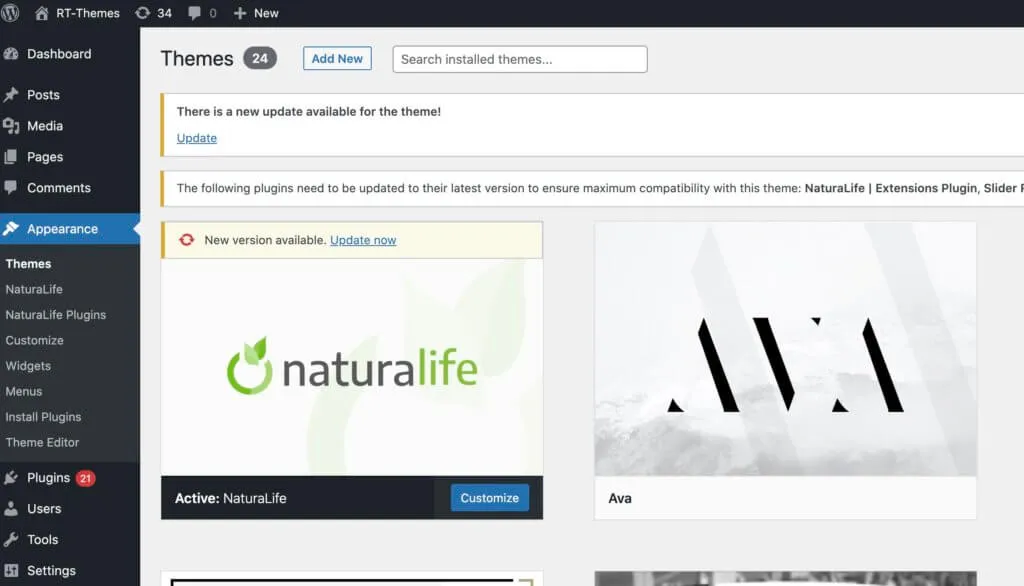
If the update does not go through:
- If you do not see Update now, go to Dashboard › Updates to make WordPress check for updates.
- On a WordPress Multisite, you or the network administrator need to update the theme by hand.
- If you have connection problems, turn off your security plugin for the update and turn it back on afterwards.
- You can always update by hand: upload the new version the same way as a first installation.
Updating the bundled plugins
Section titled “Updating the bundled plugins”Go to RT-Theme 18 › Plugins and open the Manage Plugins tab. The free plugins from wordpress.org also update from the regular Plugins screen. RT-Theme 18 Extensions and the premium plugins update only on this tab.
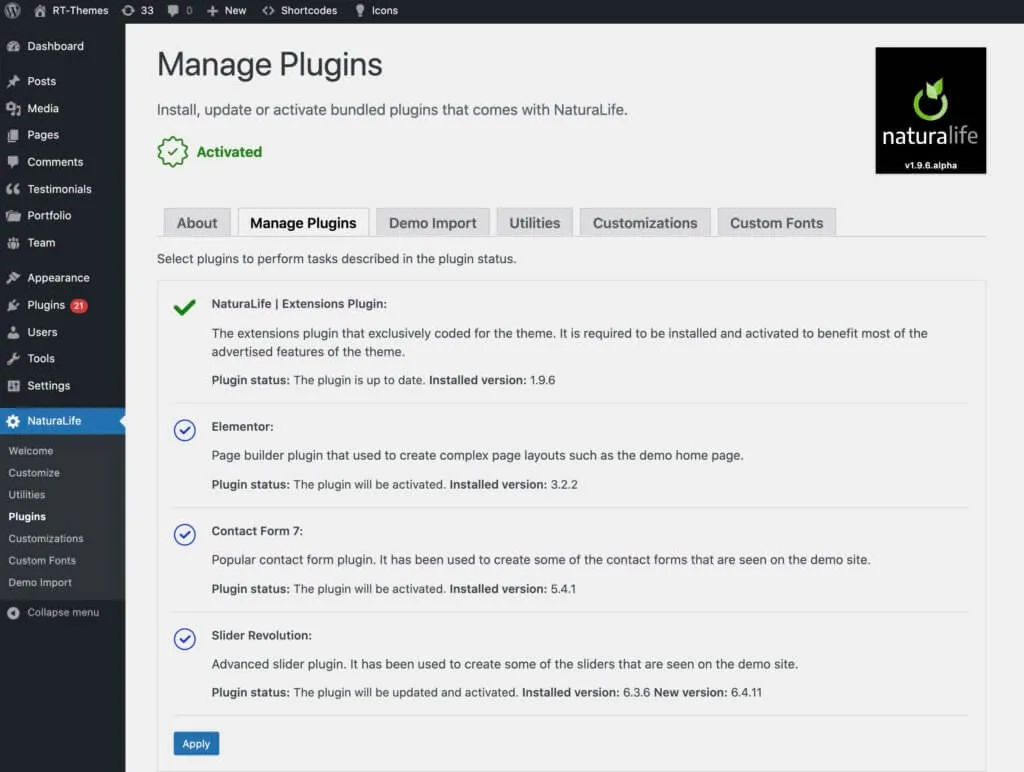
If the plugins do not update:
- If the Manage Plugins tab does not work for you, update the plugins by hand, as described above and in Installing bundled plugins.
- Make sure your user account has the permission to install and update plugins.
Requirements
Section titled “Requirements”RT-Theme 18 needs PHP 8.2.35 or newer and a current WordPress release.
PHP memory limit
Section titled “PHP memory limit”The WordPress memory limit should be 128 MB or more. WooCommerce recommends 256 MB. Raise the PHP memory limit and upload size explains how to check and raise it.
Upload size, post size and execution time
Section titled “Upload size, post size and execution time”If you get errors or warnings while you upload files, import the demo or save a page in Elementor, raise the PHP upload size, post size and execution time. If you cannot change the php.ini file yourself, ask your hosting provider. The same article lists the values to use: Raise the PHP memory limit and upload size.