
Template Builder
Creating a new template
Section titled “Creating a new template”-
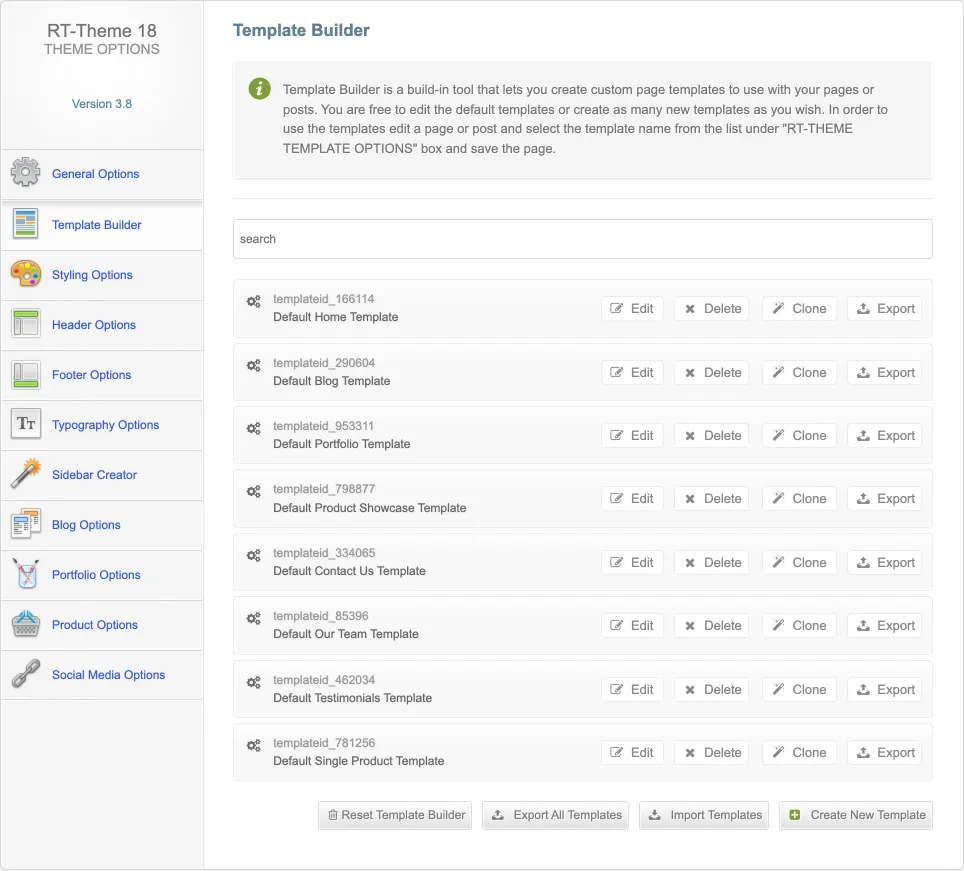
Go to RT-Theme 18 › Template Builder.
-
Click Create New Template at the bottom right of the Template Builder.
-
After you create the template, click Edit next to it in the list to open it.
-
First, give the template a clear name. You will look for this name when you assign the template to a page or post.
-
A new template has three default rows: a header row, a content row and a footer row. Each row has a button on its right side that opens the options of that row. The options depend on the type of row.
-
A content row can have one of these layouts: full width, content width or a sidebar layout. You can add as many content rows as you want, to give your page separate sections.
-
The header, footer and content rows can hold modules of any kind.
-
Add modules to each row from the Module List.
-
Add more content rows if you need content with another layout (full width, content width or sidebar), background or image.
-
Add columns to a row and set the column width to present your content in columns.
-
Add modules to your columns and adjust their settings.
-
When you finish adding and arranging modules in the rows and columns, click Save Template at the top right of the Template Builder.
Adding a template to a page or post
Section titled “Adding a template to a page or post”-
Create a template and add the modules you want. Drag the modules to their places in the template, and save the template, or your changes are lost.
-
Open an existing page or post in the WordPress admin, or create a new one.
-
Under RT-Theme Template Options, select the template you want to use for this page or post.
-
Update (save) the page or post.
-
View the page on your site.
What the Template Builder is
Section titled “What the Template Builder is”The Template Builder is a built-in tool of RT-Theme 18. With it you create custom page layouts, called templates, and use them on your pages and posts. You build a template from modules. A module is a predefined block that shows content on your site, following the settings of the module.
With templates and modules, you can add the same extra content to any page or post, including custom posts. Templates let you give every page its own layout, if you want to. They are an easy way to design layouts that you add to the default content of a page or post.
The download package includes demo templates as Template Builder exports in the RT-Theme 18 - Demo Templates folder: Default Templates, Home Page Samples 1-14, Other Pages and All Templates. You can import them into your site.
The content row
Section titled “The content row”The most important module is the content row, because it is the main container for building your layouts. You can add the content row many times to one template, and give it different layout settings each time: full width, content width (based on your theme settings) or a sidebar layout.
Rows and columns
Section titled “Rows and columns”Two kinds of modules can hold other modules: rows (header, footer and content) and columns. They are containers. You drag other modules into them, and those modules show the actual content.
- A row can hold column modules. A column can hold other modules, but it can never hold a row.
- The header, footer and content rows are the top-level modules. Each can have its own color settings and a custom background (image or color) for that row only.
- A content row can be full width or content width (the theme setting in RT-Theme 18 › Styling Options) and can have a sidebar layout.
- A template can have as many content rows as you want, but only one header row and one footer row.
What you can do with templates and modules
Section titled “What you can do with templates and modules”- Modules with text boxes support shortcodes.
- Some modules pull in content, for example a product list, a blog list, a portfolio list or a slider. Their settings decide which content appears and how it looks on your page.
- You can create as many templates as you want, but you can assign only one template to a page or post at a time.
- You can export templates and import them into another site, so you do not need to design them again. As a designer, you can prepare your templates on a hidden server and set up a client’s site quickly.
- You can clone a module within the same content row, or copy it from one content row and paste it into another.
- RT-Theme 18 comes with several default templates, which you can change or delete. You can always reset the Template Builder to the default templates. A reset deletes all your custom templates, so export the templates you want to keep first. You can import them again after the reset.
- You do not have to use the Template Builder. Once you discover what it can do, though, you will likely use it on every page.
The Default Page / Post Content module
Section titled “The Default Page / Post Content module”Every page or post you create has its own body text: the default content, the story you want to tell on that page. When you assign a template to the page, make sure this content still shows on your site.
That is why the Default Page / Post Content module is so important. It pulls in the content from the editor of the page or post, and shows it where you placed the module in the template.
Template Builder video instructions
Section titled “Template Builder video instructions”We made video tutorials that show how the Template Builder works. They have no sound.
- You find the links to the video tutorials in the documentation file that comes with your ThemeForest download.
- The documentation file is
index.htmlin theDocumentationfolder of the theme package.
What the video tutorials cover
Section titled “What the video tutorials cover”Part 1
Section titled “Part 1”- Introducing the Template Builder
- Creating a new template and assigning it to a page
- Adding columns
- Adding text with icons
Part 2
Section titled “Part 2”- Adding a new content row
- Customizing the background of a content row and its columns
- Adding your portfolio items to your template
- Adding text with custom fonts and colors
- Adding a sidebar and choosing the widget areas to show
Part 3
Section titled “Part 3”- Customizing the header row of a template
- Controlling the breadcrumb menu and the title positions
- Adding a slider to the header row
- Adding a Google map to the header row
Part 4
Section titled “Part 4”- Customizing the footer content row of a template
- Controlling the footer widgets
- Adding a banner box to the footer content row
Part 5
Section titled “Part 5”- Customizing the colors of a content row
- Customizing the background of a content row
Part 6
Section titled “Part 6”- Setting a page as your home page
- Customizing the default home page template