Contact Forms
Creating custom forms
Section titled “Creating custom forms”BusinessLounge has a built-in contact form. You add it to a page with its shortcode or with the contact form element of your page builder. It is the quickest way to put a simple contact form on your site.
For a customised contact form or a newsletter signup form, use the free Contact Form 7 plugin. Set up a contact form with Contact Form 7 explains how to install it, build a form and place it on a page.
Sample booking and newsletter forms
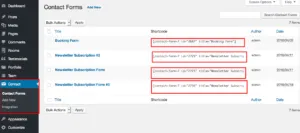
Section titled “Sample booking and newsletter forms”BusinessLounge comes with sample Contact Form 7 forms, such as a booking form and newsletter subscription forms.
- Install and activate Contact Form 7.
- Go to Tools › Import › WordPress and import
Demo Contents/Forms/contact-form-7.xml. You find it in the All files and documentation package, which you download from the Downloads page of your ThemeForest account. - Edit the forms and update their mail settings, such as To, From and the sender name.
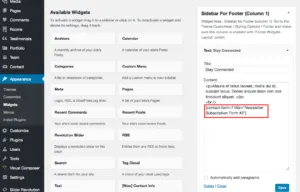
- To show a newsletter form in the footer or a sidebar, paste its shortcode into a widget.