Portfolio
About the portfolio
Section titled “About the portfolio”Portfolio is a built-in tool that lets you create flexible portfolio lists and pages. If you want to present products or services in an organised way, portfolio posts are a good fit. You can change the permalink structure of the portfolio in Settings › Permalinks.
Creating a portfolio post
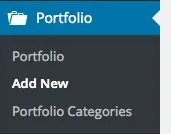
Section titled “Creating a portfolio post”To create a portfolio item, go to Portfolio › Add New in your admin.
Featured image and image galleries
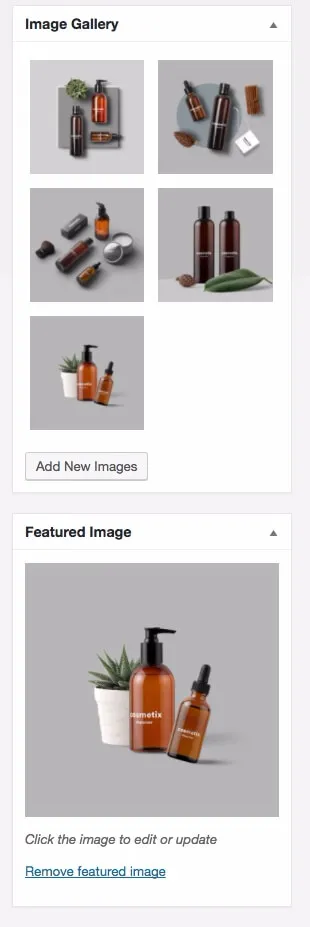
Section titled “Featured image and image galleries”Use the Featured Image box to upload or select the featured image of the post. The listing pages and carousels show the featured image. It is also added to the image gallery, unless you turn that off in the Portfolio Options box. If you choose the Image / Gallery portfolio format, select or upload the gallery images in the Image Gallery box.
Single portfolio posts
Section titled “Single portfolio posts”A single portfolio page can have one of these layouts:
- Default layouts
- Image / Gallery
- Video
- Custom layouts
- WPBakery Page Builder
- Regular page
Default layouts
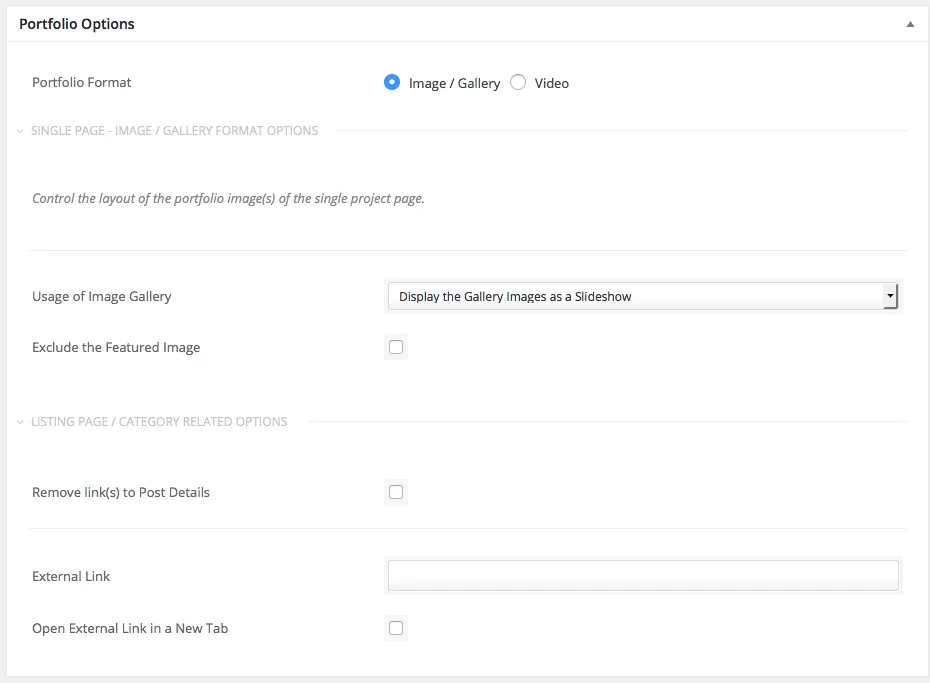
Section titled “Default layouts”A portfolio item has two formats: Image / Gallery and Video. Choose the layout that suits your content with the settings in the Portfolio Options box.
Project info and custom layouts
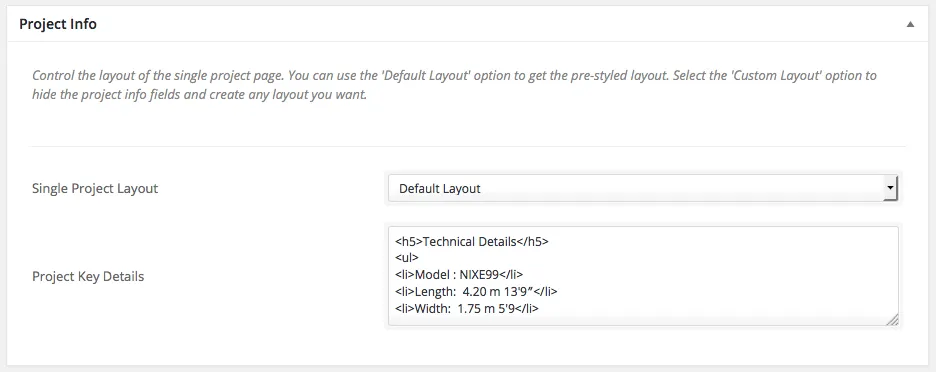
Section titled “Project info and custom layouts”The Project Info box places a box with project details next to the main content. It is optional: choose Custom Layout to remove the box completely. If you want to build a custom layout with a page builder or shortcodes, you must choose Custom Layout.
- A portfolio post can have a featured image and several more images, which appear as a portfolio image gallery.
- A portfolio post must be in at least one portfolio category.
- To add a featured image, click Set featured image in the Featured Image box.
- Use the settings in the Portfolio Options box to change the layout and style of the single portfolio page, or how the item behaves in a portfolio list.
Creating a portfolio listing page
Section titled “Creating a portfolio listing page”Any page can hold a portfolio list, and you can create as many lists as you want, each with its own settings.
Create with Elementor
Section titled “Create with Elementor”-
Create a new page or edit an existing one.
-
Click Edit with Elementor.

-
Find the Portfolio List element and add it to the page.
-
Adjust the element settings and save the page.
Create with WPBakery Page Builder
Section titled “Create with WPBakery Page Builder”-
Create a new page or edit an existing one.
-
Click BACKEND EDITOR to switch to WPBakery Page Builder.

-
Click the Add New Element (+) button and find the Portfolio Posts element that the theme adds.
-
Adjust the element settings and save them.
Create with a shortcode
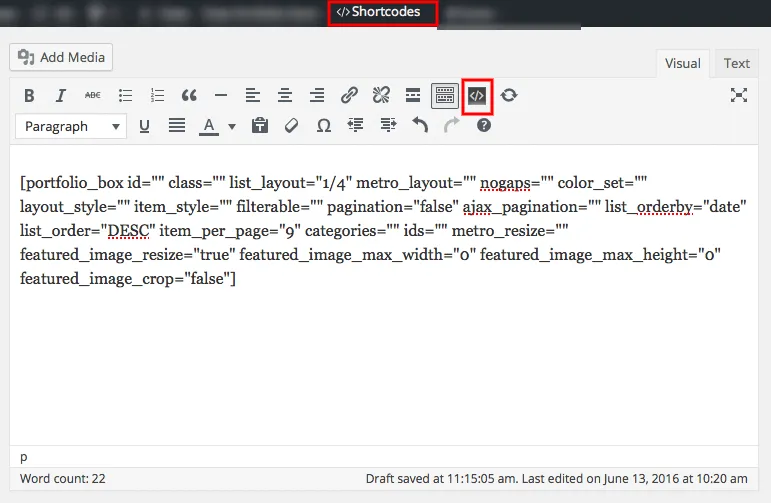
Section titled “Create with a shortcode”You can do the same without a page builder. Create a page and add the theme’s Portfolio Posts shortcode. See Shortcodes to learn more.