Theme Sliders
Content slider
Section titled “Content slider”BusinessLounge gives you two kinds of sliders. The theme’s own Content Slider shows slides with text and buttons, and you build it right inside your page builder. Slider Revolution is a bundled plugin for sliders with text, image and video layers, which you build in the plugin and then place on a page.
To add a content slider, use the slider element in Elementor or WPBakery Page Builder, or the shortcode. The shortcode generator shows the details of the shortcode.
Adding with Elementor
Section titled “Adding with Elementor”- In the Elementor widget list, find the Slider element and add it to the page.
- Add slides with the + ADD ITEM button and set them up.

Adding with WPBakery Page Builder
Section titled “Adding with WPBakery Page Builder”- Click Add New Element and choose Content Slider.
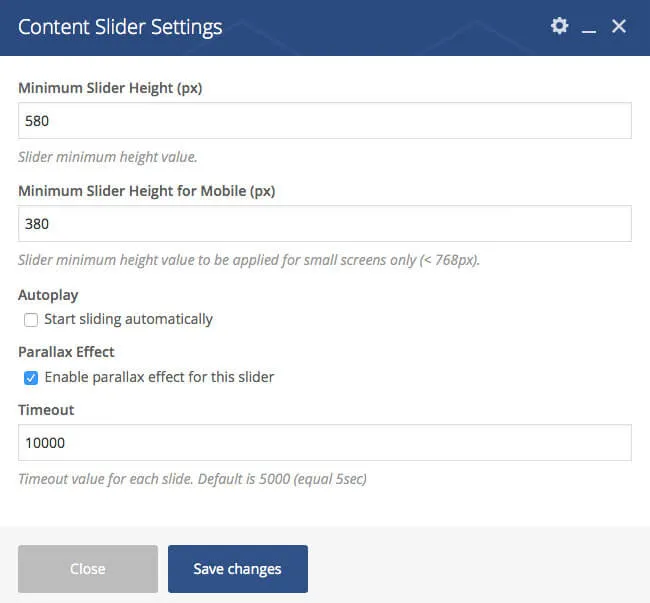
- The element you added is the parent of your slides. Set the slider options in it, such as the slider height and the timeout.
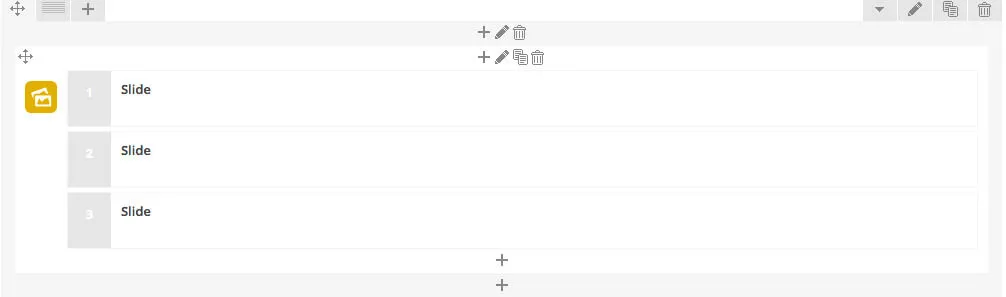
- Add slides with the + icon inside the parent element.
- Each slide can have its own style and content.
This is how one of the demo sliders looks in WPBakery Page Builder:
Slider Revolution
Section titled “Slider Revolution”Slider Revolution is a plugin for responsive sliders with text, video and image layers. To show a slider on a page, add a Slider Revolution element and choose the slider you built in the plugin. To learn how to build a slider, read the Slider Revolution documentation.
Adding a slider with Elementor
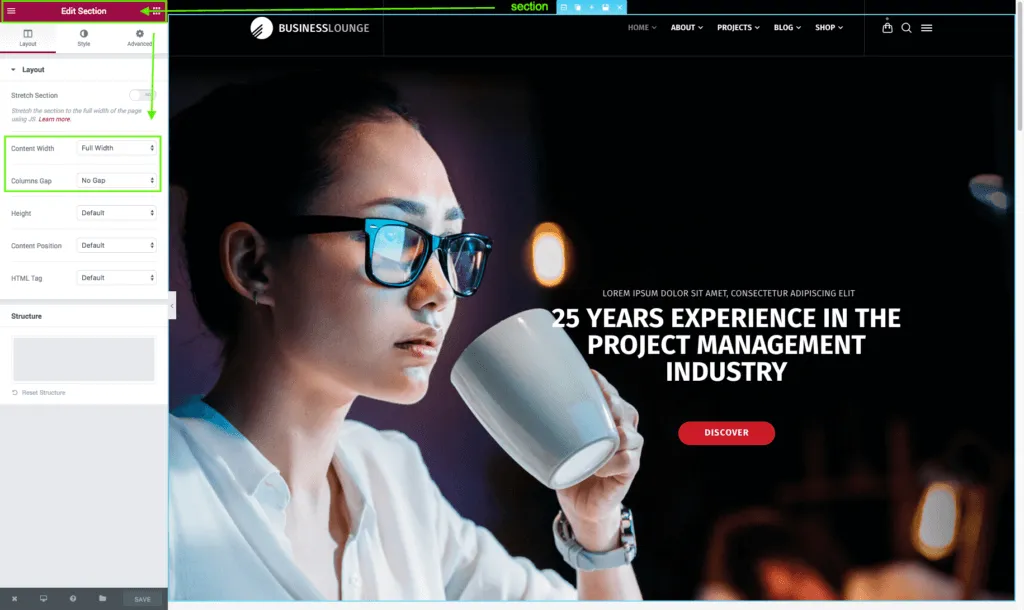
Section titled “Adding a slider with Elementor”Add a Slider Revolution element and choose your slider. Then set the section that holds it to full width with no column gap.

Adding a slider with WPBakery Page Builder
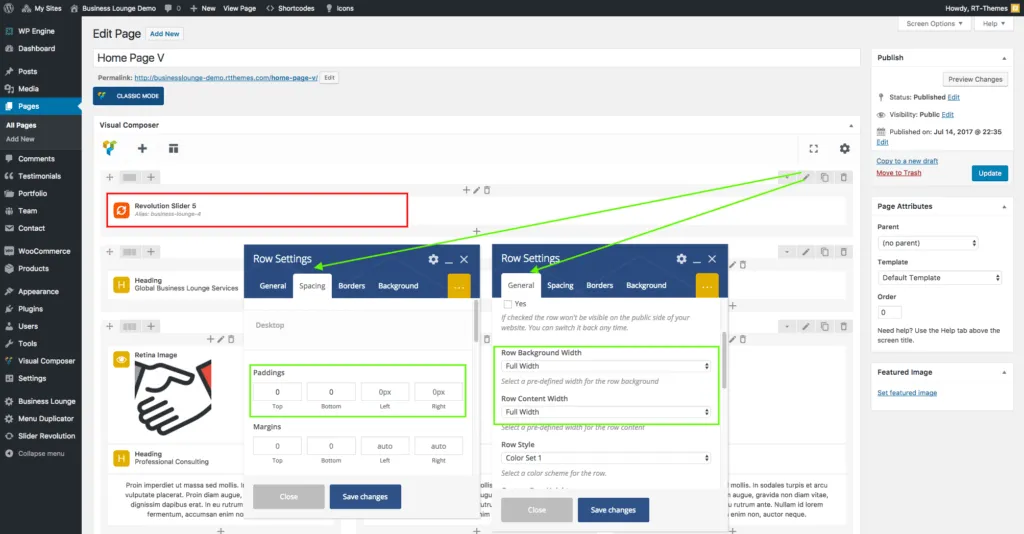
Section titled “Adding a slider with WPBakery Page Builder”Add a Slider Revolution element and choose your slider.
Design notes
Section titled “Design notes”Make sure the parent row or section of the Slider Revolution element has no padding and is set to full width.