
Shortcodes
What shortcodes do
Section titled “What shortcodes do”BusinessLounge includes many shortcodes that add ready-made content blocks to a page. You can also put some shortcodes in a text or HTML widget in a sidebar, or in any other text area that accepts them.
WordPress runs a shortcode when a visitor views the page. For example, a contact form shortcode shows a contact form at the place where you inserted it.
Editor mode
Section titled “Editor mode”The shortcode generator button sits in the toolbar of the Classic Editor. The Classic Editor has two modes: Visual (in some languages called WYSIWYG) and Text (in some languages called HTML). To insert shortcodes with the button, use the Visual mode.
In the block editor, paste the shortcode into a Shortcode block.
The shortcode generator button
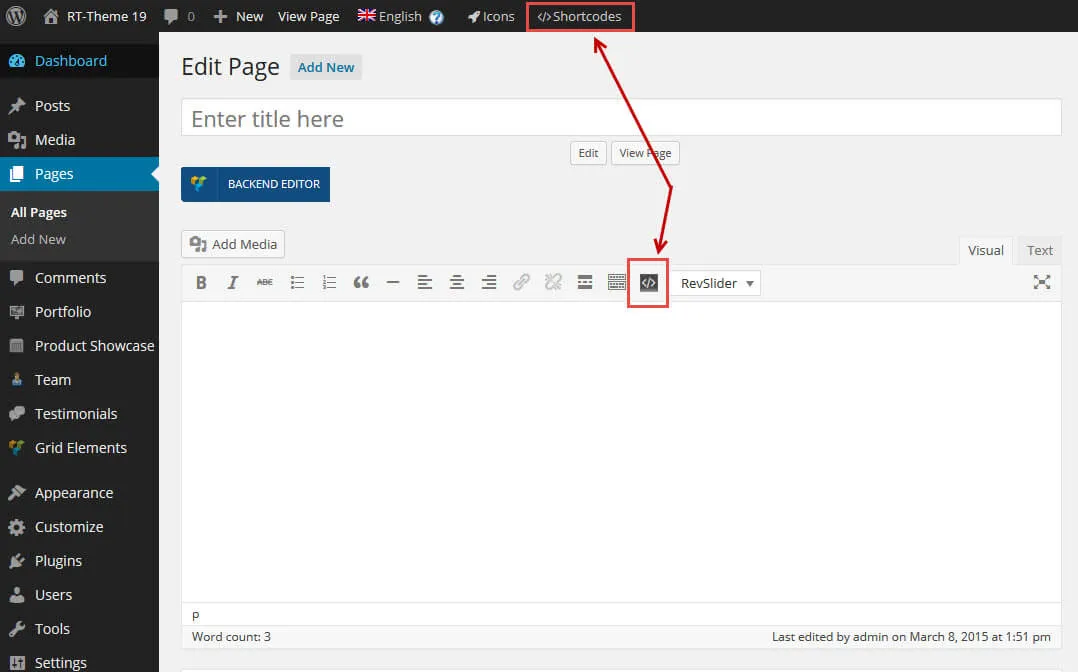
Section titled “The shortcode generator button”You can open the Theme Shortcodes generator in two ways:
- Click the
</>button above the editor text area (Classic Editor, Visual mode). - Click
</> Shortcodesin the WordPress admin bar at the top of the screen.
Either one opens a popup with a list of the available shortcodes.
Shortcodes explained
Section titled “Shortcodes explained”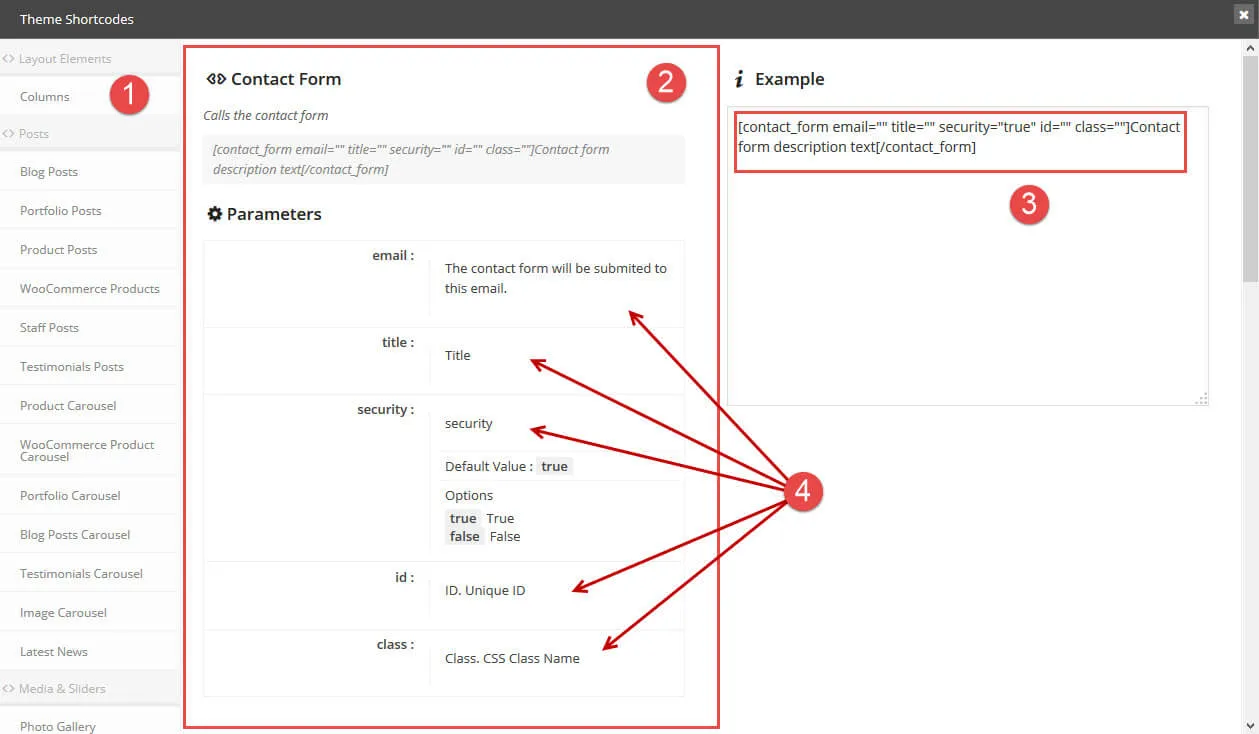
The popup has these parts:
- A list of the available shortcodes.
- The selected shortcode, with an explanation of what it does.
- An example of the shortcode, ready to copy. Change it by following the explanations of its parameters.
- Each parameter and its options. Depending on the shortcode, this list can be long.
Adjust the example shortcode while the popup is open. Then select it, copy it, close the popup and paste the shortcode where you want it to appear: in the page content, a text area or a text widget.