Tools
Utilities
Section titled “Utilities”BusinessLounge adds its own tools to the BusinessLounge menu in your admin. Use them to speed up your site, add your own fonts, and move your theme settings from one site or theme to another.
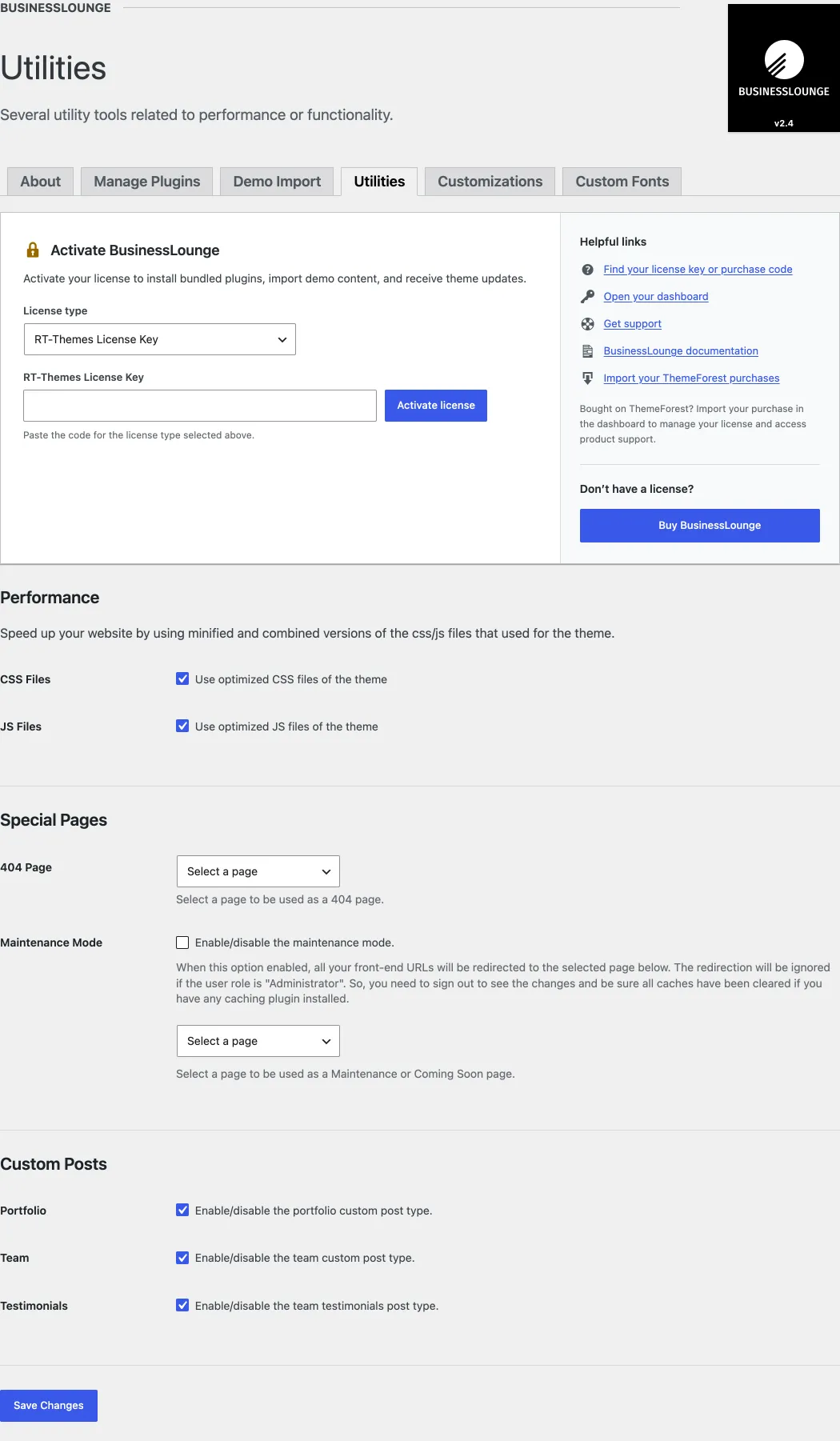
Go to BusinessLounge › Utilities for three kinds of settings:
- Performance: speed up your site with minified and combined versions of the theme’s CSS and JavaScript files.
- Special Pages: set a page as your 404 page, or turn on maintenance or under construction mode without a third-party plugin.
- Custom Posts: turn the Portfolio, Team and Testimonials post types on or off.
Custom Fonts
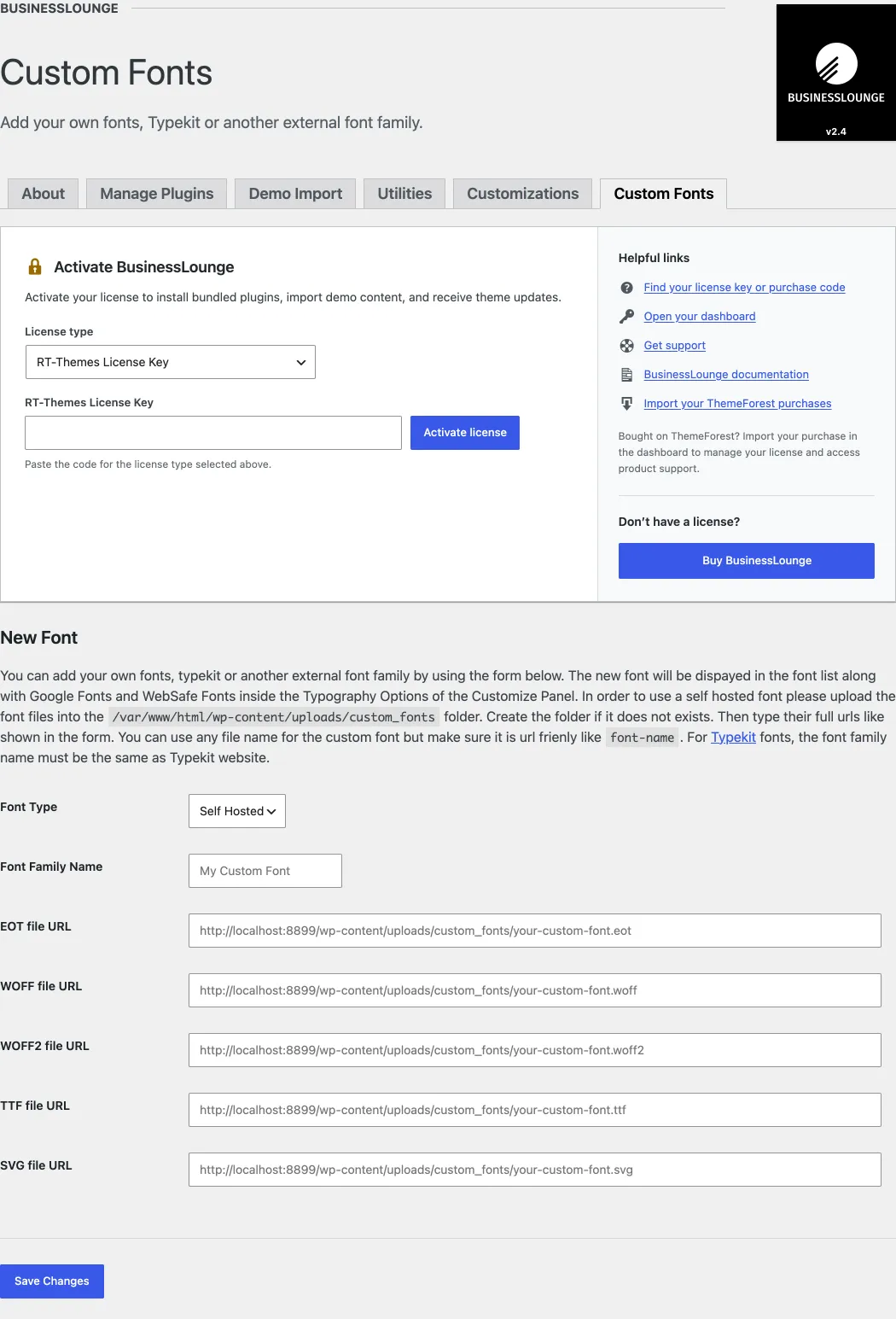
Section titled “Custom Fonts”You can use self-hosted fonts or Adobe Fonts (formerly TypeKit) with the theme. Go to BusinessLounge › Custom Fonts and add a font by following the instructions on the screen. The new font then appears at the top of the font lists in Appearance › Customize › Typography Options.
Import / Export Theme Settings
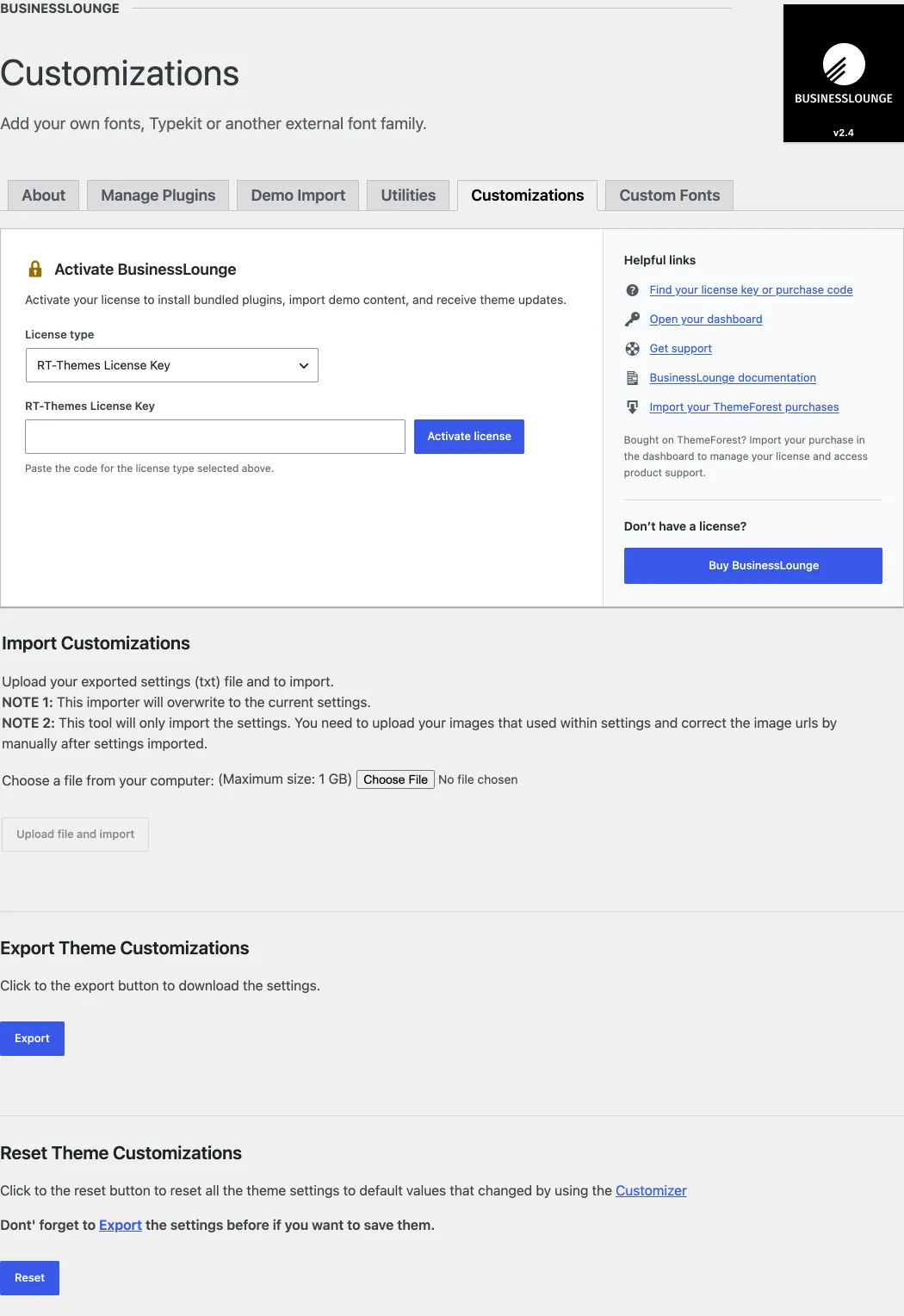
Section titled “Import / Export Theme Settings”You can export your theme settings, including the Customizer settings, and import them again on another site or theme. If you want to switch to a child theme, export your settings first, then import them into the child theme. The tools are in BusinessLounge › Customizations: Import Customizations, Export Theme Customizations and Reset Theme Customizations.