Miscellaneous
Special class names
Section titled “Special class names”NaturaLife has some useful class names. Use them in the CSS Classes field of an Elementor widget, section or column, or anywhere you write HTML yourself.
Lightbox
Section titled “Lightbox”| Class | What it does |
|---|---|
rt_lightbox | Add it to an image or video link (YouTube or Vimeo only) to open the media in a lightbox. |
Boxed design and shadows
Section titled “Boxed design and shadows”| Class | What it does |
|---|---|
boxed | Boxed design |
shadow | Shadow 1 |
shadow-2 | Shadow 2 |
shadow-3 | Shadow 3 |
Hover styles
Section titled “Hover styles”| Class | What it does |
|---|---|
hover-shadow | Adds a shadow on mouse over |
hover-opacity | Lowers the opacity on mouse over |
Alignments
Section titled “Alignments”aligncenter, alignleft and alignright align an element in the middle, on the left or on the right.
Text alignments
Section titled “Text alignments”| Class | What it does |
|---|---|
text-left | Left-aligned text |
text-center | Centred text |
text-right | Right-aligned text |
text-justify | Justified text |
text-nowrap | No text wrapping |
Text alignments for small screens
Section titled “Text alignments for small screens”| Class | What it does |
|---|---|
mobile-text-left | Left-aligned text on small screens |
mobile-text-center | Centred text on small screens |
mobile-text-right | Right-aligned text on small screens |
Bootstrap class names
Section titled “Bootstrap class names”You can use the responsive display classes of Bootstrap, described in the Bootstrap display utilities. For example, to hide an element on phones and show it from tablets up, use d-none d-md-block.
Typography class names
Section titled “Typography class names”There is a class name for each font you choose in Typography Options. For example, to use the heading font in a widget such as a table, add heading-font to the widget’s CSS Classes field.
| Class | Font |
|---|---|
heading-font | Heading font |
body-font | Body font |
secondary-font | Secondary font |
menu-font | Menu font |
sub-menu-font | Submenu font |
Colours
Section titled “Colours”| Class | Colour |
|---|---|
body-font-color | Body font colour |
primary-font-color | Primary font colour |
light-font-color | Light font colour |
heading-color | Heading font colour |
Creating a one-page design
Section titled “Creating a one-page design”A one-page design takes two steps:
- Create a page whose sections have unique IDs.
- Create a menu that links to those IDs.
Creating the page
Section titled “Creating the page”Create a new page, or edit an existing one, and give each section that the menu should jump to a unique ID.
Defining sections in Elementor
Section titled “Defining sections in Elementor”There are two ways to do this in Elementor:
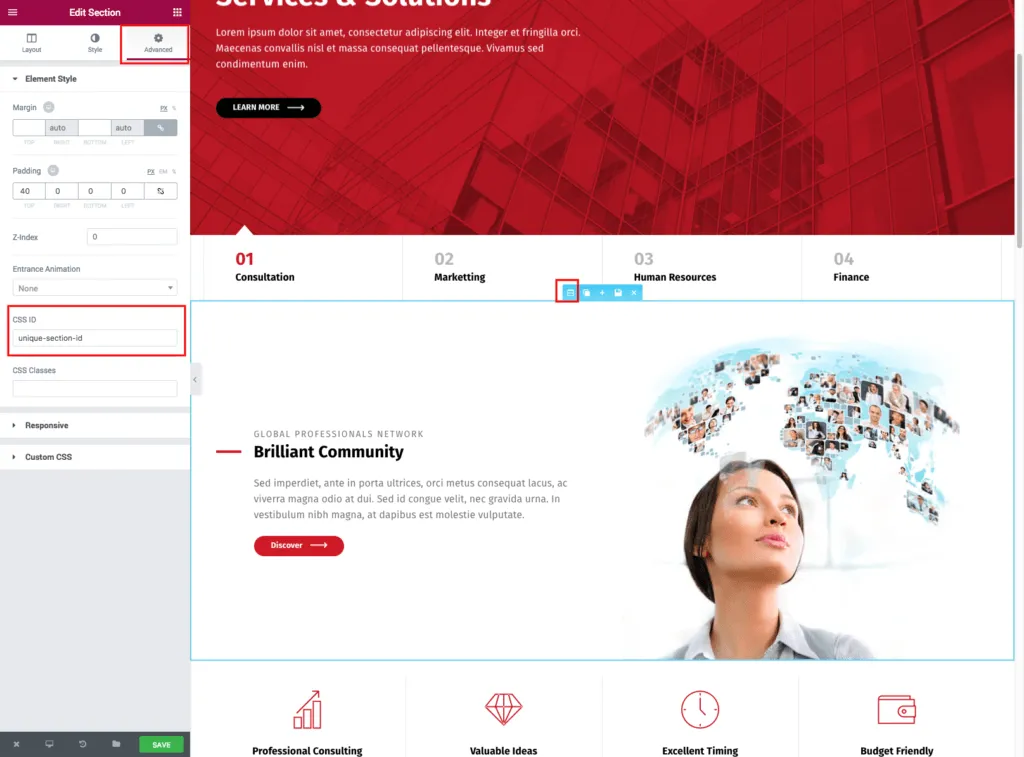
-
Enter the ID in the CSS ID field on the Advanced tab of a section or column.
-
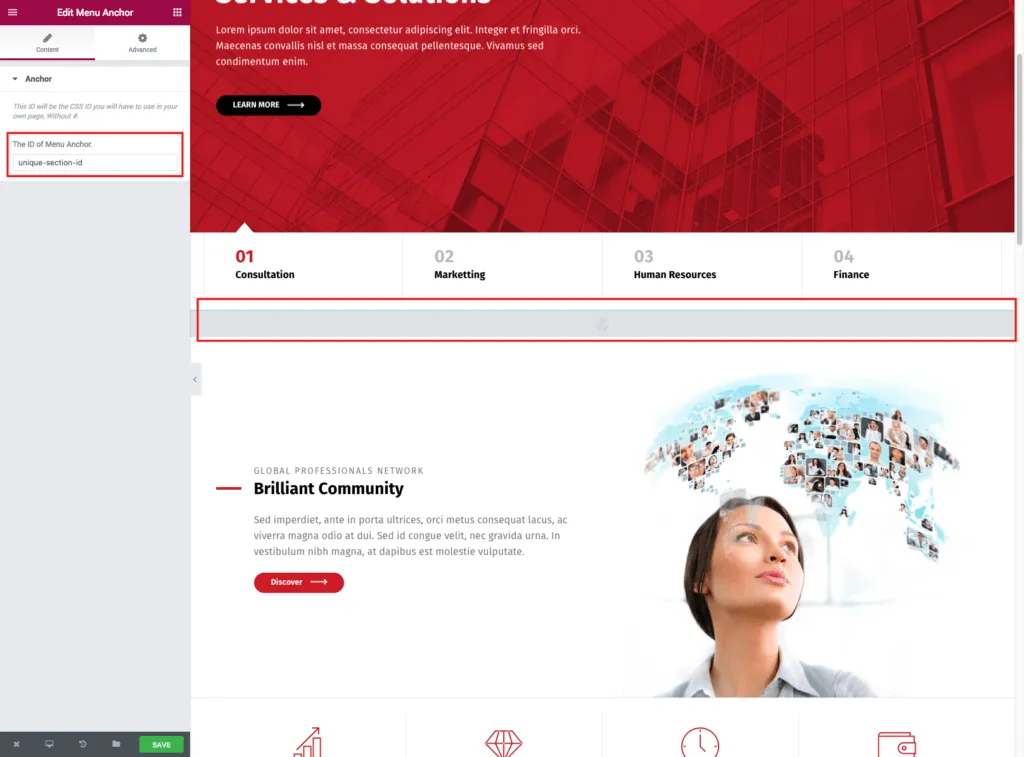
Or add Elementor’s Menu Anchor widget above the section and enter the ID there.
Creating the menu
Section titled “Creating the menu”-
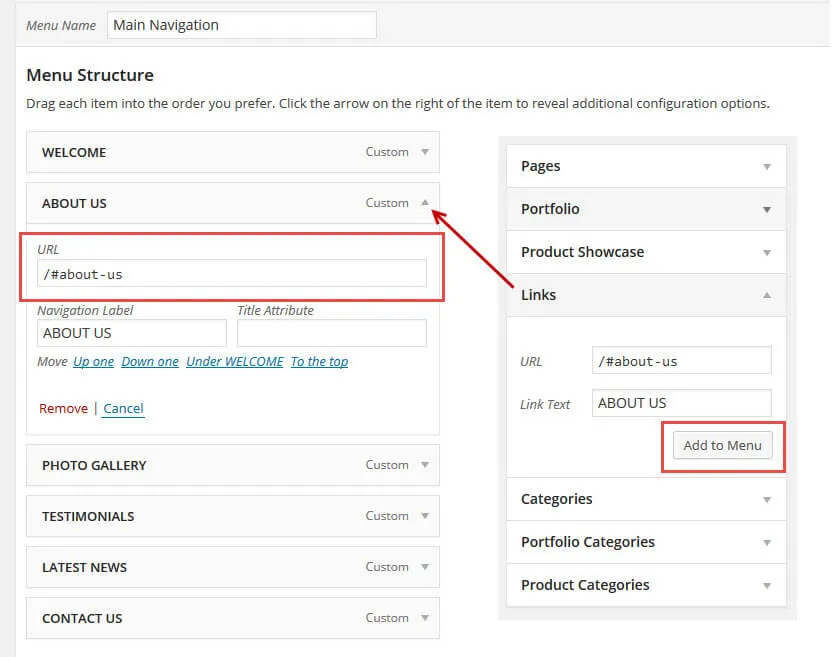
Create a new menu in Appearance › Menus.
-
Add a Custom Link to the menu with the URL
/#unique-section-id, using the ID of the section on the page.